Review and confirm your assets
Before shot rendering begins, MOVO AI prepares the visual and audio references that define your video, including characters, key objects, scenes, voices, narration, music, and background audio. Review these assets carefully before continuing. Once confirmed, MOVO AI will use them as the consistent references for every later shot, so characters, objects, environments, and sound stay consistent throughout the video.
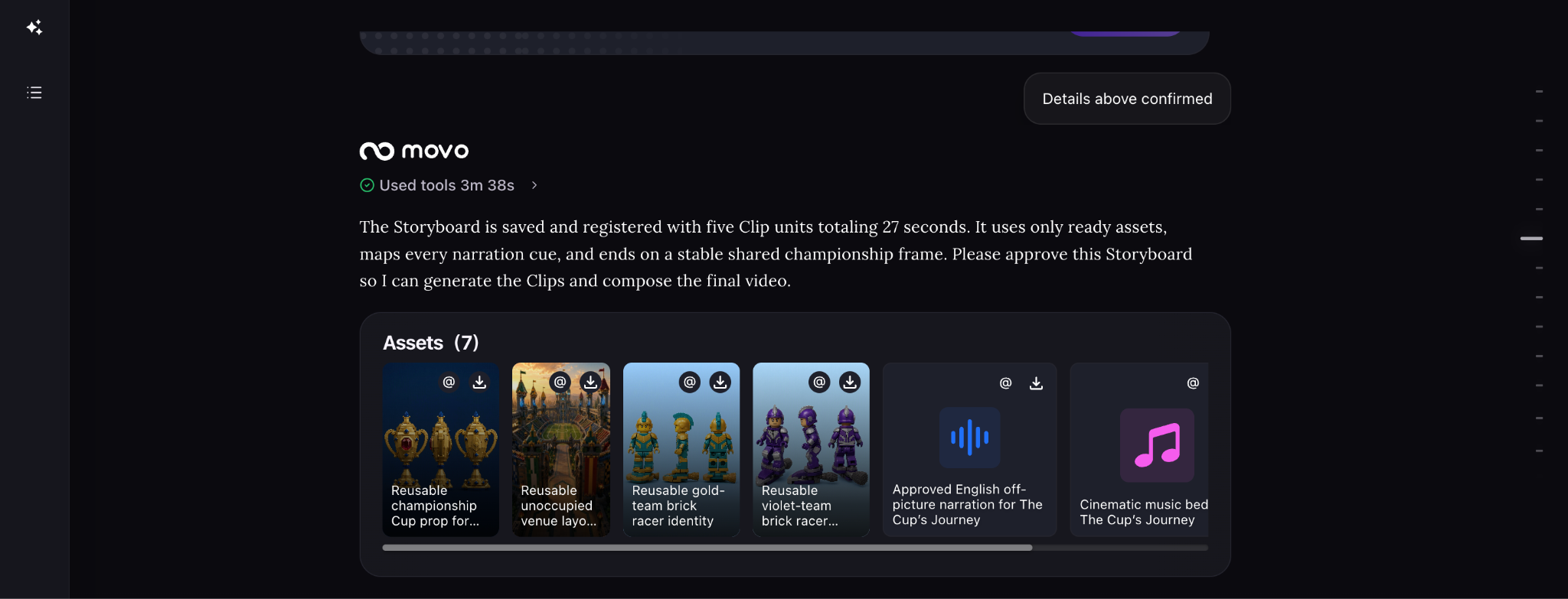
Open an asset to inspect its details
Click any generated asset to open its details. In the asset detail view, you can review the prompt used to generate it and the reference assets it was based on.
Check that both the prompt and referenced assets match your intended character, object, scene, or style before confirming the asset.
Why these assets matter
These assets are more than previews. They become the reference points MOVO uses when generating the rest of your video.
A confirmed character reference helps keep the same face, hairstyle, clothing, and visual identity across shots. Key-object references keep important props and products consistent. Scene references establish recurring environments, while approved voices, narration, music, and background audio define the sound of the video.
Once confirmed, these references stay consistent throughout later shot generation.
What to check before confirming
Review every generated reference against what your video needs:
| Asset | What to check |
|---|---|
| Characters | Face, hairstyle, clothing, colors, proportions, and overall identity. |
| Key objects & products | Shape, color, details, branding, and important design features. |
| Scenes & backgrounds | Environment, layout, visual style, lighting, and atmosphere. |
| Voices & narration | Voice identity, pronunciation, language, pacing, and emotion. |
| Music & background audio | Music direction, mood, ambience, and overall sound consistency. |
If something does not match your vision, change it now before confirming the asset set.
Review audio assets for
Check narration and voice samples for:
- Voice identity.
- Pronunciation.
- Language.
- Pacing.
- Emotion.
- Background noise.
- Consistency with the latest script.
Fix anything that looks or sounds wrong now
You do not need to restart the entire project if one asset is incorrect. Ask MOVO AI to regenerate only that character, object, scene, voice, or audio asset.
Make these changes before you confirm the asset set. Later shots will use the confirmed assets as their consistency references.
A wrong character, key objects, environment, or voice can carry into every later shot that uses it. Fixing the reference now is much easier than correcting multiple rendered shots later.
What happens after you confirm
After you confirm the asset set, MOVO begins rendering the storyboard using these references. Each later shot inherits the approved characters, objects, scenes, and audio direction to maintain continuity throughout the video.
Next steps
Continue with the next part of the workflow:
Quick answers
What assets does MOVO AI generate before rendering?
Character reference images, product images, scene backgrounds, narration audio, main-character voice samples, and other supporting visual or audio assets — all based on the approved storyboard.
What should I check when reviewing generated visual assets?
Character identity, product shape and details, wardrobe, environment, color palette, lighting, art direction, and consistency with your uploaded references.
What should I check when reviewing generated audio?
Voice identity, pronunciation, language, pacing, emotion, background noise, and consistency with the latest script.
How do I fix one incorrect asset without redoing everything?
Ask MOVO AI to regenerate that specific asset only. Restarting the entire workflow is wasteful — targeted regeneration keeps everything else that works intact.
Get 100 free credits