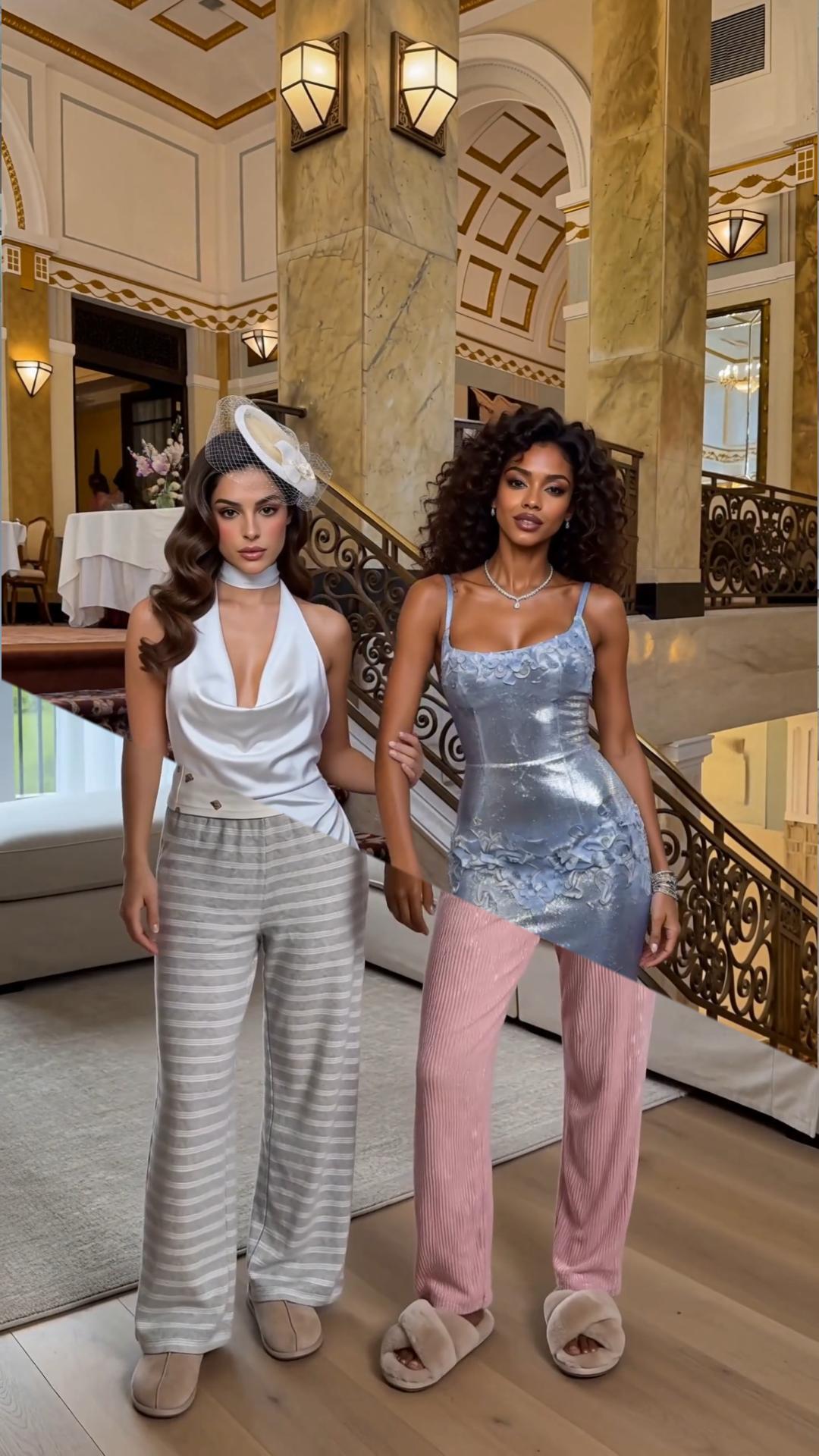
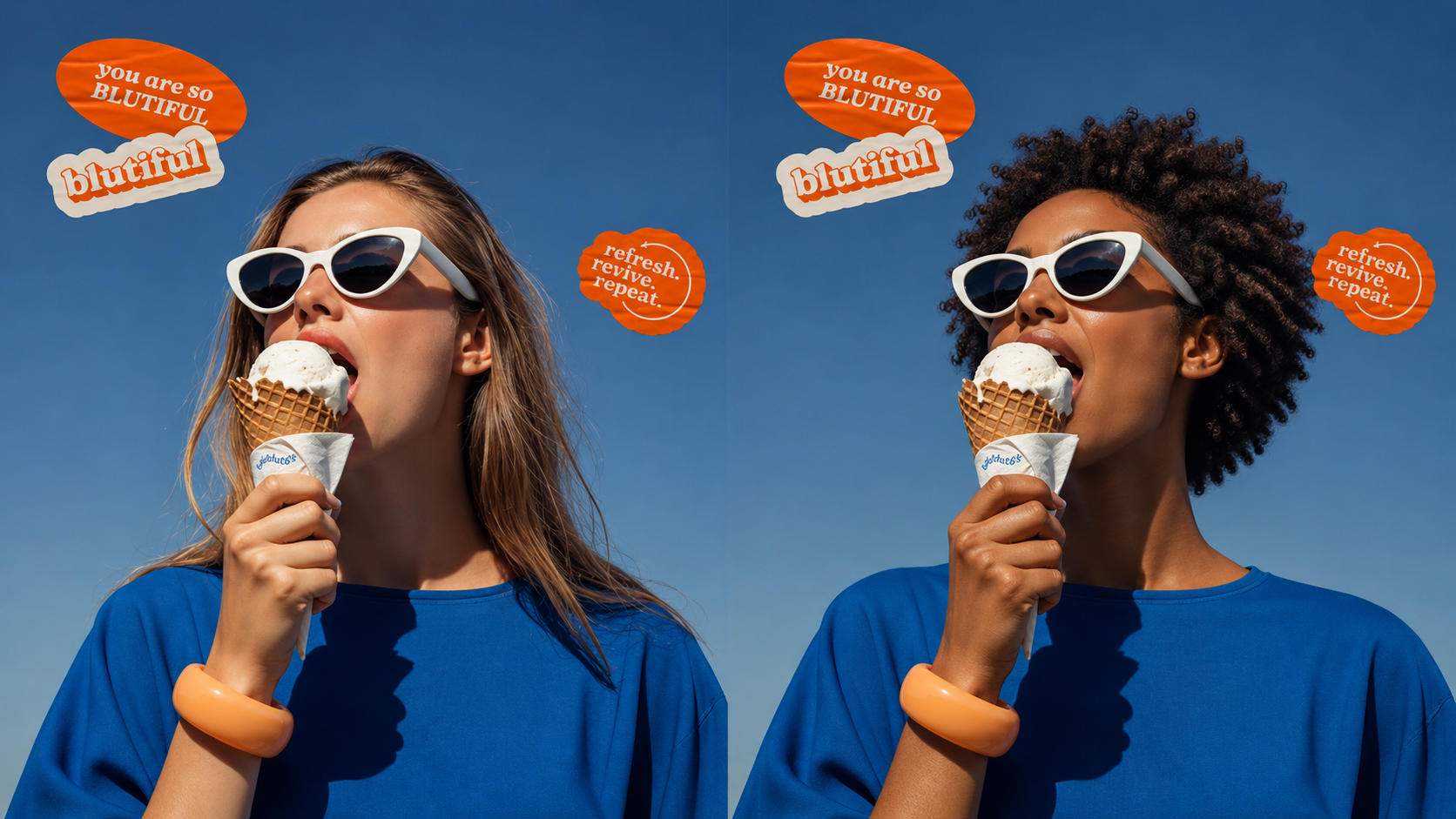
Start with the shot you want to recreate
Choose a clip where the action is easy to follow. If you want to replace a skater, a shot that shows her pushing off and turning gives the new character a performance to follow.
Add a reference videoUpload a video and reference images to create a new version with your replacements.
Upload your reference video and images of the subjects you want to use.
Tell MOVO what each image should replace, then choose the audio.
Generate your video and review the replacement in motion.
Video subject replacement uses a reference image to change who or what appears in a clip. A skater can wear your illustrated character’s jacket and helmet as she rolls into frame. The original clip provides the action, and the image shows MOVO who should perform it.
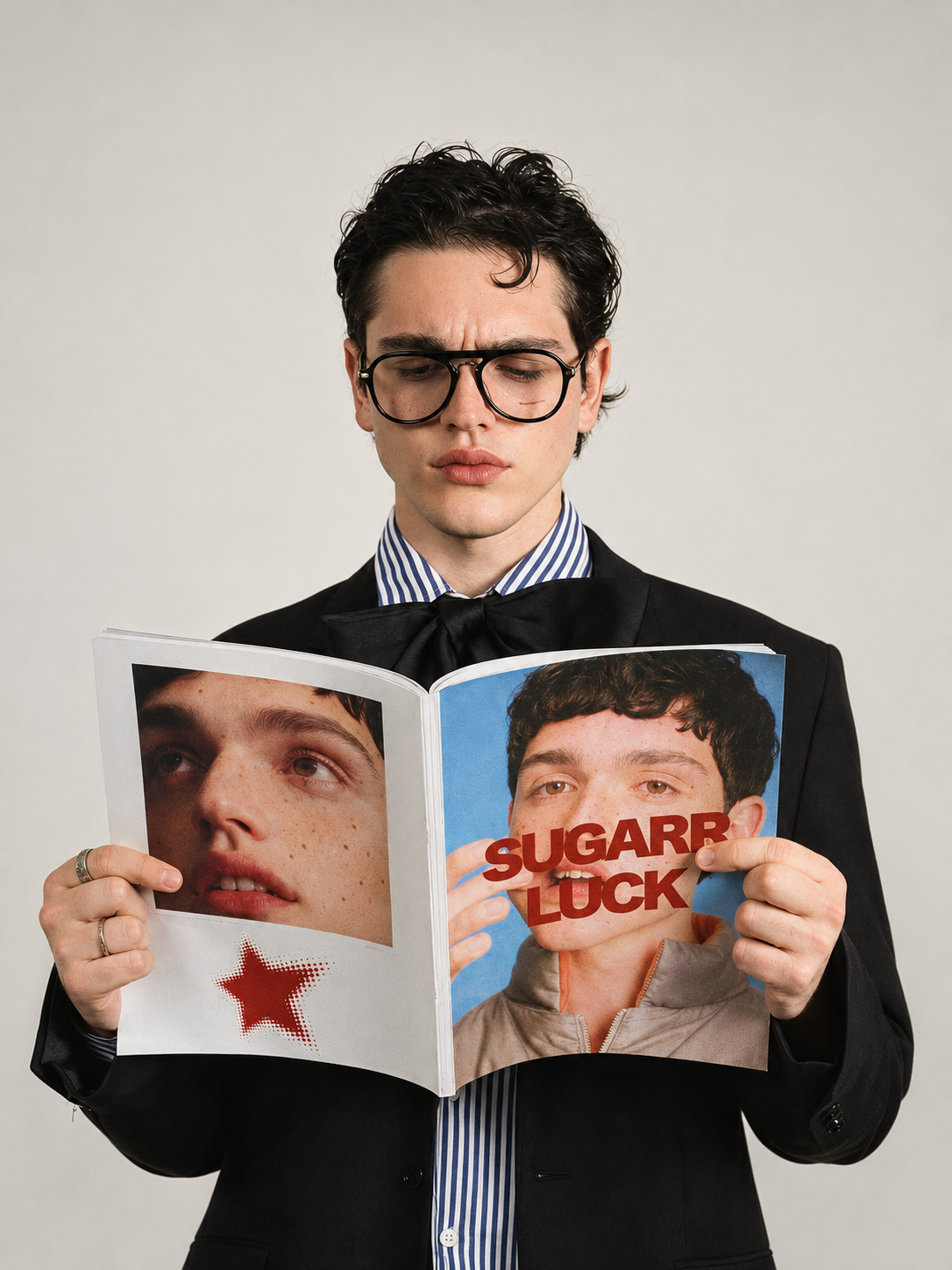
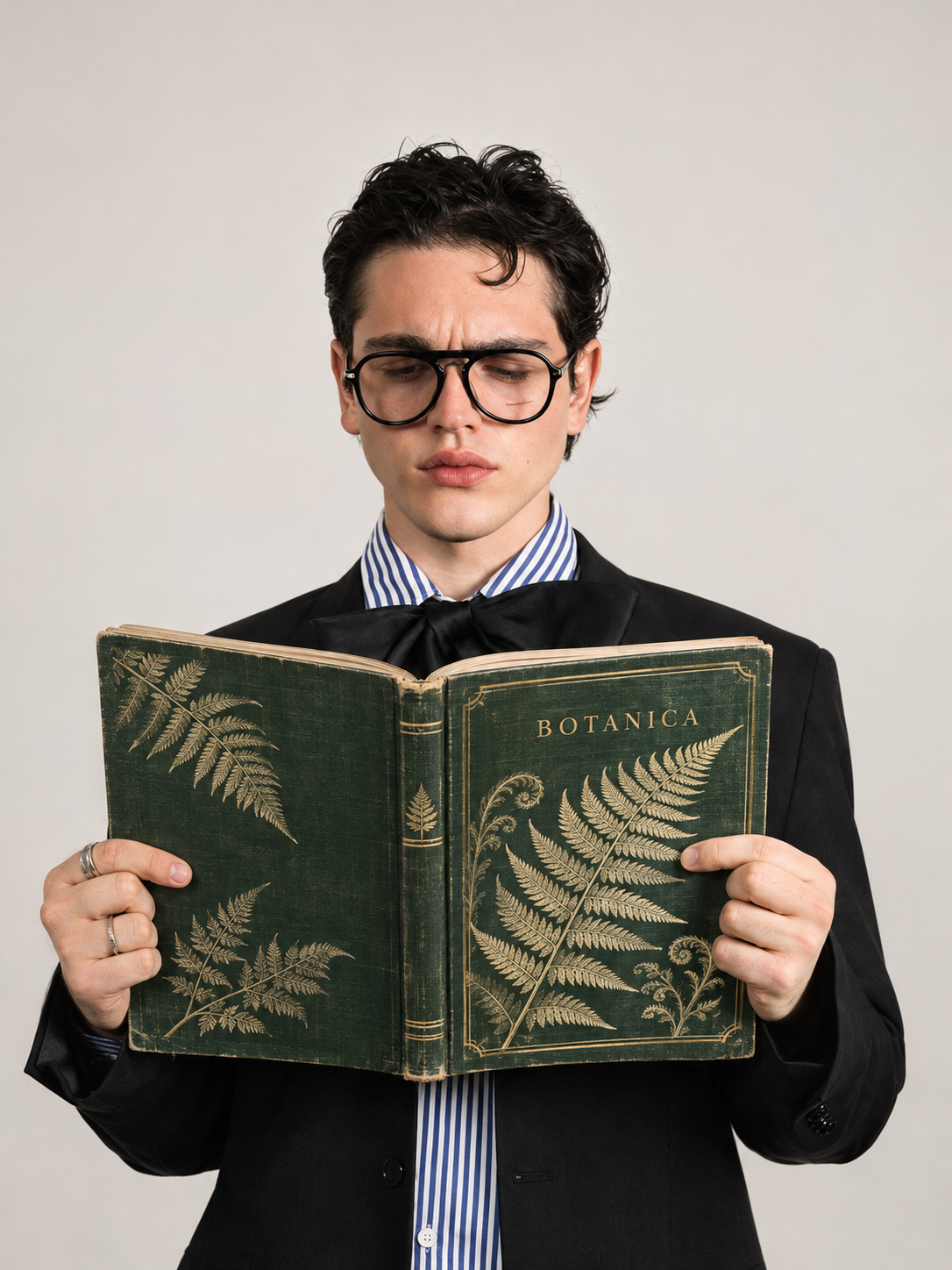
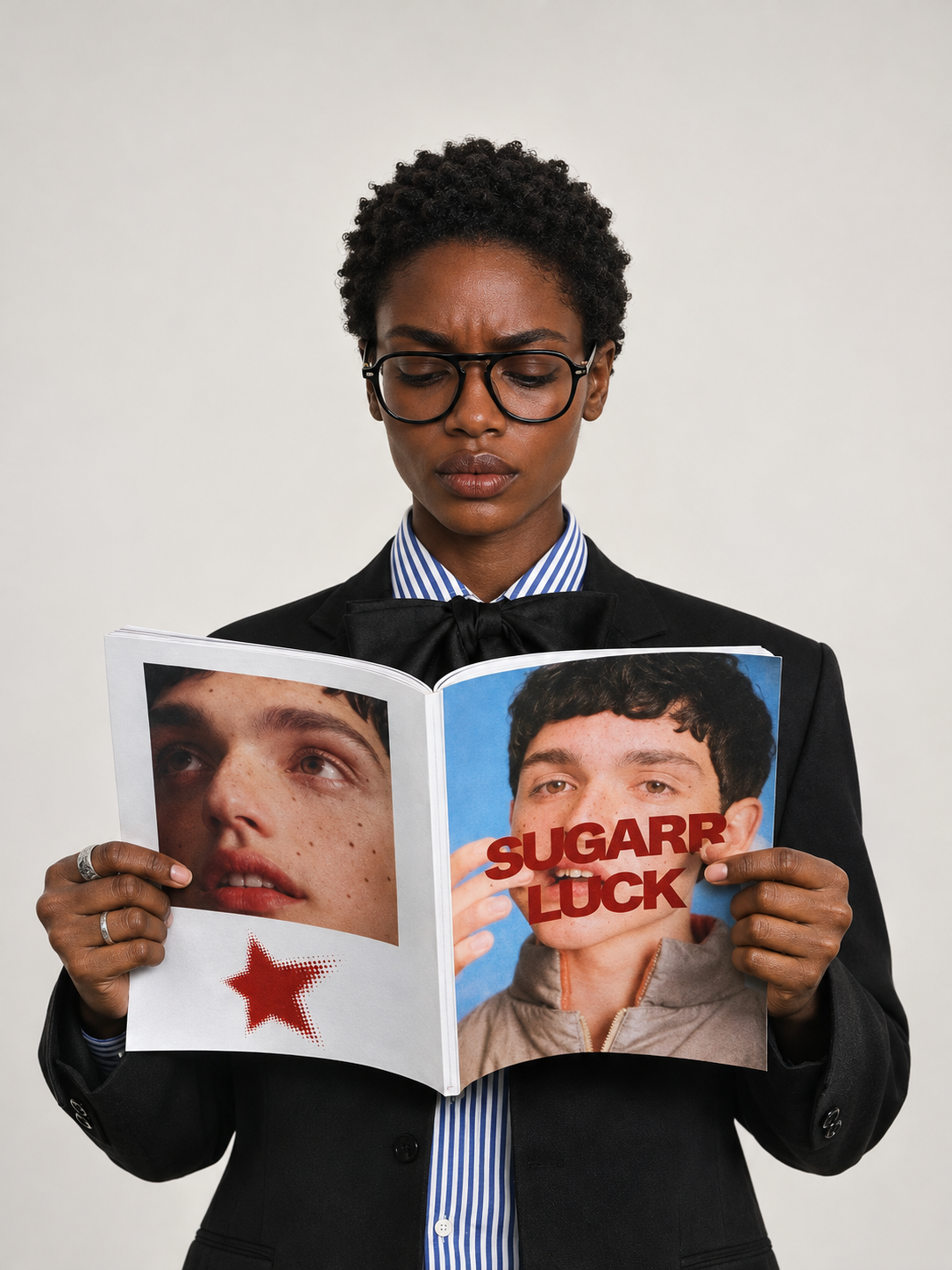

Give the AI character replacer a source video, a visual reference for each change, and a short set of instructions.
Choose a clip where the action is easy to follow. If you want to replace a skater, a shot that shows her pushing off and turning gives the new character a performance to follow.
Add a reference video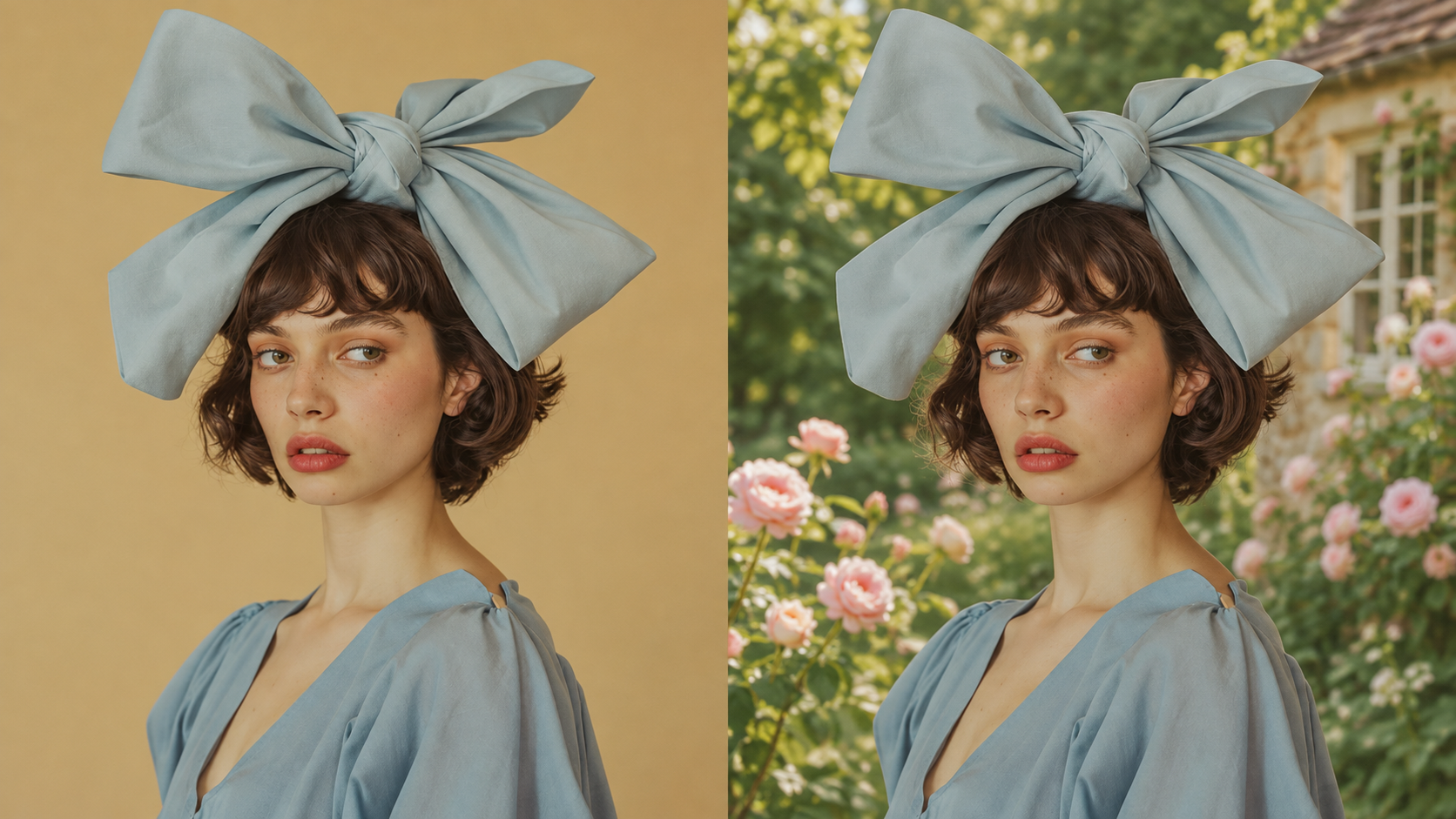
Upload a clear view of the person or character you want on screen. For a skater in a red helmet, use an image that shows both the helmet and the jacket she wears.
Add character images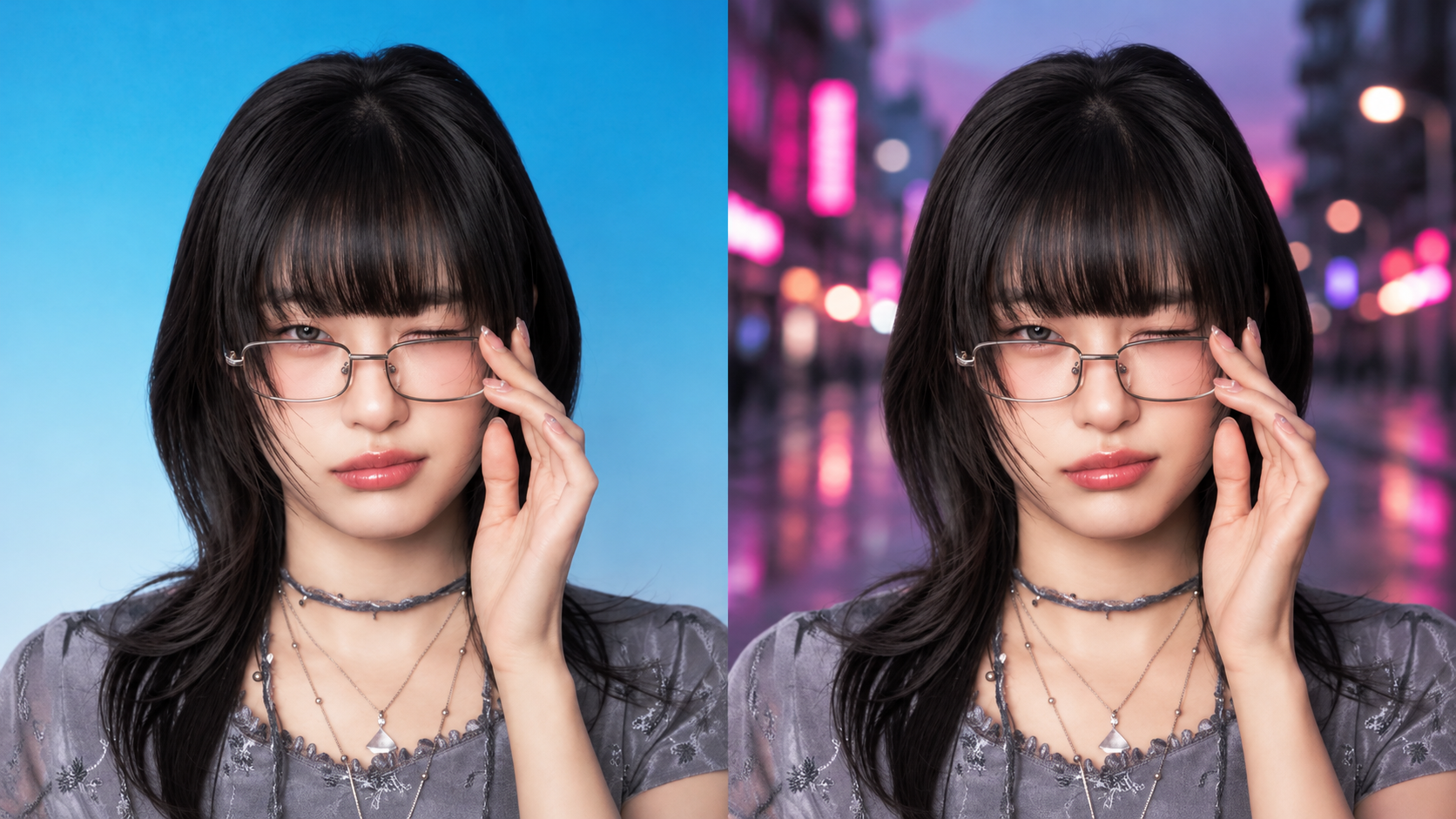
When two people share a shot, identify each by position or action. Write “Image 1 replaces the skater. Image 2 replaces the person sitting on the steps.”
Describe your replacements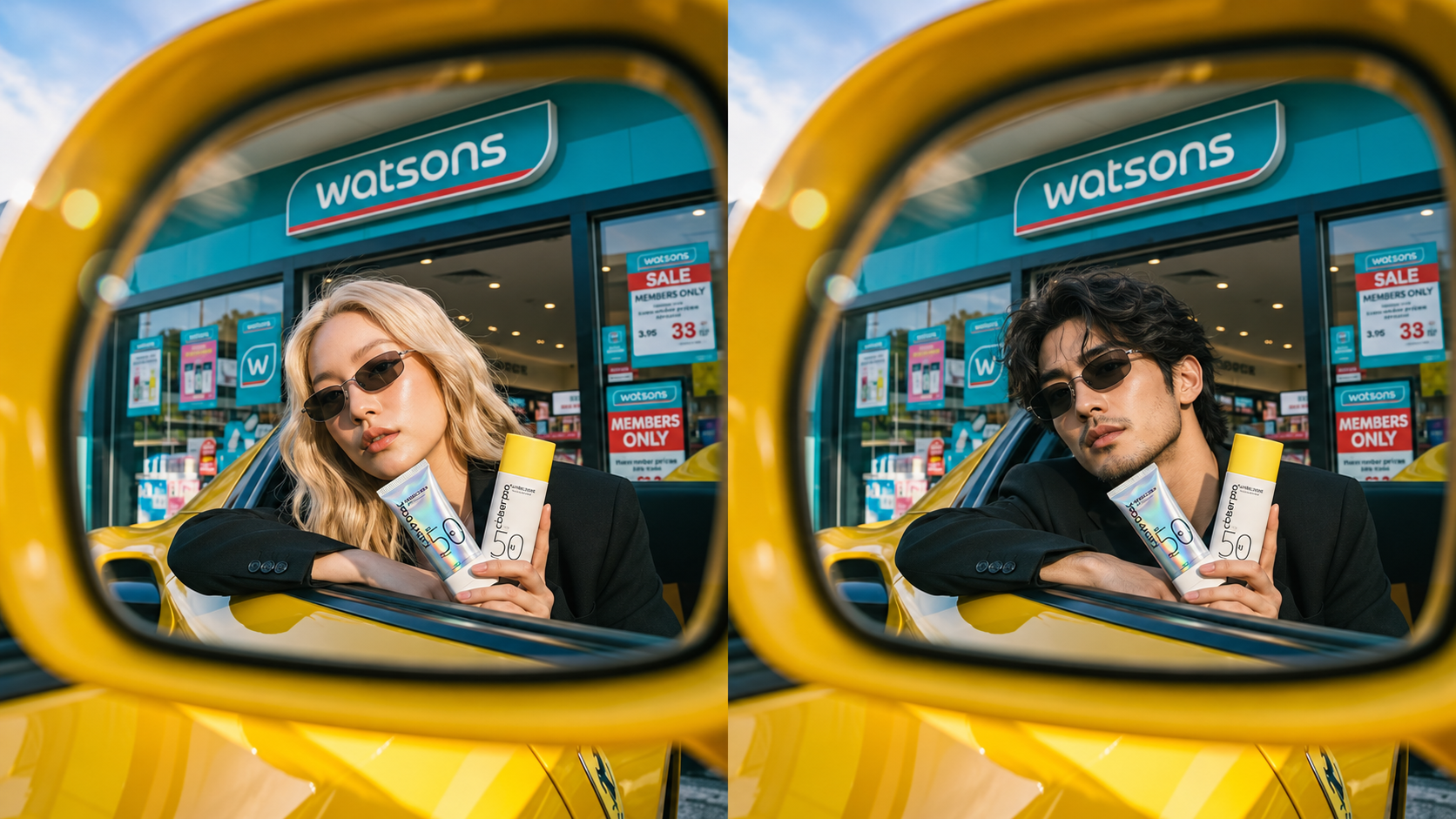
Select “Use original audio” to carry the sounds of the wheels and the crowd into the new version. Select “Generate new audio” to try a different soundtrack.
Choose your audioPrepare the source clip and one clear image for each subject you want to introduce.
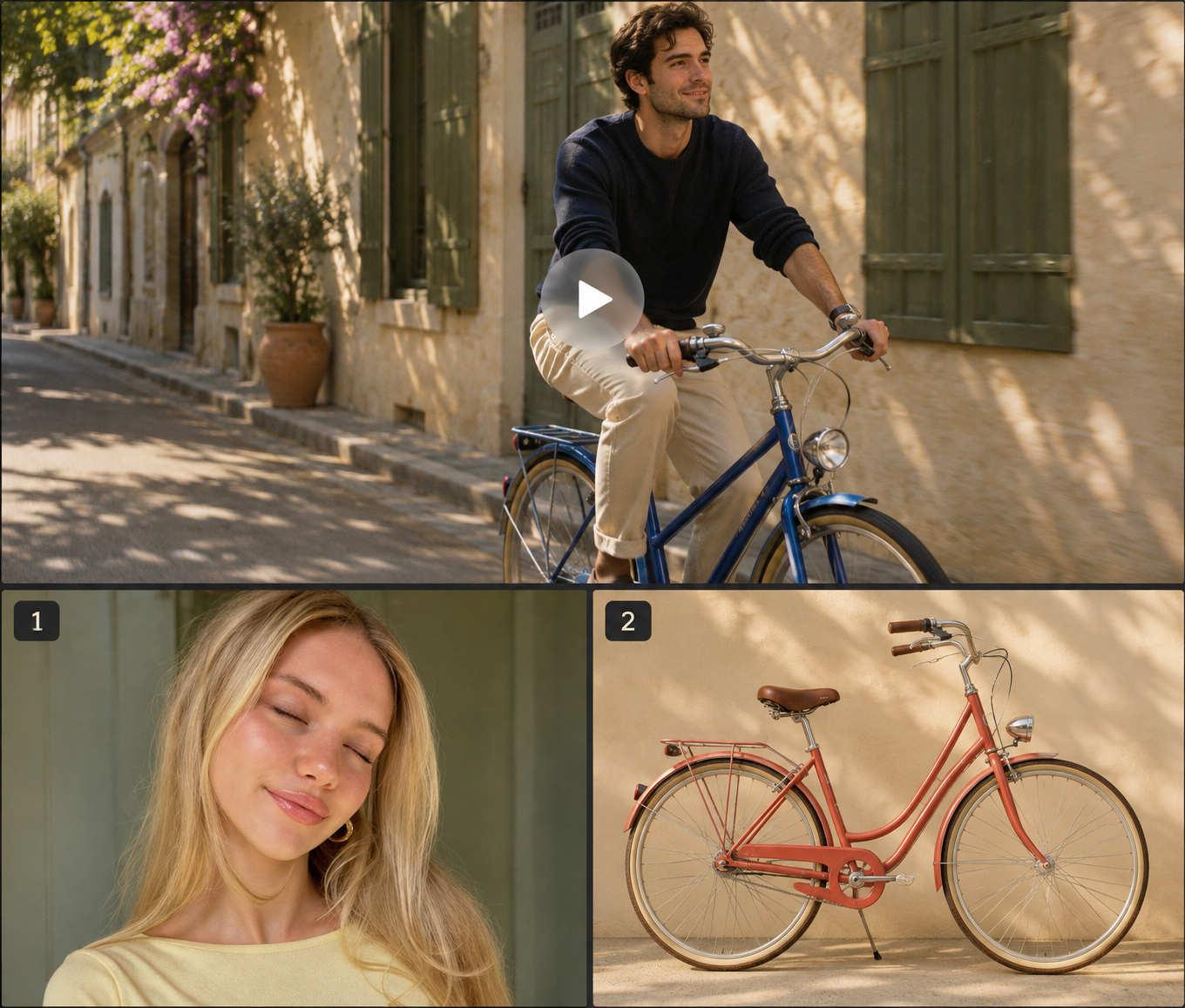
Add the video first, then upload up to four reference images. Keep track of their order so you can refer to each one by number.
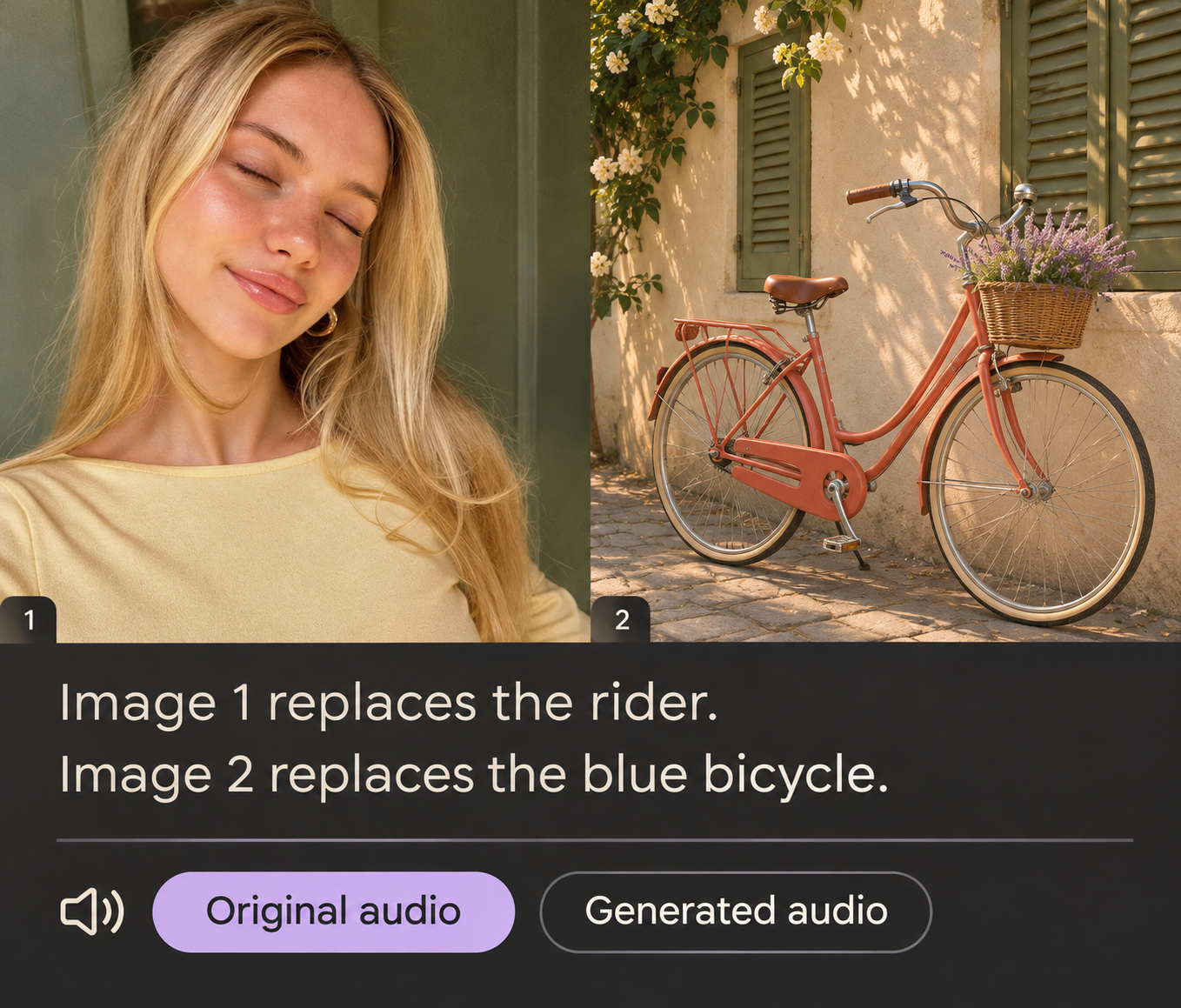
Name the subject each image replaces. For example, write “Image 1 replaces the rider. Image 2 replaces the blue bicycle.” Choose original or generated audio.
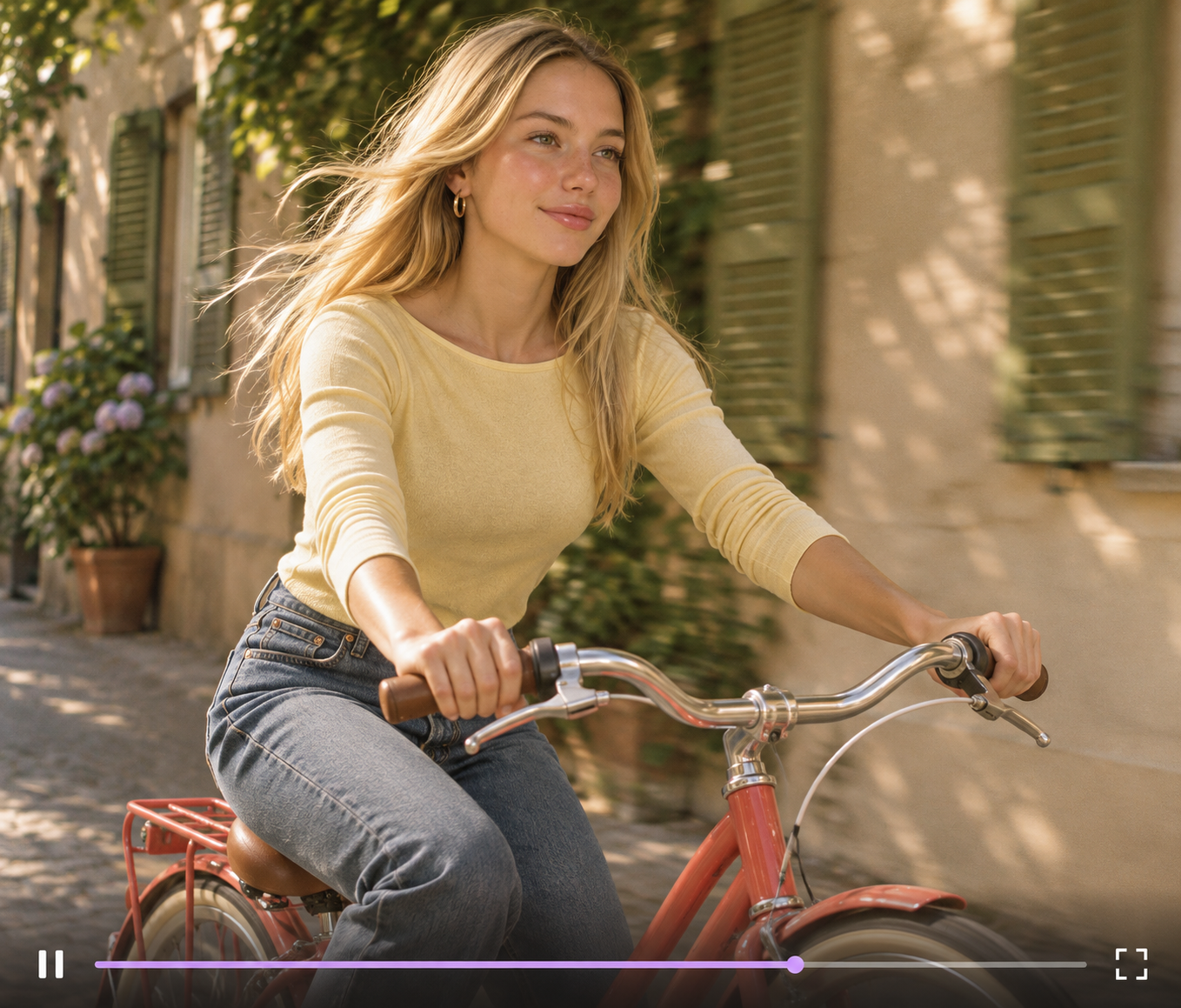
Select “Create my video.” Watch the moment the rider passes behind the handlebars, then check the next frame to see how the face, hands, and bicycle look together.
Use the same source clip to explore a different performer, prop, or setting. Changing one element at a time makes the versions easier to compare.
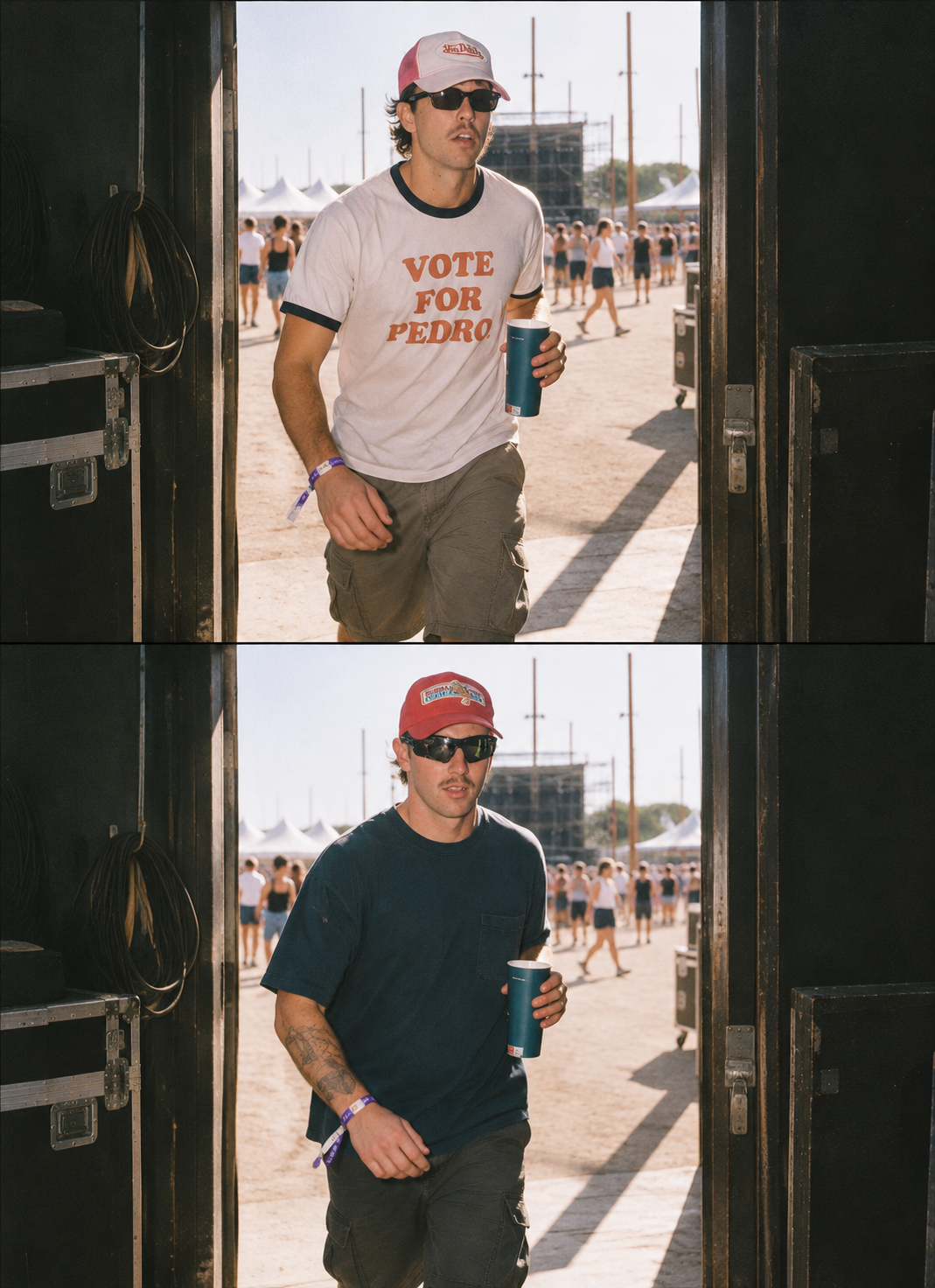
Use one actor’s walk through a doorway to audition two character designs. Look at each silhouette as it crosses from daylight into the darker room.
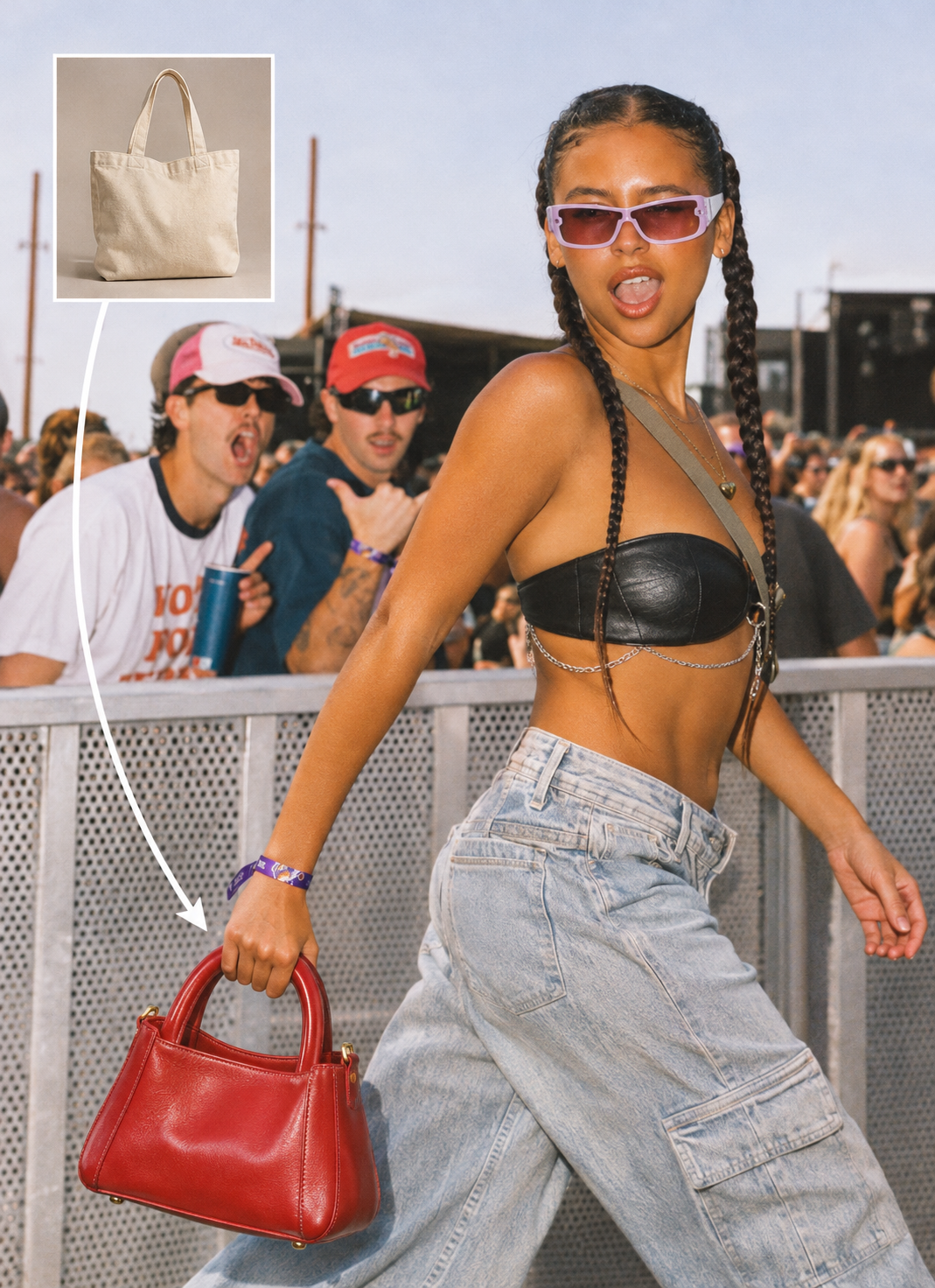
Reference images can represent objects as well as people. Try changing the bag a character carries and check how its handle meets the hand as the arm swings.
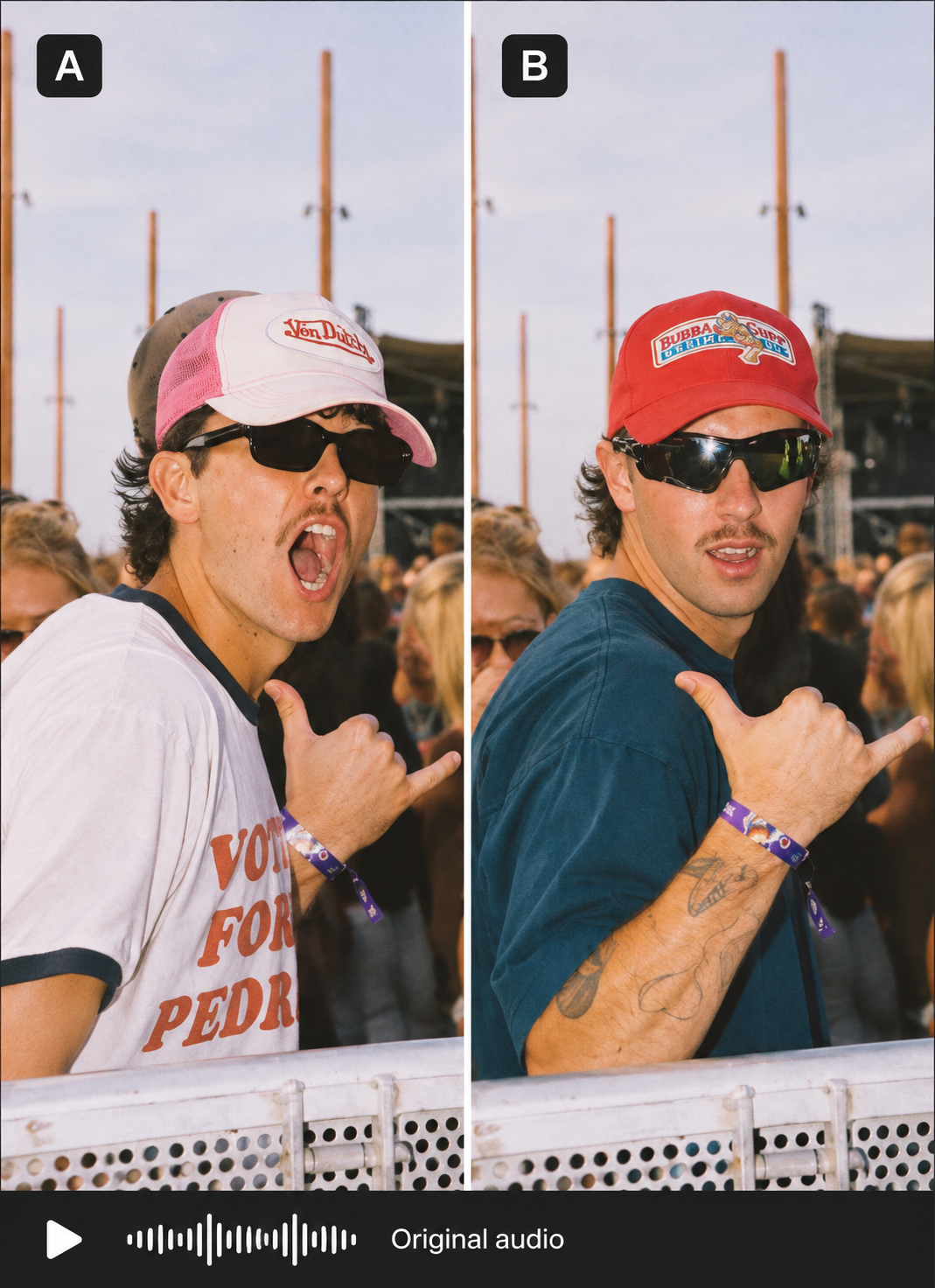
Keep the clip and its original audio for both versions. Play them side by side to see which character reads more clearly during the same turn or gesture.
Prepare product visuals, plan your scenes, and create videos for the rest of your campaign.
Create video ads from product images, ideas, or references.
Make complete videos from ideas, scripts, or visual references.
Build a story with recurring characters and connected scenes.
Turn ideas and images into animated scenes and complete stories.
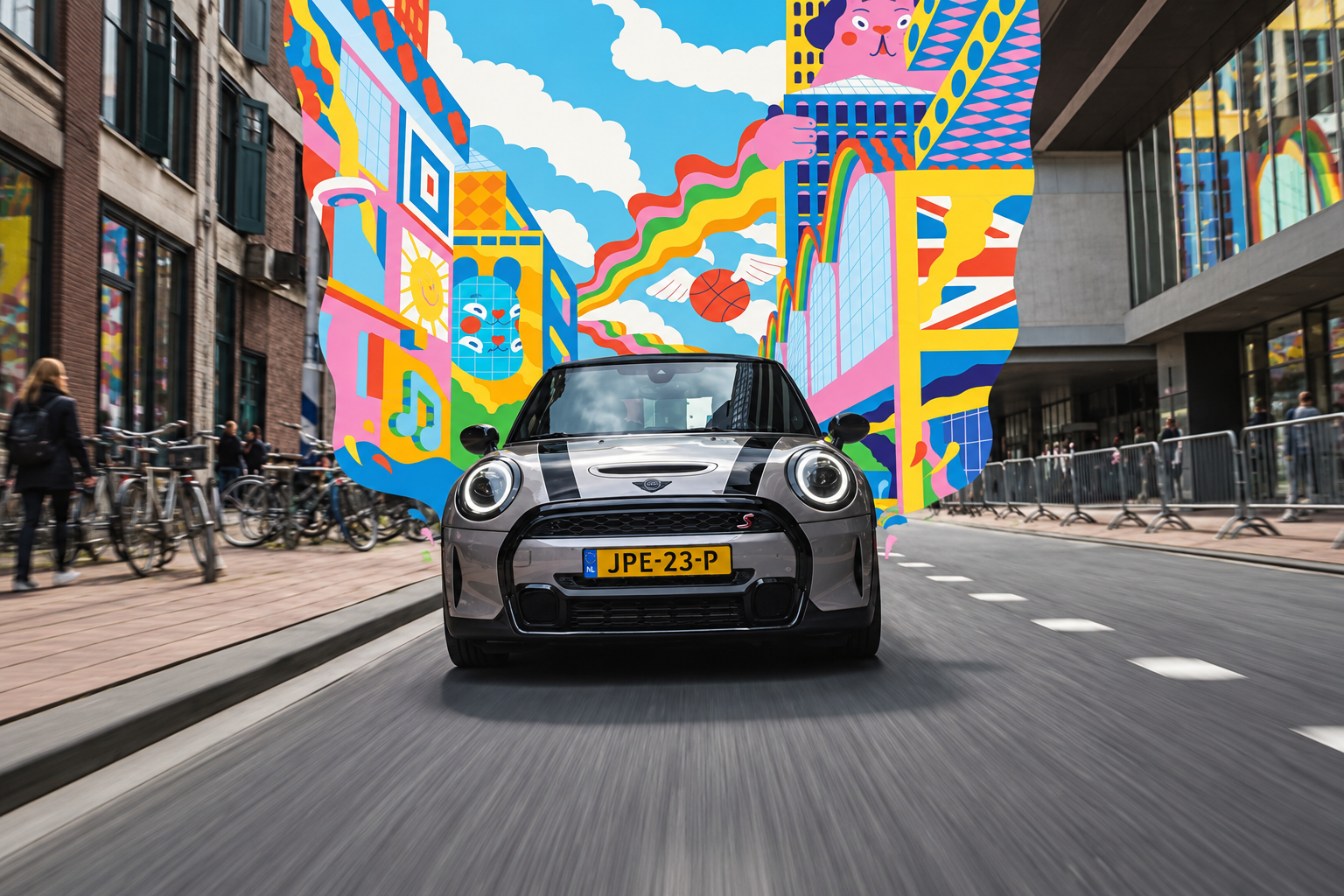
Create portraits, product photos, and scenes from text or a reference.
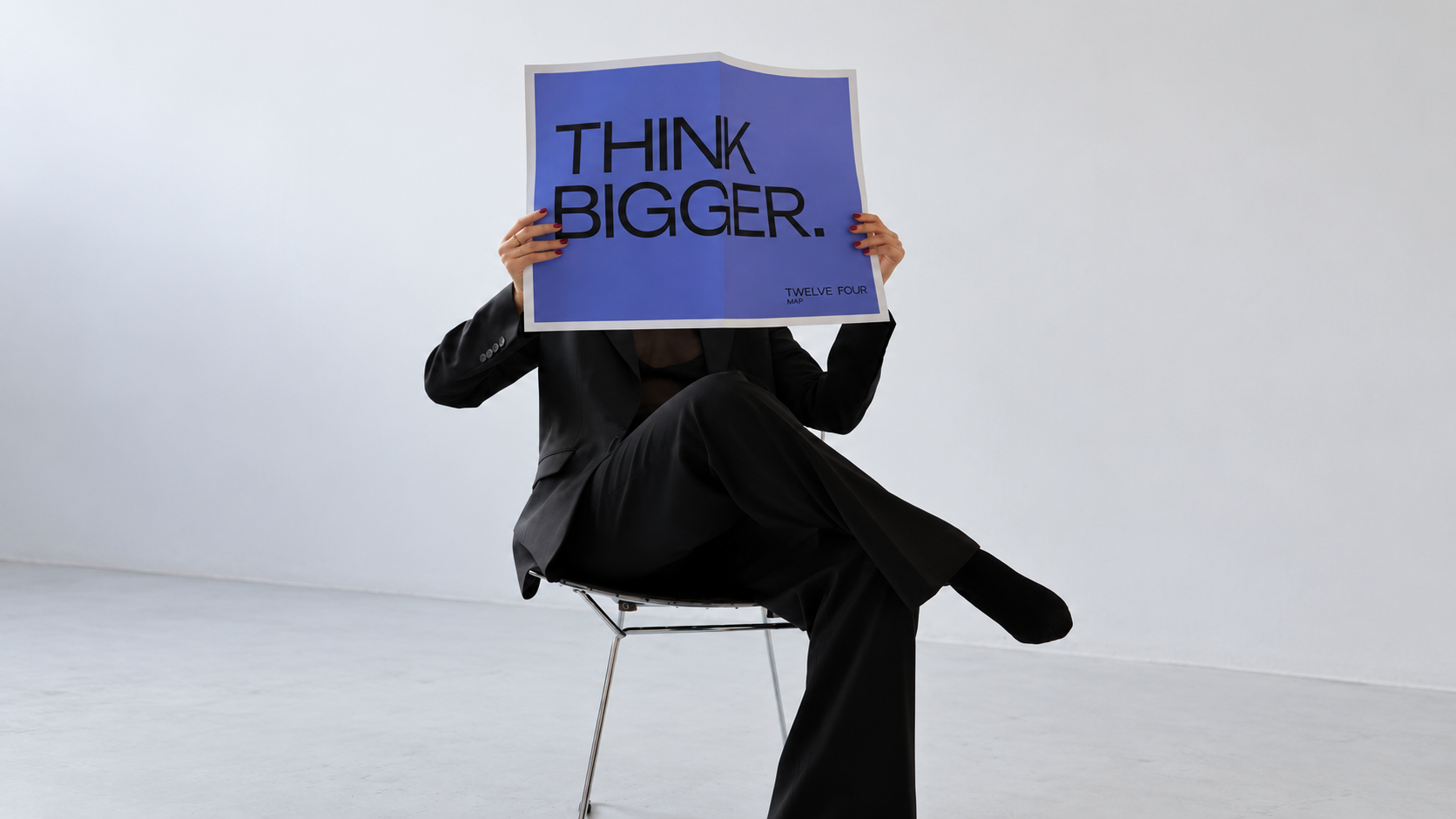
Explore design concepts for posters, packaging, and campaigns.
Create animated titles, 2D graphics, and short brand videos.
Turn a rough idea into a video script with a strong hook and a clear story.
See how creators use MOVO AI to turn product ideas into ads, launch videos, and social campaigns.

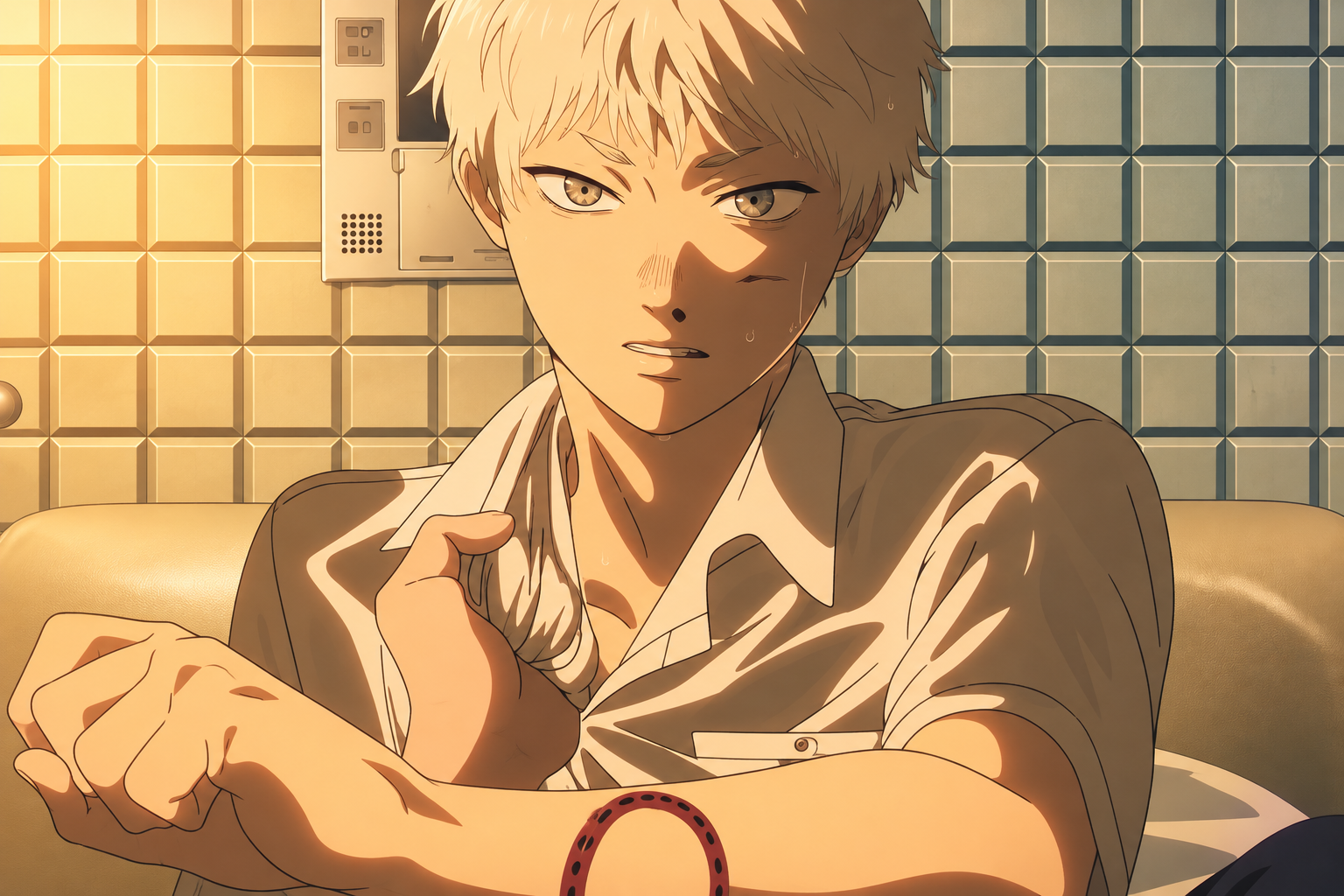

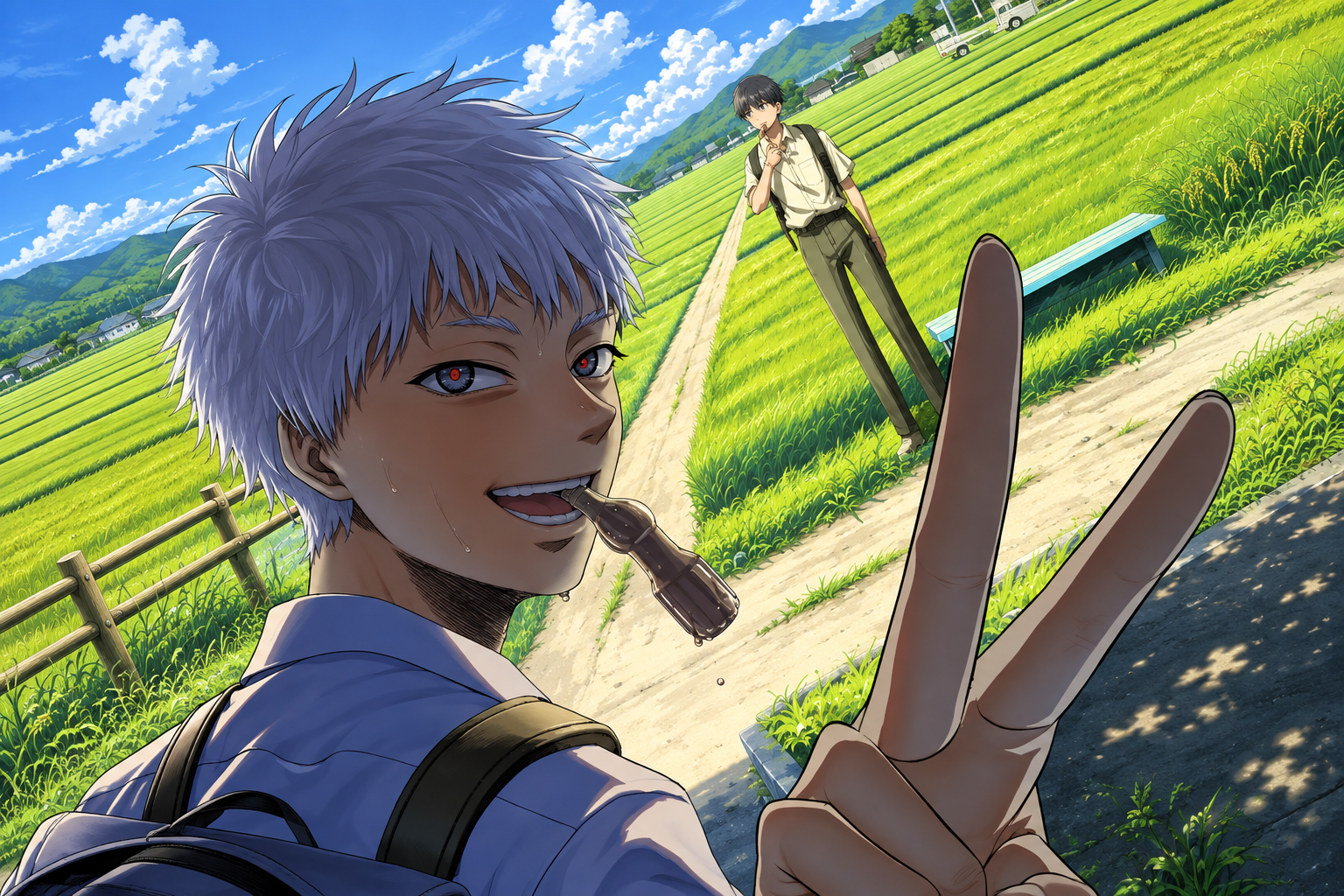
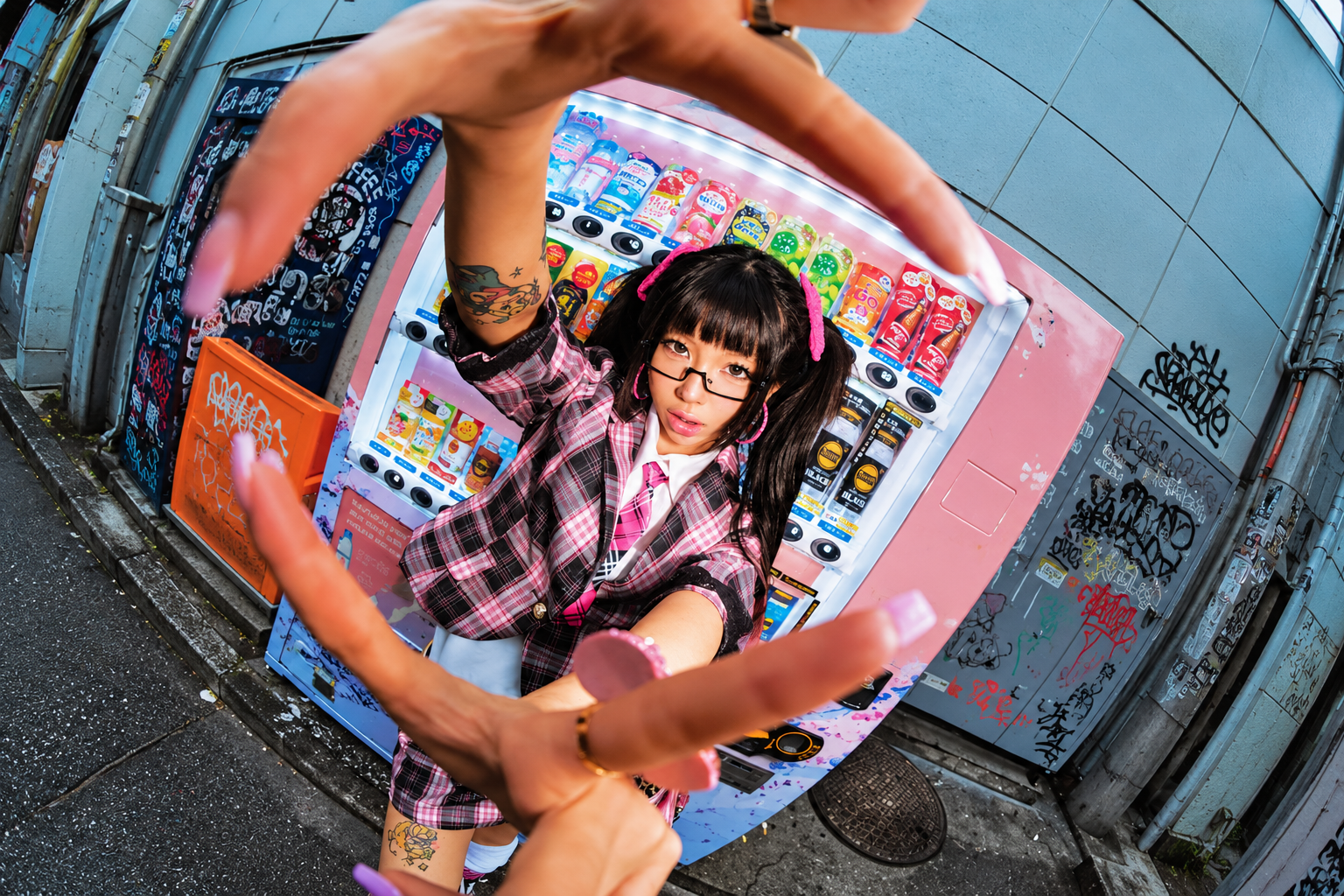
Upload the video you want to recreate and an image of the character you want in the scene. In the instructions, identify the person in the clip who should take on that appearance.
Upload the character images in order and name a different person for each one. For two dancers, try “Image 1 replaces the dancer in yellow. Image 2 replaces the dancer in blue.”
Choose an image that shows the details viewers will see in the clip. A portrait suits a close-up. For a full-body shot, show the outfit, shoes, and silhouette.
Yes. The template accepts reference images of people, objects, and settings. To change a location, specify the setting you want to replace, such as the station platform behind a commuter.
Refer to each image by upload order and keep the full instruction within 200 characters. A short direction such as “Image 1 replaces the guitarist in the doorway” identifies both the reference and its target.
Yes. Choose “Use original audio” in the template, or select “Generate new audio” for a new version.
Video Subject Replacement runs in the MOVO workspace. You need an internet connection to upload your references and generate the video.
Check your workspace for available credits and review the generation cost before starting a video. See MOVO pricing for plan details.
Choose a clip, bring an image of your new character, and see how the scene plays with a different lead.
Try Video Subject Replacement