Show what comes in the box
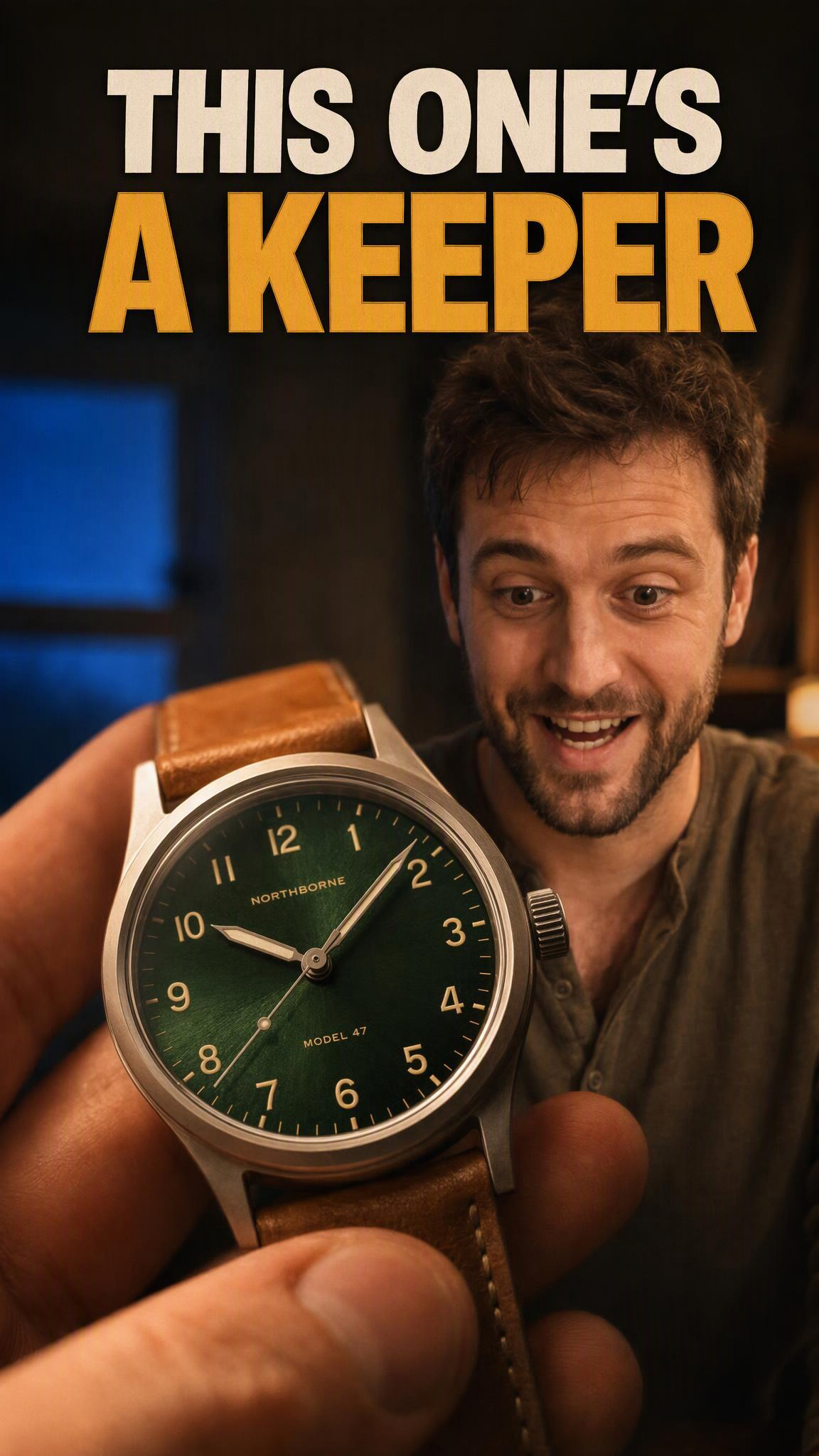
Add up to four product photos. For a watch, use one shot of the dial, one of the strap, and one of the watch on its cushion so the viewer can see how it sits inside the box.
Add product photosTurn the moment a box opens into a short product walkthrough.
Add the product name and photos of what’s inside.
Describe the packaging, then choose the length and frame.
Generate your video and review the reveal.
A UGC unboxing video lets shoppers see what they’ll find when they open a package. A presenter lifts the lid, takes out the product, and explains a detail worth a closer look. With MOVO, you can plan that sequence from photos of your own product and its packaging.
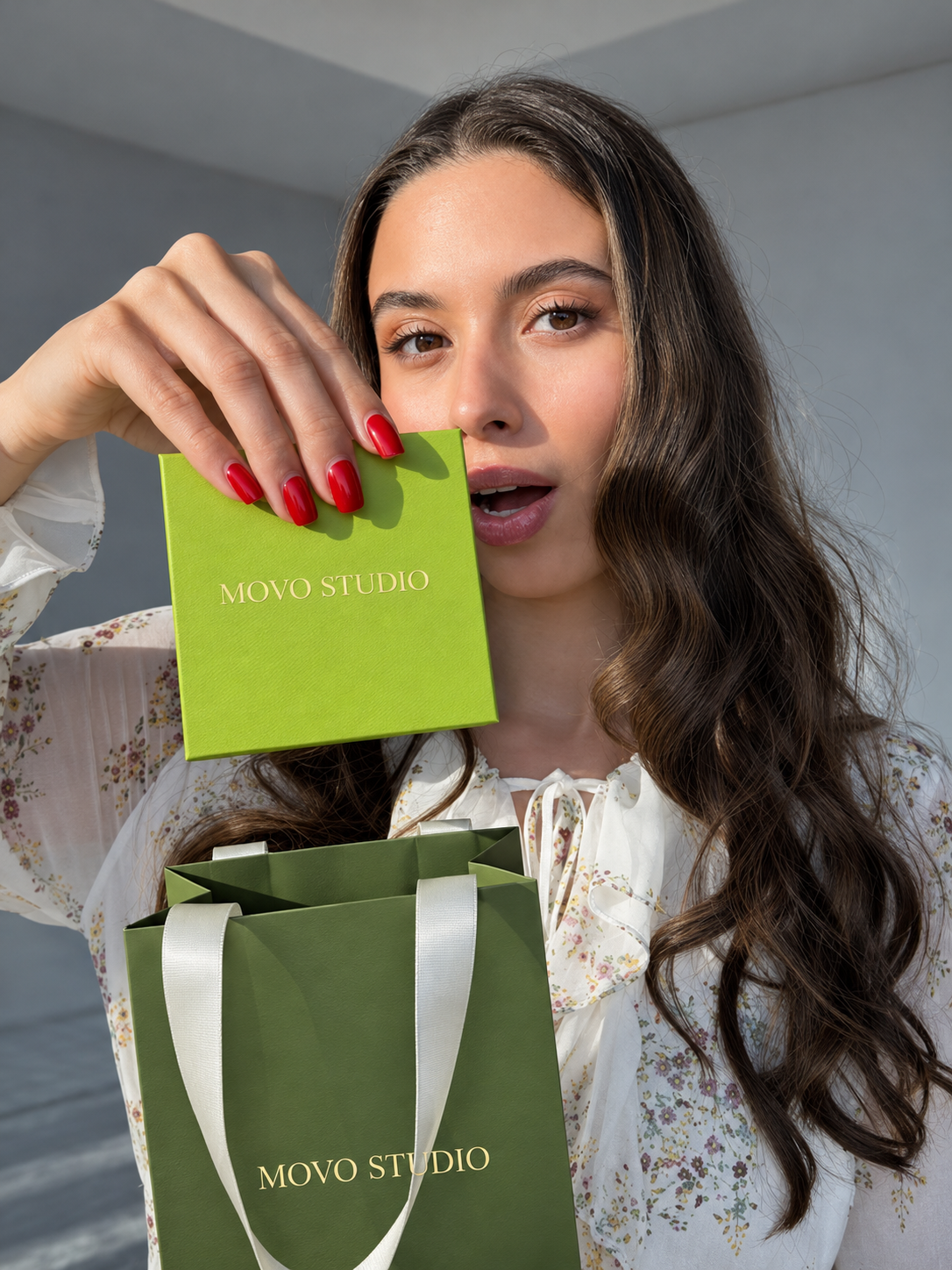
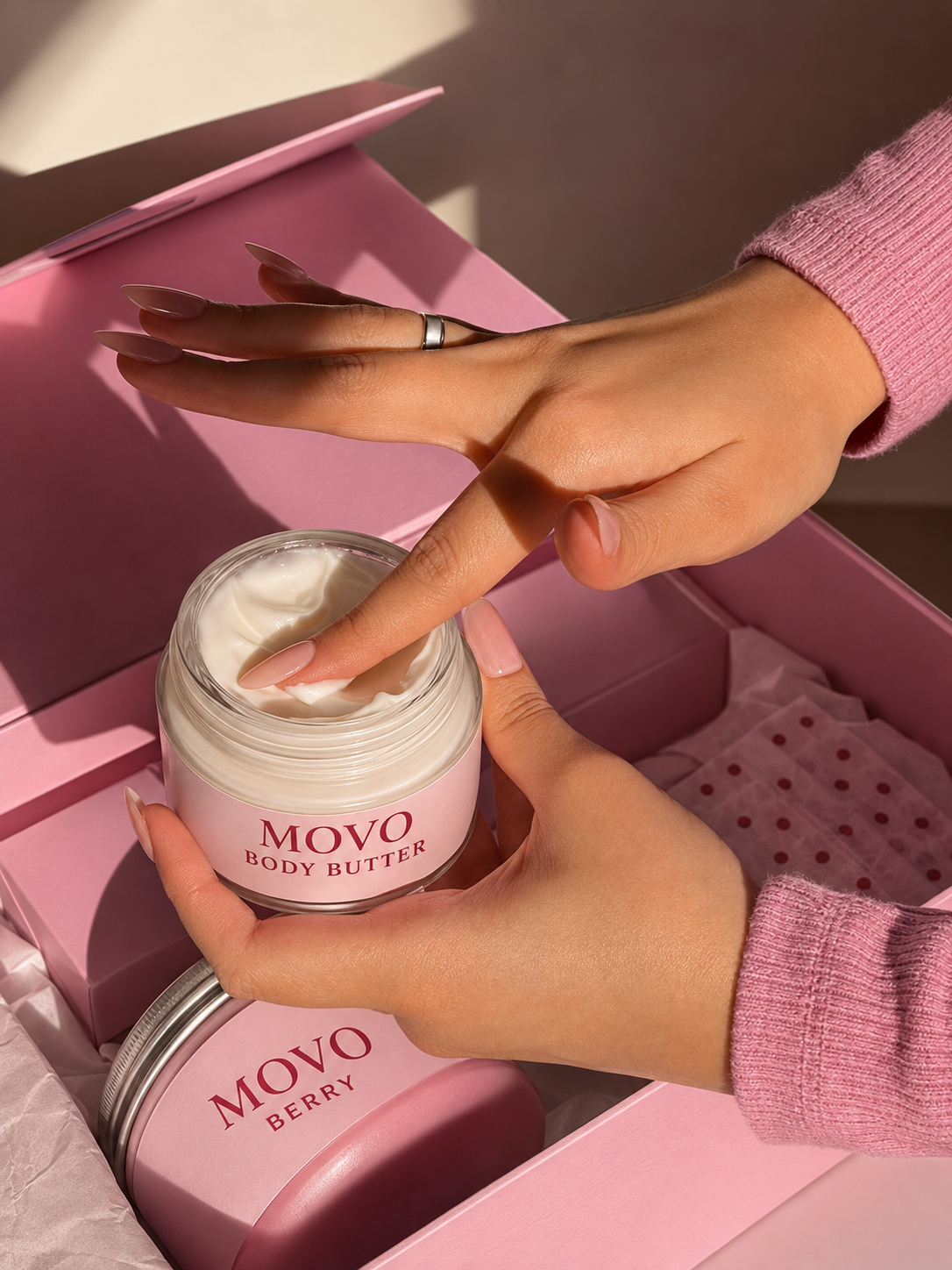
Build the reveal around how your product actually arrives, from the first seal to the last accessory.
Add up to four product photos. For a watch, use one shot of the dial, one of the strap, and one of the watch on its cushion so the viewer can see how it sits inside the box.
Add product photos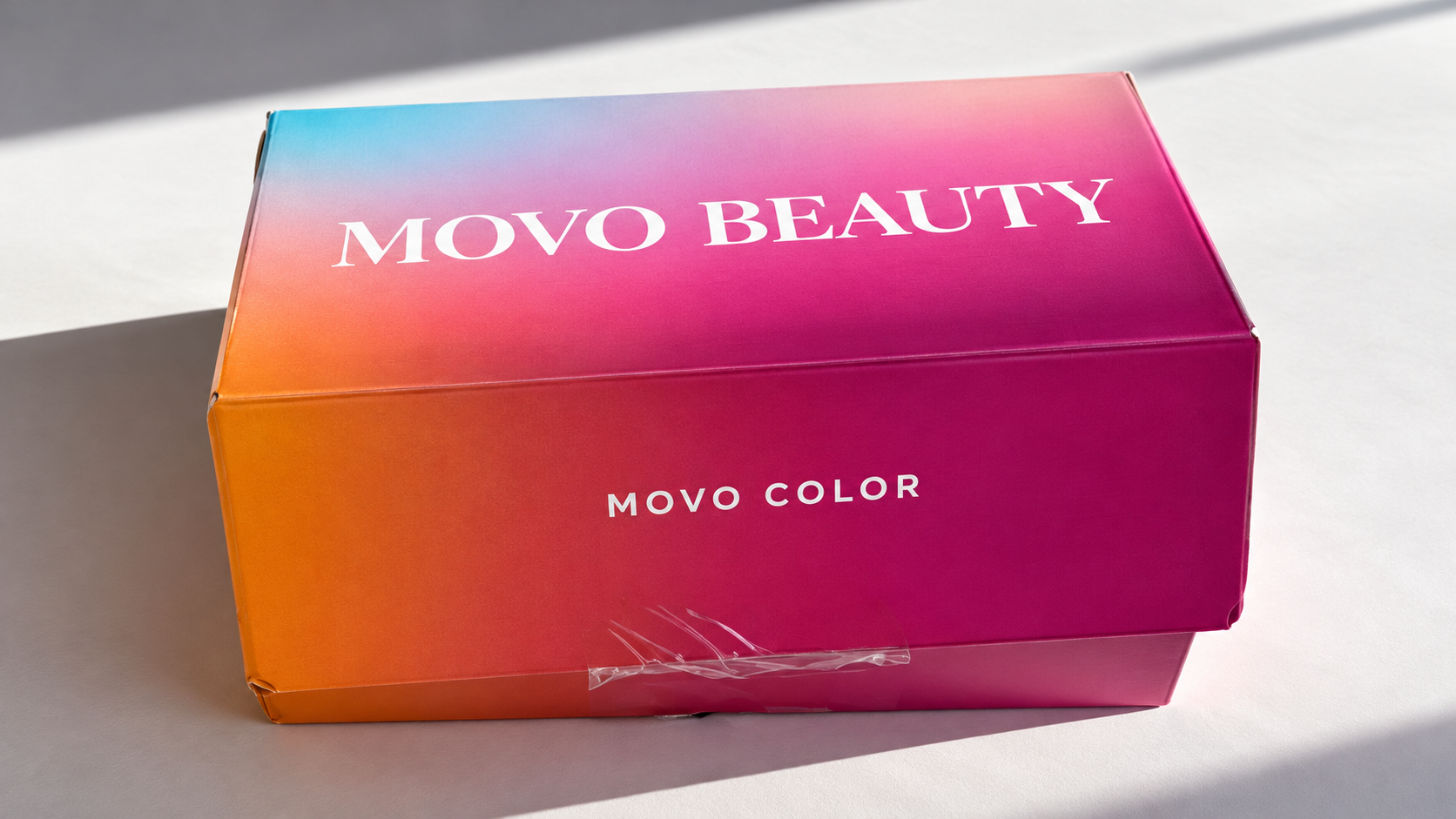
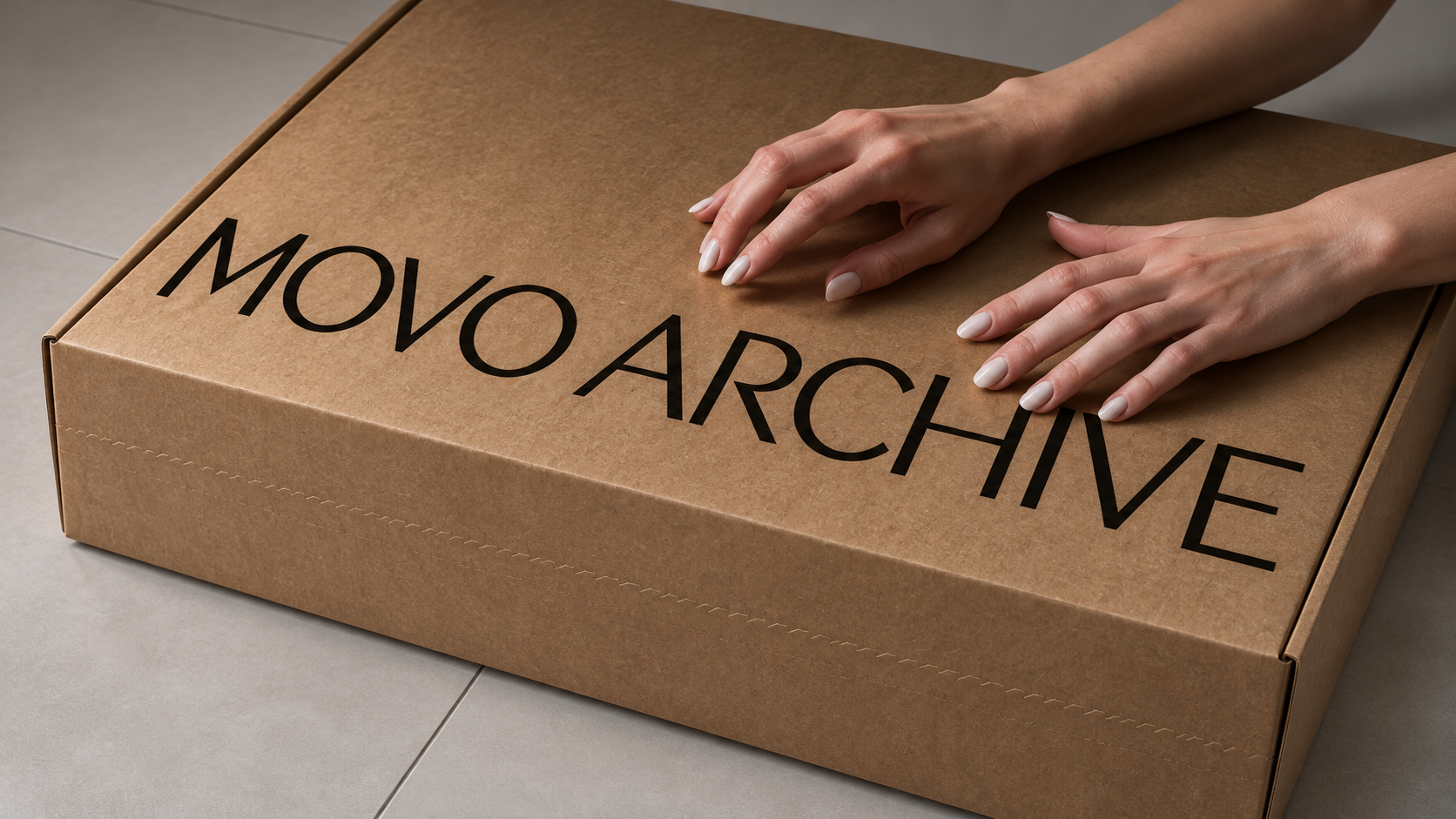
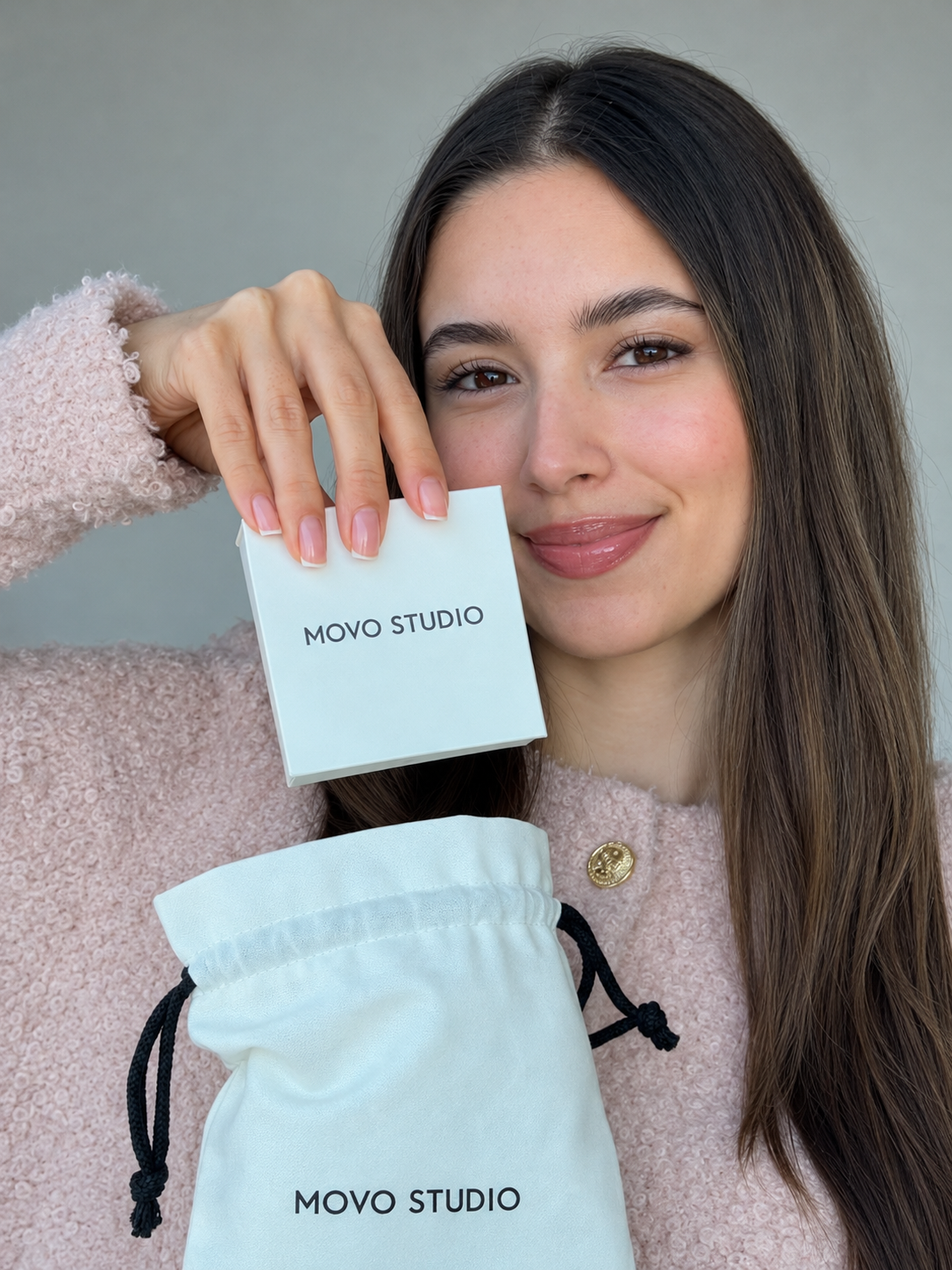
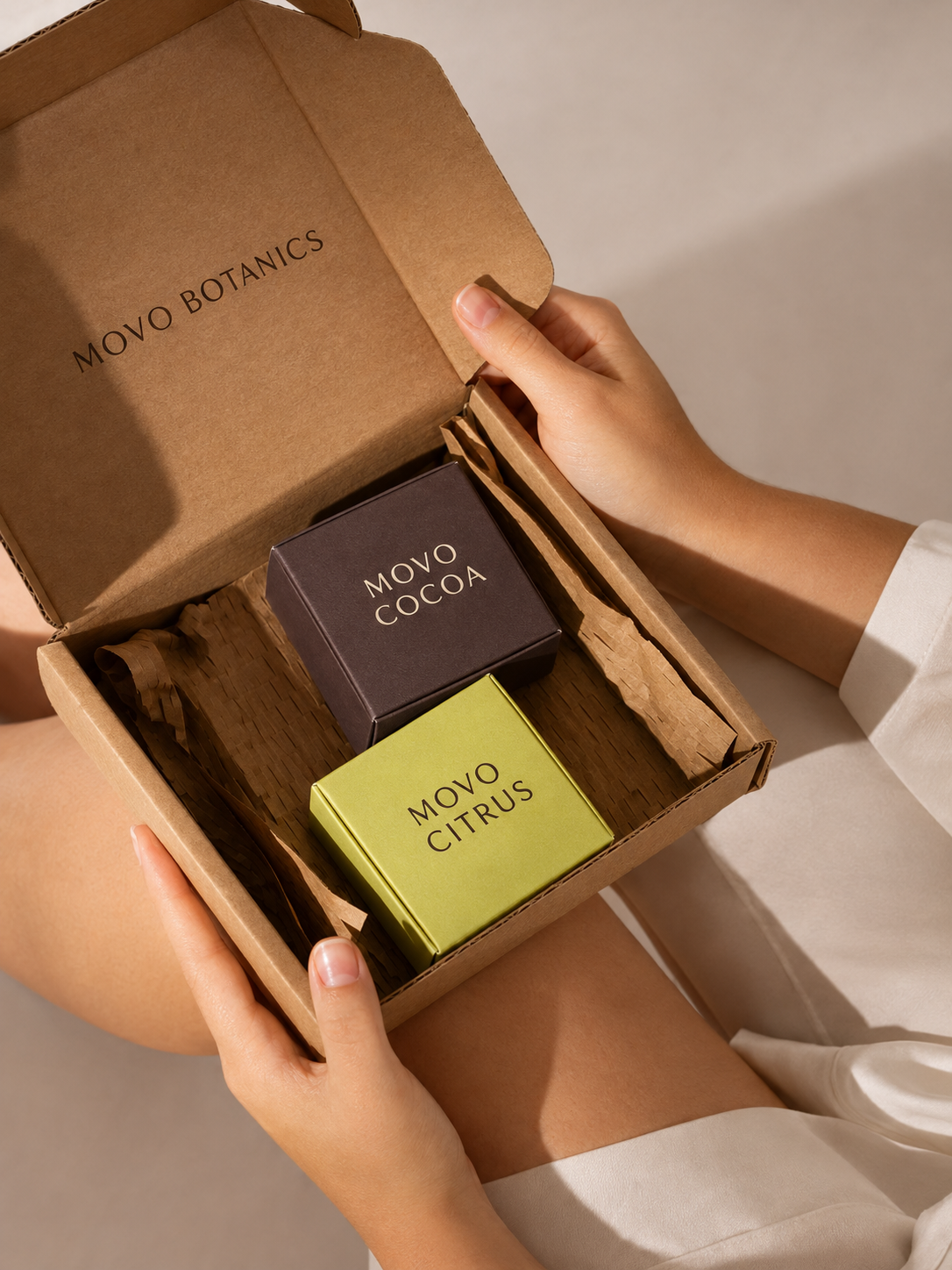
Upload a packaging photo or describe the layers from the outside in. If a paper sleeve covers a hinged case, have the presenter slide off the sleeve before lifting the lid.
Describe the packaging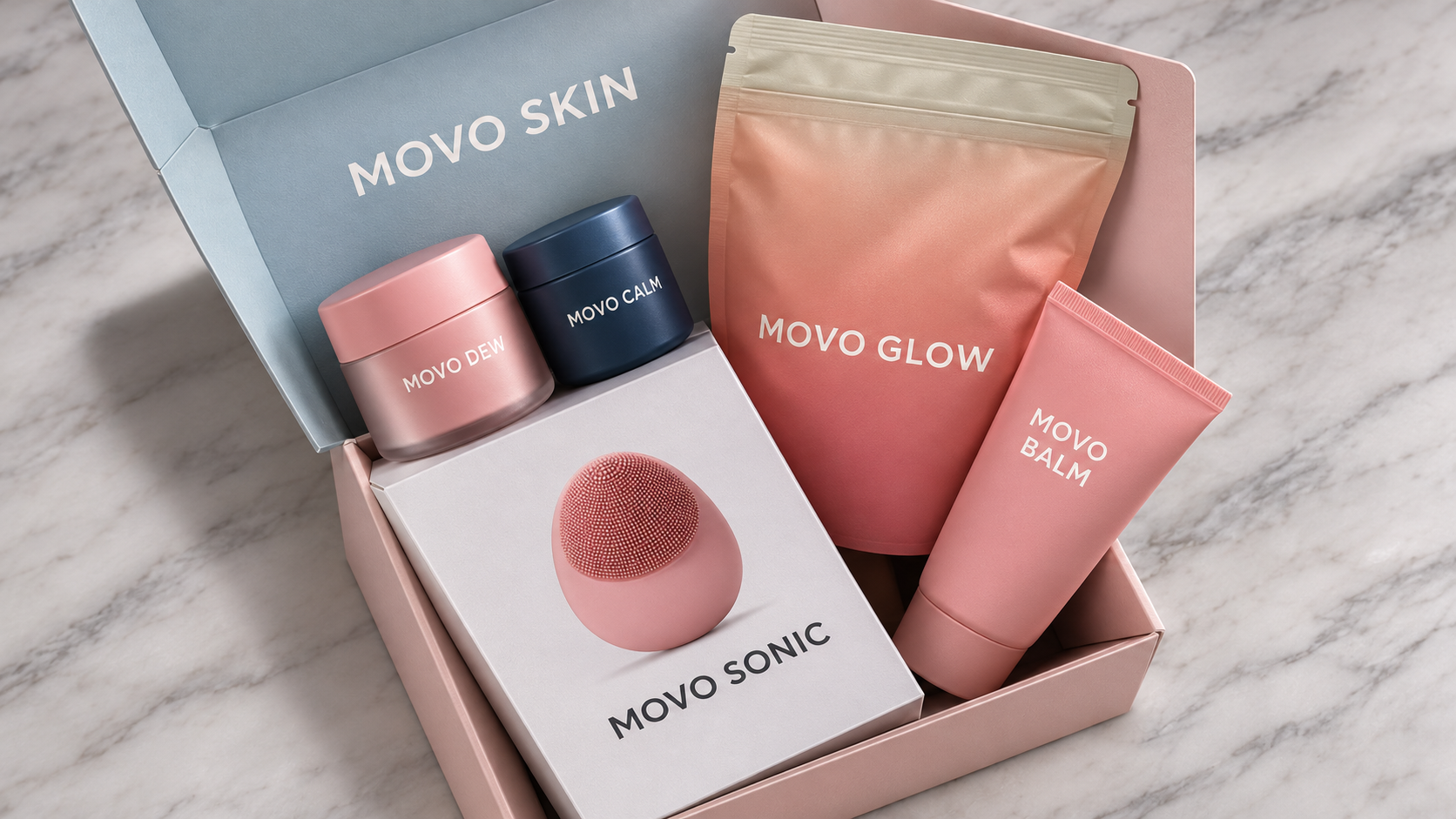
Choose a duration from 5 to 120 seconds. A single item may need just a quick reveal. For a gift set, leave time to lift each piece out of its insert and say what it’s for.
Choose video settings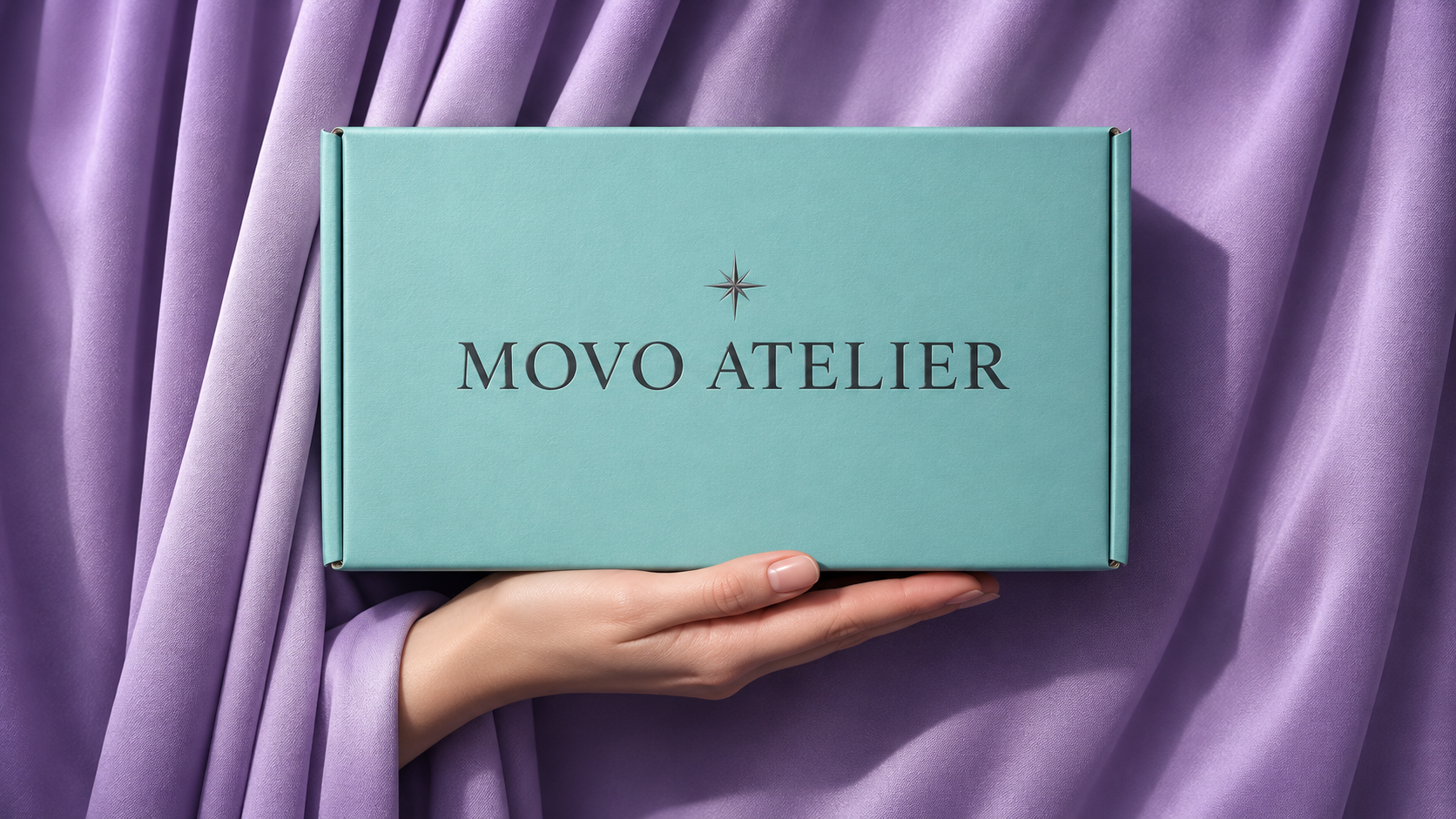
Use Opening Style to set up a question the reveal can answer. “How big is the dial on my wrist?” gives a watch unboxing a natural ending when the presenter fastens the strap.
Set the opening styleStart with the package as it arrives and finish with the product ready to use.
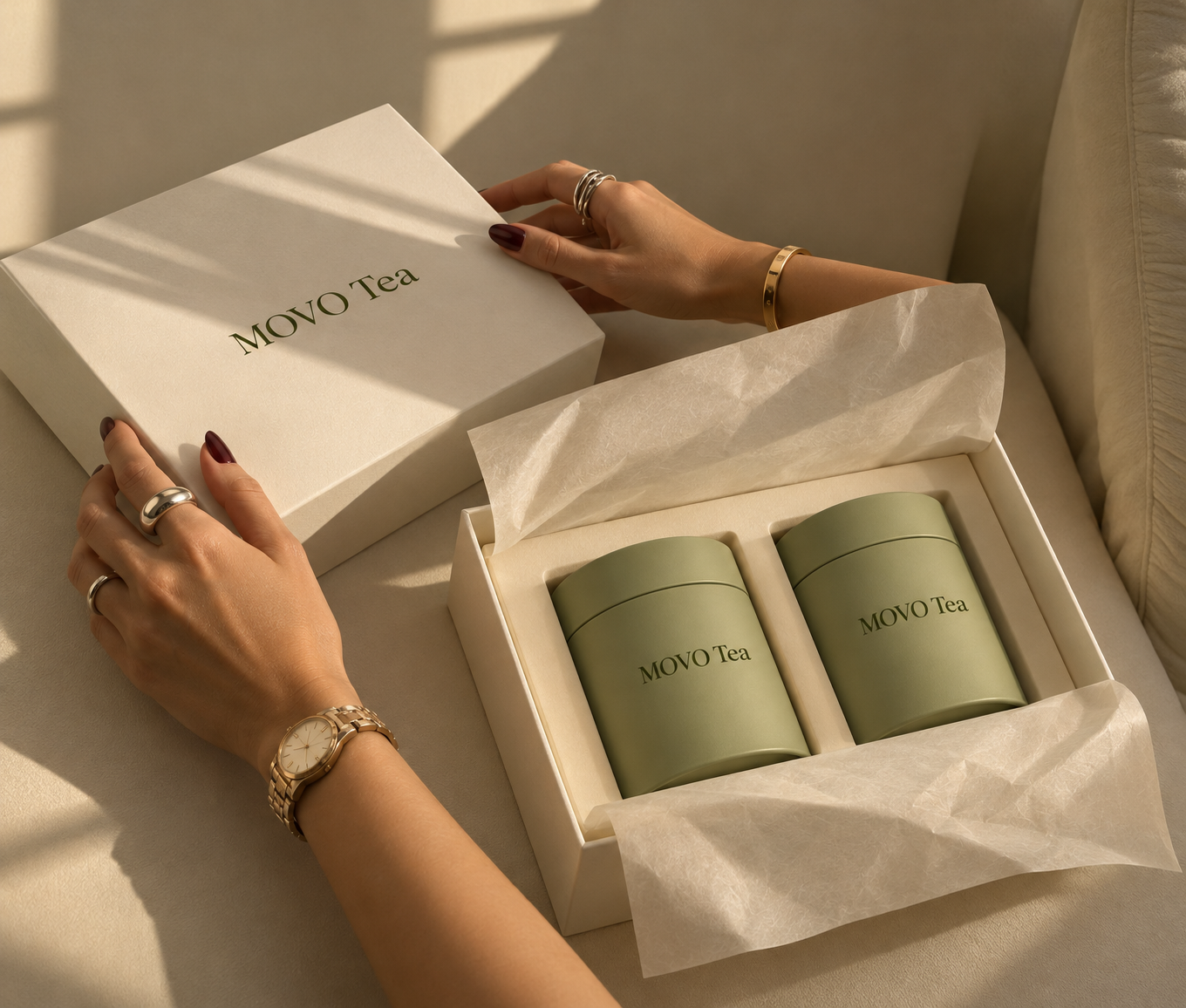
Enter the full product name and upload clear photos. In Product packaging, add a reference or describe the box, wrapping, and inserts in the order they open.
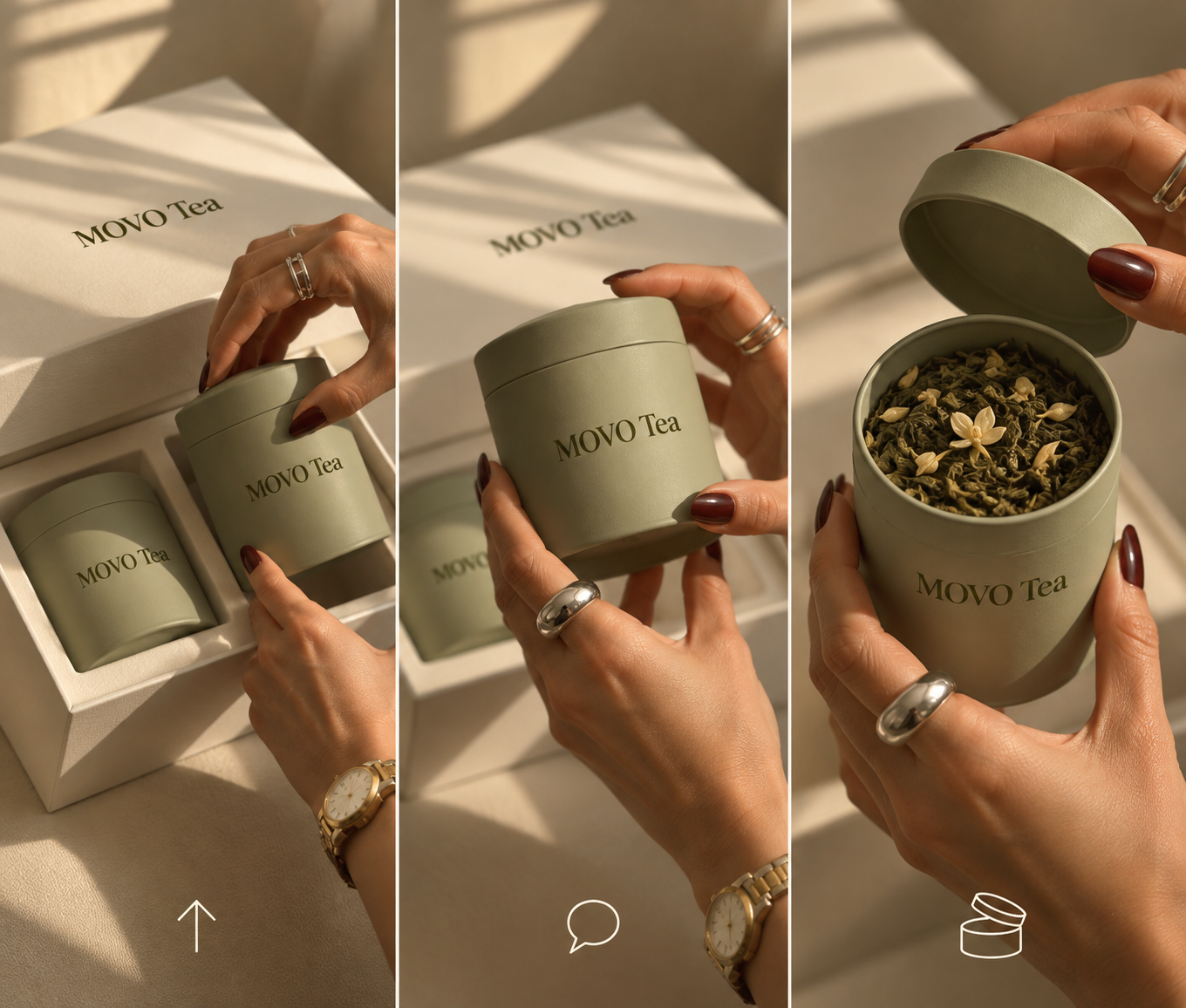
Pair each action with a line the presenter can say as it happens. For a tea sampler, lift out the first tin, read its name, and open it to show the loose leaves.
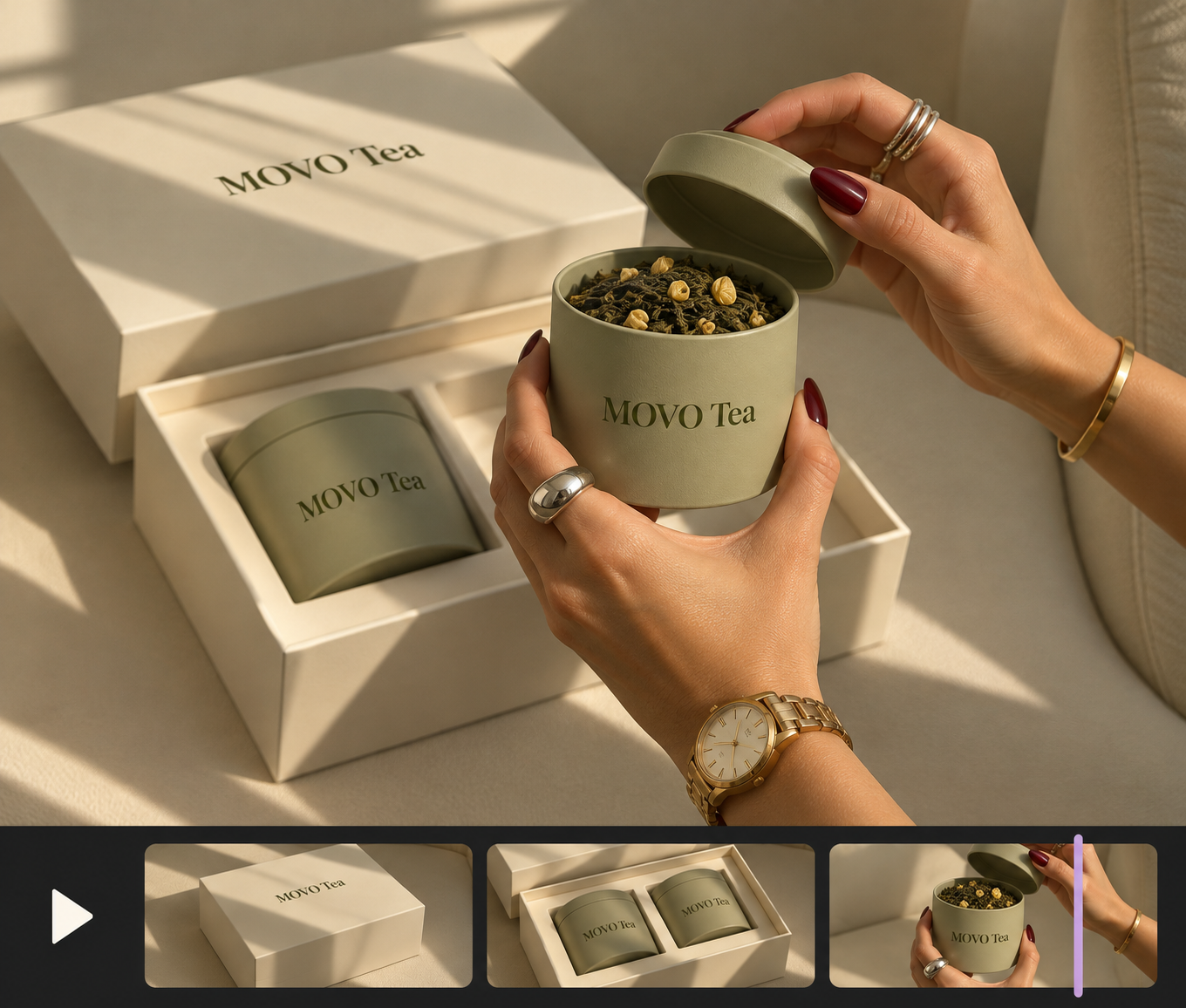
Generate the video in the MOVO workspace. Check the item count, packaging order, and timing. Each product should be visible when the presenter names it.
Give shoppers a closer look at details that can be hard to judge from a single product photo.
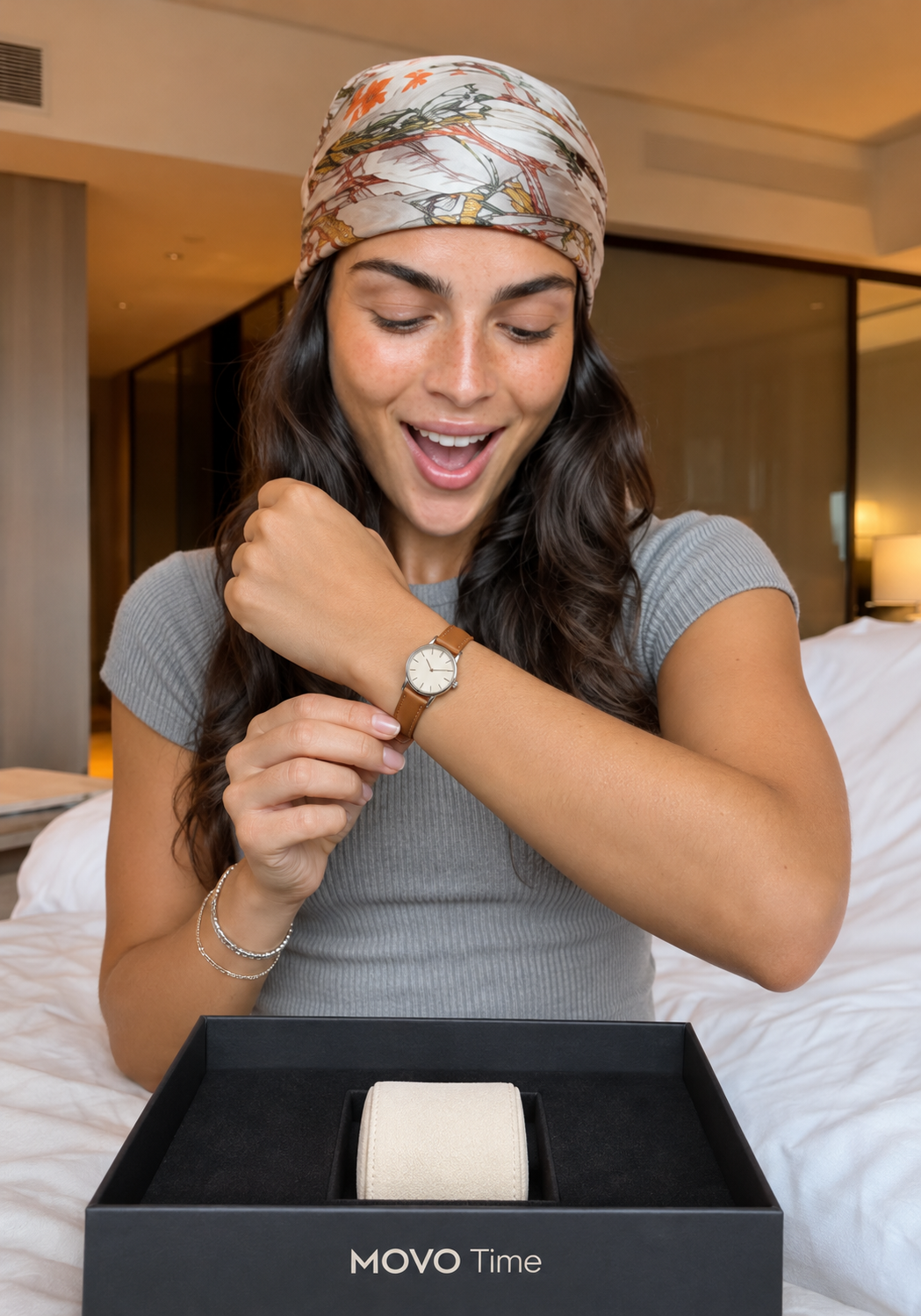
A watch dial fills the frame in a product photo. Showing the presenter lift it off the cushion and try it on gives shoppers a sense of its size.
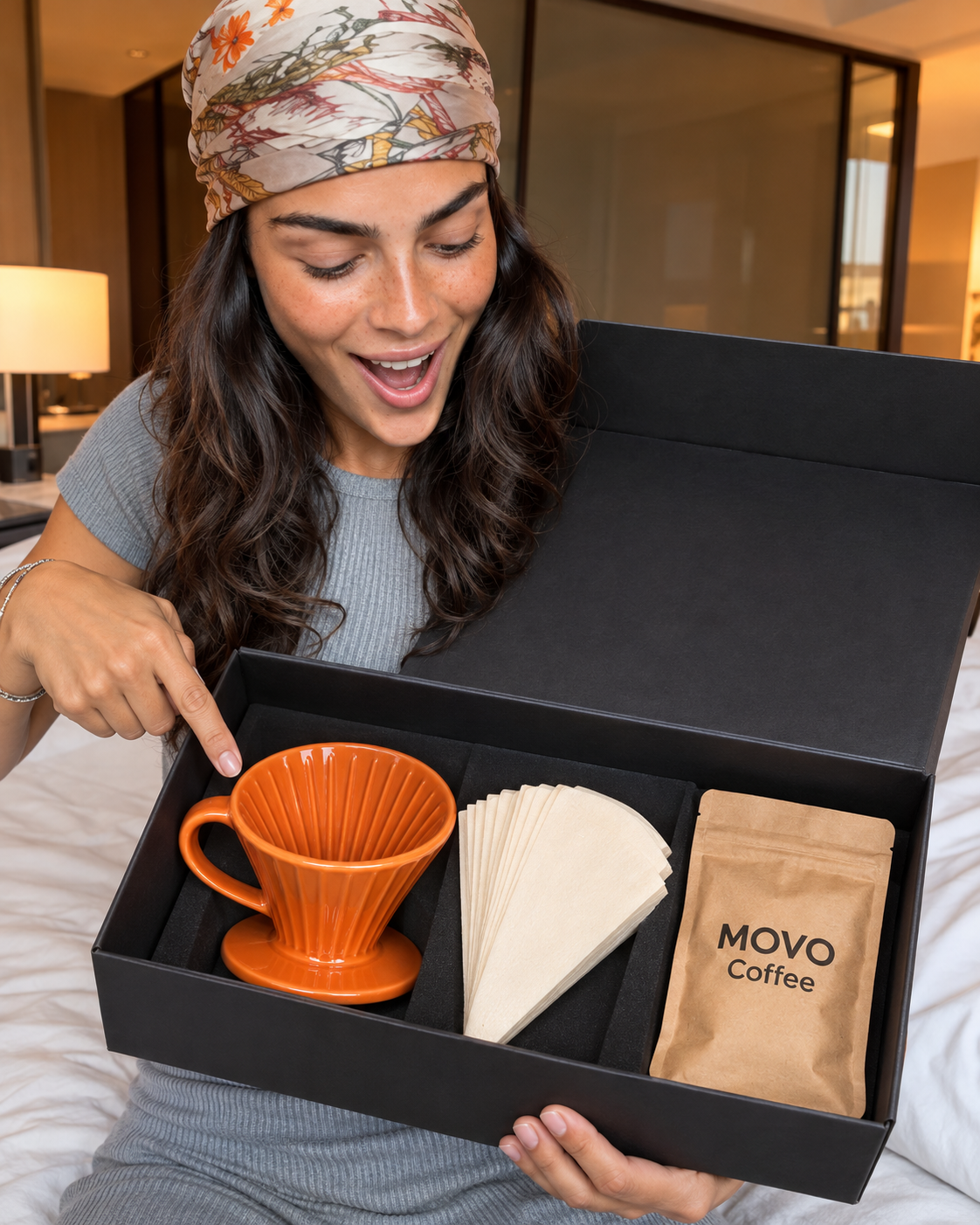
Begin with a view of the whole assortment. Then introduce the items in the order they’ll be used, such as a brewer, a paper filter, and a sample bag of coffee.
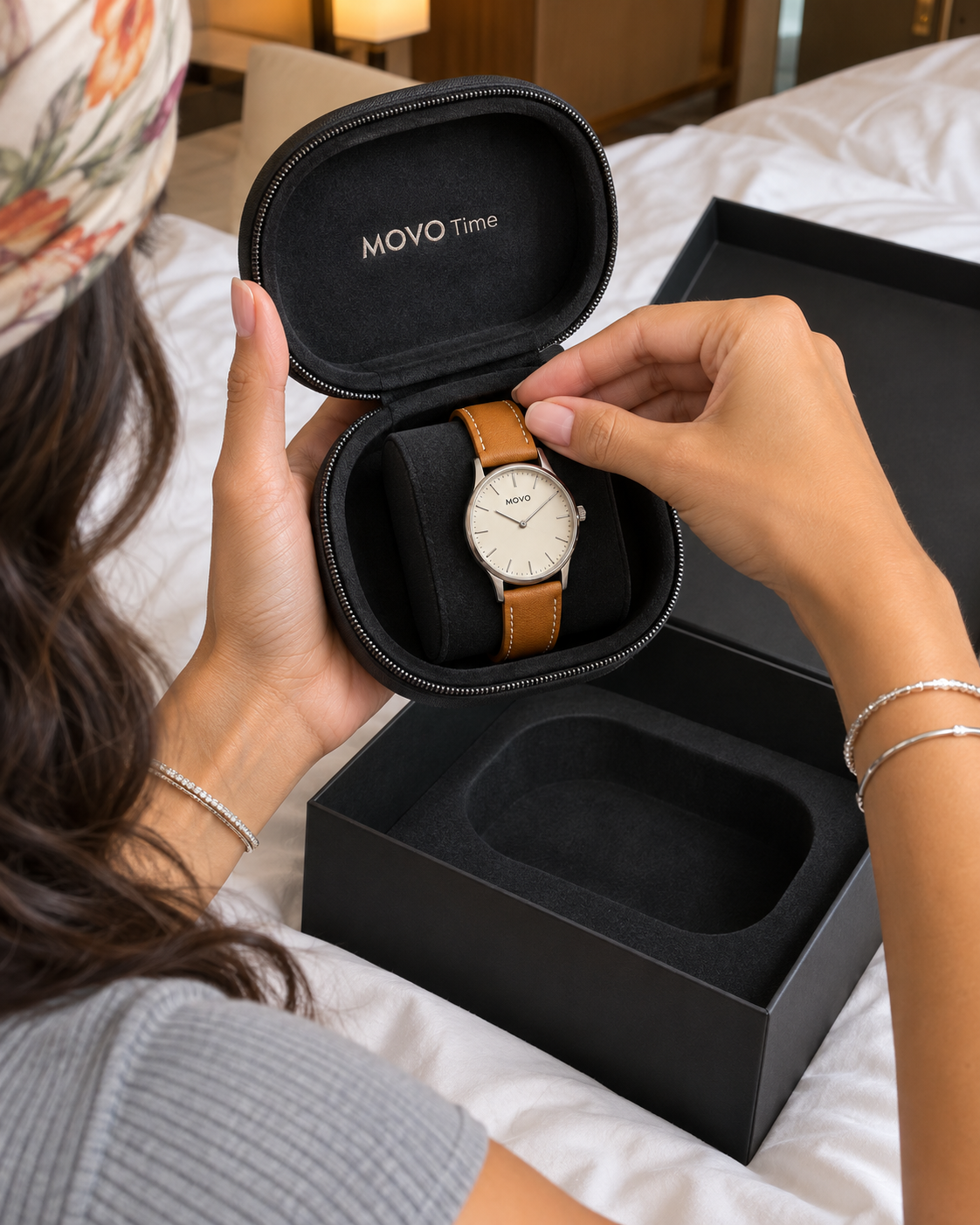
Use the last shot to answer a question about the set. If shoppers ask whether a travel case is included, show the presenter take it out of the box and fit the product inside.
Prepare product visuals, plan your scenes, and create videos for the rest of your campaign.
Create video ads from product images, ideas, or references.
Make complete videos from ideas, scripts, or visual references.
Build a story with recurring characters and connected scenes.
Turn ideas and images into animated scenes and complete stories.
Create portraits, product photos, and scenes from text or a reference.
Explore design concepts for posters, packaging, and campaigns.
Create animated titles, 2D graphics, and short brand videos.
Turn a rough idea into a video script with a strong hook and a clear story.
See how creators use MOVO AI to turn product ideas into ads, launch videos, and social campaigns.







Start with a clear view of the product and its included accessories. Add a packaging reference that shows how the items fit together so the opening sequence matches what shoppers receive.
Choose one edition and list its actual contents. Show the full box first, then give each item a short introduction. Finish with the pieces together so viewers can see what that edition includes.
Try this short script and replace the brackets with your details. “Here’s what comes in the [product name] box. Under the [first layer] is the [item]. Watch what happens when I [action].”
You can start the brief here with your product name, images, and packaging details. If your campaign includes a promo code, add the exact wording in Additional Note.
Give each service the same brief. Compare whether the sample shows the right contents in order, keeps labels readable, and gives the presenter enough time to demonstrate the product.
The template starts at 30 seconds. Read your script aloud while opening the actual box. If you reach the next item before you finish its line, shorten the line or allow more time.
Yes. Use Scene to describe where the package opens, such as a kitchen counter or a desk. Use Additional Note for the voiceover language, target platform, and brand wording.
Choose 9:16 for a vertical feed. Keep the hands and the box near the centre so the viewer can follow the movement from lifting the lid to holding up the product.
Bring your product photos and packaging details to MOVO and show shoppers what’s inside.
Create Your Unboxing Video