Start With the Official Creation Route
Midjourney AI searches often begin with a model or service name, while the creative task needs a specific image. Decide whether you are exploring a concept, developing a setting or preparing a reference for later video work.
Midjourney's official getting-started guide describes prompt-led creation through its website and links its supported reference workflows. Use that documentation and the actual account for service-specific controls and access.
The MOVO composer above starts original video planning. It does not establish Midjourney integration, account authorization or automatic transfer of generated files. Keep the approved creative brief useful independently of the external image-production route.
Describe the Asset You Actually Need
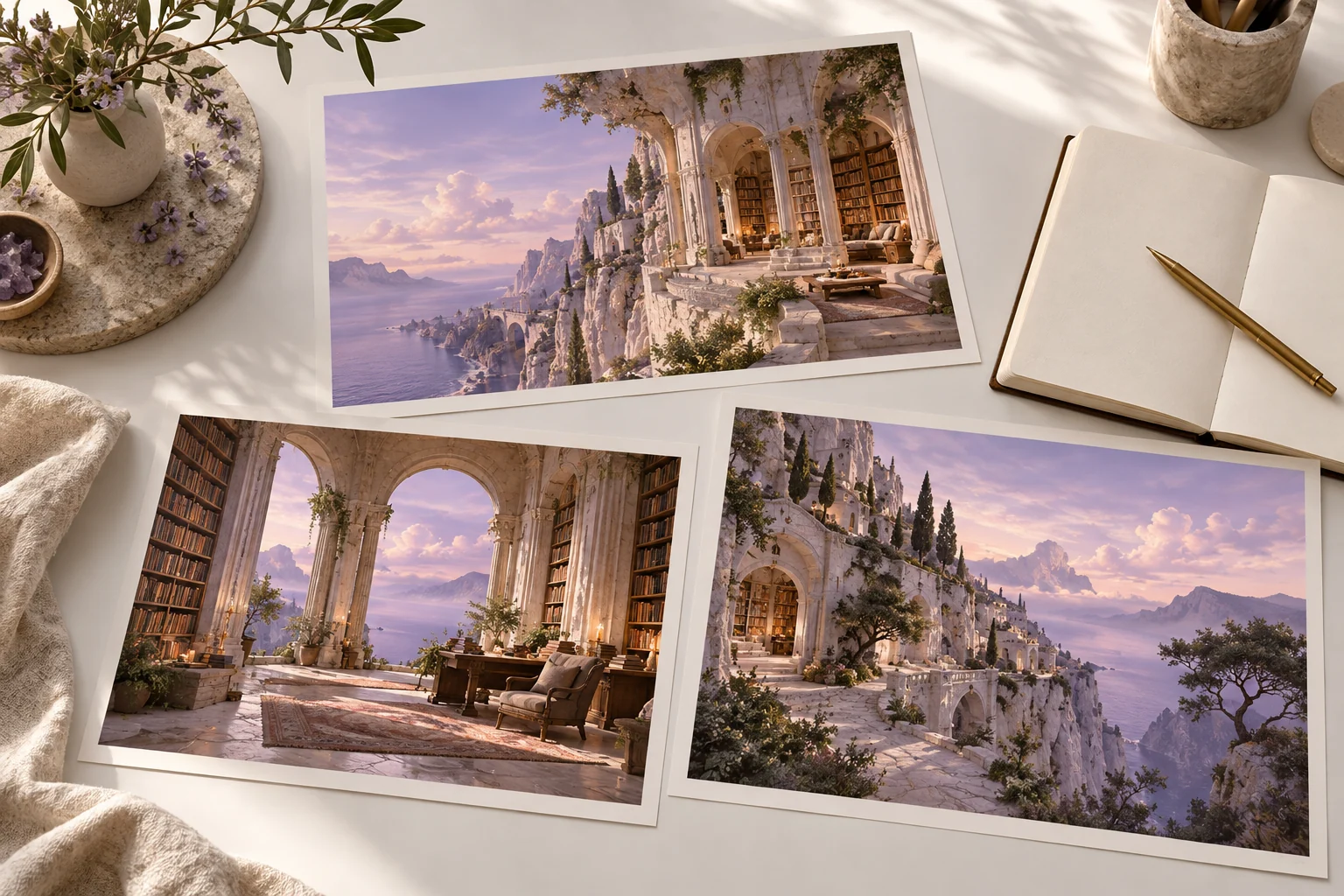
State the subject, setting, composition and visual direction in plain language. For a fictional cliffside library, the architecture, position above the sea and main light can establish the concept before decorative detail is added.
Separate required features from flexible choices. If the library must stay ivory with one domed reading room, record those details clearly. Leave secondary vegetation or cloud shape open when they do not affect the project.
Describe the image's intended use. A mood concept can be evaluated for atmosphere, while a product or location reference may need stricter appearance review. Do not judge every output only by how impressive it looks as an isolated illustration.
Use References With Clear Roles
A reference may guide content, composition or visual treatment. Check the actual official workflow for the reference type you intend to use. Similar-looking controls can serve different purposes, so do not assume every image attachment locks the same details.
Use appropriate approved material and retain the exact reference versions. If several images disagree, explain which one governs the required subject or setting. A useful brief reduces that ambiguity before production begins.
Keep exact text and factual information in a checked source. A concept image is not proof that a real building, product or event has those details. Review important labels and object relationships rather than accepting a polished appearance as verification.
Select One Image Before Planning the Video
Compare variations against the same acceptance questions. Check the main subject, framing, required geometry and atmosphere. Inspect a useful full-size view so repeated windows, edges and small structures do not hide inside a thumbnail.
Choose an accepted version and save it with the brief. Moving between several similar but inconsistent references can make the next scene harder to direct. Record any details the video must preserve and any details that may vary.
An accepted still leaves movement unspecified. Decide whether the camera approaches, the subject acts or the light changes. A slow reveal of the library from the coast is a different brief from a flight through its interior.
Continue the Original Scene Conversation in MOVO
Bring the approved reference into MOVO through the supported workflow and explain its role again. Include the subject, visible action and intended ending so important context does not depend on a conversation left in another application.
Watch the whole generated scene for stable form and readable movement. A useful image reference does not guarantee exact geometry in every frame. Finish precise text, sound and sequence editing in suitable tools and inspect the saved output.
Retain the image brief, accepted reference, actual provider notes and final assets. The library prints on this page are independent original artwork, not Midjourney samples, a model benchmark or proof that MOVO uses a particular image engine.
Frequently Asked Questions
Does this MOVO entry connect to Midjourney?
No. It starts original video planning without a named-model or account integration.
Where should Midjourney-specific controls be checked?
In official Midjourney documentation and the actual supported account workflow.
What belongs in a useful image brief?
The asset’s role, subject, composition, visual direction and required details.
Do all reference images control the same properties?
No. Check the intended reference workflow and state each image’s role.
Does an accepted still specify video motion?
No. Describe the action, camera, timing and ending separately.
Are the library prints Midjourney benchmark outputs?
No. They are independent original conceptual artwork.