What Is Image to Video AI?
Image to video AI uses a still picture as visual context for generating a moving shot. Your reference gives the scene a starting appearance; your prompt describes the action, camera movement and atmosphere you want to explore. A portrait might become a quiet character moment. A product photograph might become an opening shot for a campaign. An illustration might become the first scene of a longer story.
This differs from placing a photo on a timeline and applying a simple zoom. Generative video can introduce changes within the scene, such as moving fabric, reflected light or a person turning toward the camera. Those changes are synthesized, so the result needs review: an attractive frame alone does not guarantee correct motion or perfect preservation of every detail.
MOVO AI connects that shot-level task to a broader video project. Describe the purpose of your video, supply image references in the workspace and develop the sequence through conversation. For a complete walkthrough, read how to turn an image into video with AI.
How to Turn an Image Into Video With MOVO AI
Choose a reference with a clear subject
Start with a sharp image whose subject is easy to distinguish from its surroundings. Check that important details already appear in the frame. If the photograph cuts off the product, hides a face or has a distracting foreground, address those issues before asking for motion. Use images you own or have permission to adapt.
Describe a single useful movement
Open the workspace with the input above, add your reference image there and explain what should happen. Separate subject action from camera direction. For example, a slow camera push toward a still lantern is different from a boat moving toward a stationary camera. A focused prompt makes the first review more informative than a request for several unrelated actions.
Review the shot before extending the sequence
Choose an available model and review the settings and credit information shown in your workspace. After generation, check subject appearance, motion, framing and continuity. Ask for a specific revision rather than changing every part of the brief. Once the shot communicates the intended moment, develop the next scene and its transition.
Image to Video AI Prompt Examples
A useful motion prompt explains what changes over time while keeping the reference recognizable. Mention the subject, one action, camera behavior and any details that should remain stable. Avoid restating every visible object unless it helps resolve ambiguity.
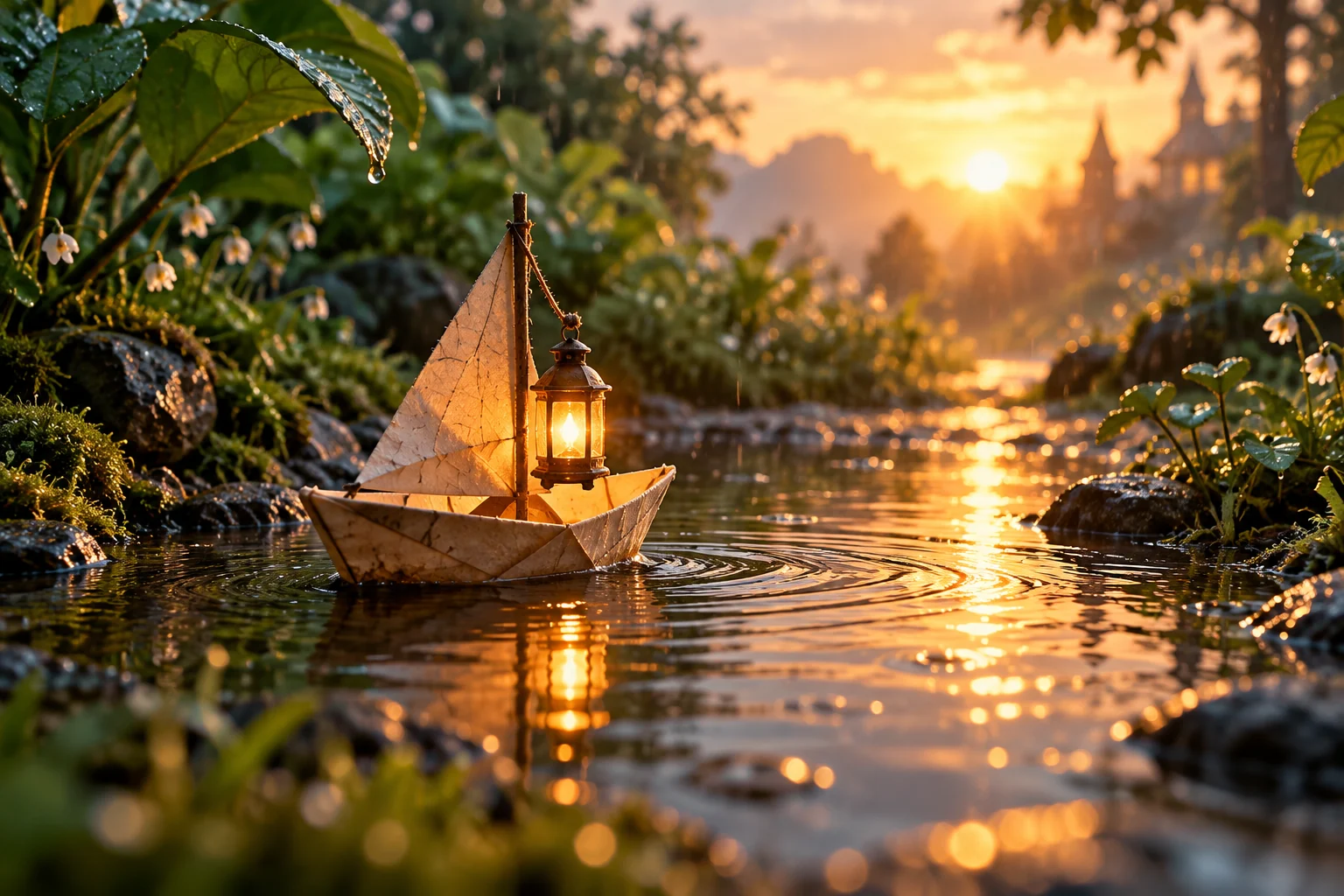
Use my paper-boat image as the visual reference. The boat drifts gently across the puddle while the lantern casts a warm reflection. Keep the camera low and nearly still. Preserve the folded paper shape and the quiet garden setting.
For a product photo, try: keep the bottle upright and its main silhouette stable, move the camera slowly from left to right, and let soft window reflections travel across the glass. Review text and fine labels separately before using the shot in an advertisement; small lettering can change during generation.
For a character illustration, specify a restrained action such as a brief glance toward a window. Keep the same clothing and overall color palette. If identity drifts, reduce the movement or improve the reference rather than adding a long list of competing instructions.
Create More Than a Moving Photograph
Product stories from existing photography
Give a launch sequence a consistent visual starting point by using your own product photographs. Plan an establishing shot, a detail shot and a closing scene around one message. Leave final typography and critical product specifications for a reviewable editing step. Generated motion should support the product story rather than obscure what the customer needs to see.
Illustrated stories and character moments
Use a drawing as a visual anchor for a scene. Keep a small reference set for recurring characters and describe each shot's story purpose before its camera movement. A short sequence with clear actions is easier to assess than a complex transformation that changes the setting, costume and viewpoint at once.
Social clips and campaign variations
Plan the intended destination before generating. A vertical social video needs different framing from a landscape presentation. Keep the main action away from areas likely to be covered by captions or platform controls. Compare variants around a meaningful creative question, such as a calm opening versus an energetic opening, instead of generating alternatives without a review goal.
Choose an Image to Video AI Workflow That Fits Your Story
| Your starting point | What to focus on | What to review |
|---|---|---|
| A single photograph | One subject action and one camera direction | Subject shape, facial details and motion |
| A product image set | Consistent lighting and a clear campaign sequence | Labels, geometry and product continuity |
| An illustrated character | Stable references and simple story beats | Clothing, proportions and scene continuity |
| A longer video idea | A script and a shot plan before generation | Whether each shot advances the story |
Image to video AI is most useful when the photograph already gives you the visual direction you need. If your idea has no reference image yet, start with a written brief and explore MOVO AI video generation. If you already have a visual reference, preserve that advantage by keeping the first motion test specific.
Generation quality, supported settings and credit costs depend on the available model and your project choices. Inspect the current workspace rather than assuming every model offers the same duration or resolution. Keep useful results and refine only the parts that still need work.
Frequently Asked Questions
Can I animate a photo with image to video AI?
Yes. Supply a photo reference in the MOVO AI workspace and describe the motion you want. Review the generated scene and refine the details through conversation.
Does this page upload my image?
The Add Photos link opens the real MOVO AI workspace. Add your references there. The description you enter on this page is passed to the workspace when browser session storage is available.
Will the AI preserve every detail of my picture?
Exact preservation is not guaranteed. Review faces, product geometry, text and other important details. Simpler movement and clear references can make problems easier to identify and revise.
Can I make a longer video from several images?
Use your images as references within a planned sequence. MOVO AI supports an agent-led workflow for planning, generating, reviewing and refining multiple shots; check available models and settings for each generation.
Is image to video AI the same as a slideshow?
A slideshow presents still images with transitions or camera-like movement. Generative image to video synthesizes changes within the scene, which can produce new subject and environmental motion.
How much does image to video generation cost?
Check the credit information shown for your selected model and settings in the workspace. Review the current pricing page and Usage panel instead of assuming a fixed cost per video.