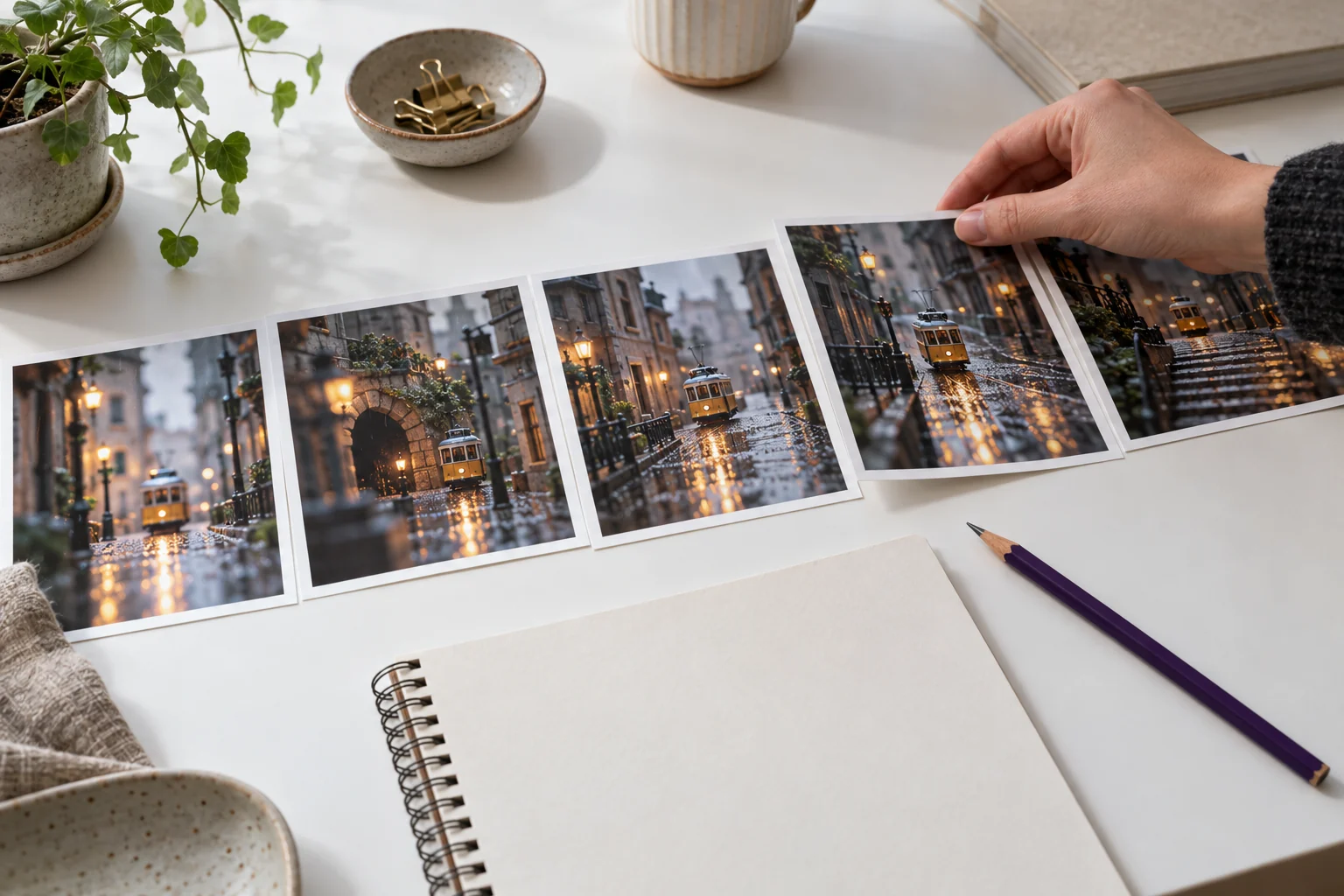
An AI Video Editor Workflow Built Around the Story
An AI video editor can mean different things: assistance with a script, generation of replacement visuals, automated assembly or detailed edits to an imported file. Those capabilities should not be treated as interchangeable. Start with the change you need and check whether the actual tool supports it.
MOVO AI's approach connects creative planning, generated assets and review through conversation. Describe the project, develop the direction and explain the changes needed as the sequence takes shape. The point is to keep the story goal visible while refining the material.
This page does not promise a complete conventional timeline editor, arbitrary imported-footage transformations or frame-accurate retiming. If your task depends on a particular editing control, check the real workspace and use a suitable dedicated editor where needed.
Start With a Clear Review Goal
Watch the current sequence and write down the largest problem in one sentence. Perhaps the opening does not introduce the subject, the middle repeats an idea or the ending fails to explain the next step. A clear diagnosis makes the revision more useful than a general request to make the video better.
Separate story issues from visual issues. A scene can be beautifully rendered but unnecessary. Another can be important to the narrative while needing a simpler camera movement. Identify which decision needs to change before asking for another generation.
Use creative direction and script review as checkpoints. Confirm that the planned sequence works before spending additional effort on shots that may no longer belong in the edit.
How to Describe an AI Video Edit
Name the scene or story beat
Identify the part you mean using a scene description or another reference that is clear in the project. Avoid an ambiguous instruction such as change that shot if several similar scenes exist.
State what should remain
Keep the useful parts of the direction stable: subject appearance, approved reference assets, setting or the scene's purpose. This narrows the revision and makes it easier to compare with the previous version.
Explain one specific change
Ask for a simpler action, a clearer establishing scene or a different narrative order. Describe the effect on the viewer, such as understanding the location before the action begins. A precise reason helps connect the edit to the overall story.
Review the new result in context
Watch the revised scene with the surrounding material. Check that solving one problem has not introduced a continuity issue or an abrupt transition. Keep a record of which version you approve.
Examples of Useful Conversational Revision Requests
The opening introduces the tram too late. Keep the rainy miniature-city setting, but develop an establishing shot that shows the tram approaching before we move to the close view. The viewer should understand the location first.
For an explainer, try identifying the missing connection: the second scene shows the result before we understand the problem; revise the planned order so the cause is clear. For a product story, specify the message that should receive more attention instead of requesting unsupported claims or a fake demonstration.
For a visually complex shot, ask for a simpler movement while retaining the approved subject reference. Review important shapes and text after generation. Repeating the same vague instruction can use more attempts without resolving the creative uncertainty.
Keep References and Continuity Organized
Use a consistent set of approved references for recurring subjects. Tell the workspace what each asset controls, such as character appearance, product shape or scene atmosphere. Mixing unrelated references without explanation can make review more difficult.
Compare the sequence across cuts. Check clothing, important props, screen direction and changes in the environment. The goal is a coherent viewing experience, not a collection of individually attractive clips. Keep successful material where possible and identify the specific missing shot or correction.
If a still image already captures the visual direction, use the image-to-video workflow with a clear action. If the story needs new imagery, develop the brief through text to video. Review both within the same narrative plan.
Choose a Dedicated Editor for Exact Finishing Tasks
Some jobs require specific controls: an exact cut point, a numerical speed change, detailed audio mixing or a strict export specification. Do not assume a conversational generation workflow provides every control found in a traditional editor. Keep the original export and finish those tasks in a tool that explicitly supports them.
For example, the slow motion video guide distinguishes deliberate scene generation from precise retiming. The same principle applies to other effects: name the operation, confirm the control and inspect the output.
In MOVO, review the project stage and the available actions before proceeding. Budget the revision work with the Usage and credits workflow rather than assuming every change is free or purely editorial.
Review the Final Video as a Viewer
Set the editing conversation aside and watch the whole result. Can someone understand the subject without your notes? Does each scene add something? Is the ending clear? Check factual statements, visual representations and any essential wording separately.
Then prepare the appropriate delivery version for its destination. Keep an approved master, a review copy and any platform-specific variant distinct. A deliberate final review closes the loop between the initial brief and the sequence you actually share.
Frequently Asked Questions
What does AI video editing mean in MOVO AI?
It means developing and refining a generated video project through a conversational workflow that connects direction, script, assets and scenes. Check the real workspace for the actions available at each stage.
Does this page promise a frame-accurate timeline editor?
No. Exact cutting, retiming and other finishing controls should be checked in the actual product or handled in a dedicated editor that supports them.
How should I ask for a revision?
Name the relevant scene, explain what should stay and state the specific change you need. Connect it to the viewer's understanding or the story's purpose.
Can I use my own reference images?
Add supported reference assets in the MOVO workspace and explain their role. Review generated details and continuity rather than assuming exact preservation.
Does a revision always cost the same amount?
No fixed cost is promised here. Work can involve planning, assets or generation. Check current estimates and the Usage panel for the actual project.
Can I automatically edit any imported video file here?
That broad capability is not established by this page. Use the input to start a MOVO project and confirm specific file and editing support in the workspace.