How to Turn Image to Video with AI

How Does AI Image to Video Work?
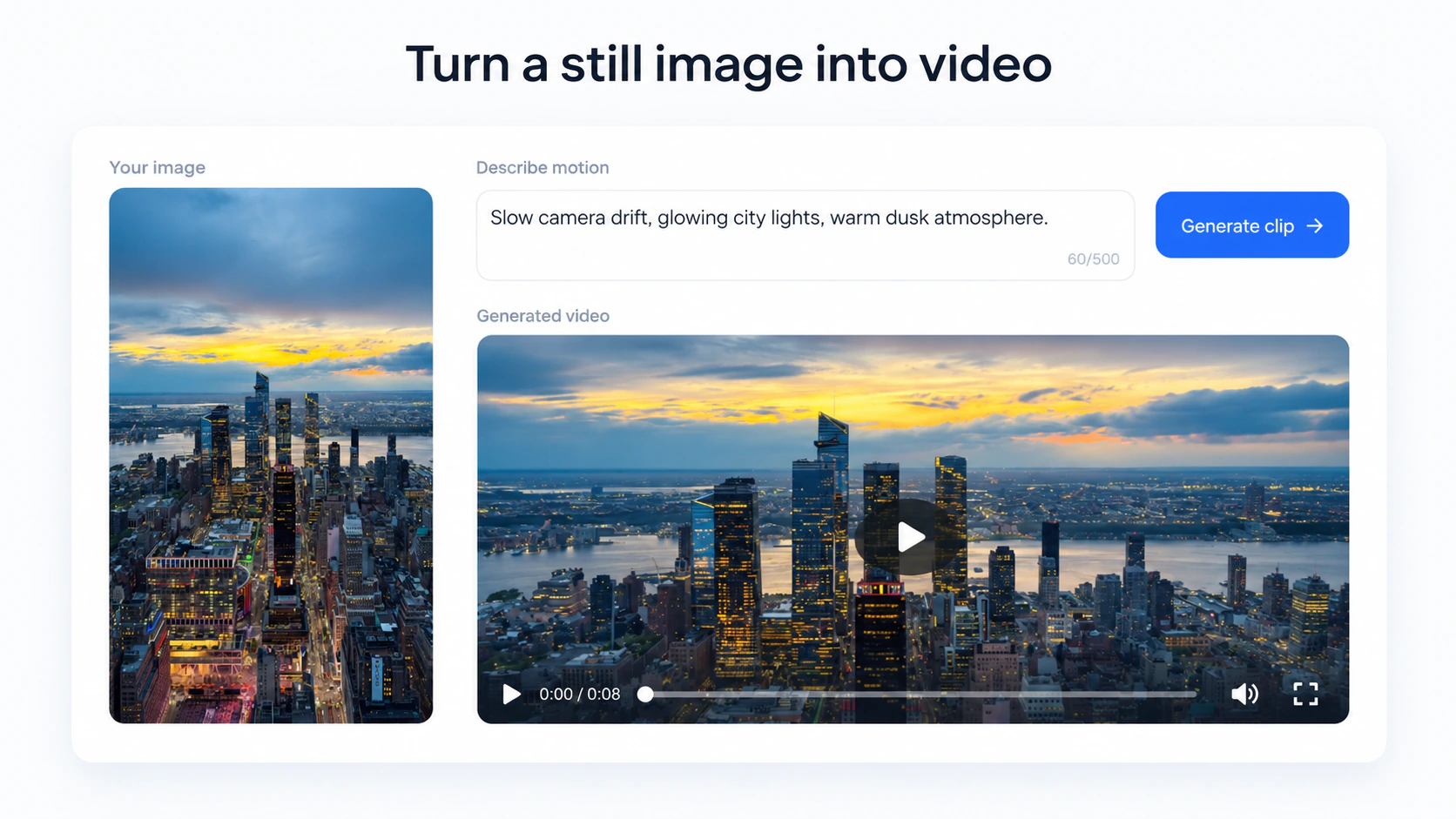
An AI image to video generator needs to understand both what already exists in the image and what should happen next.
While different AI models use different approaches, the general process follows a similar workflow.
1. Analyze the Original Image
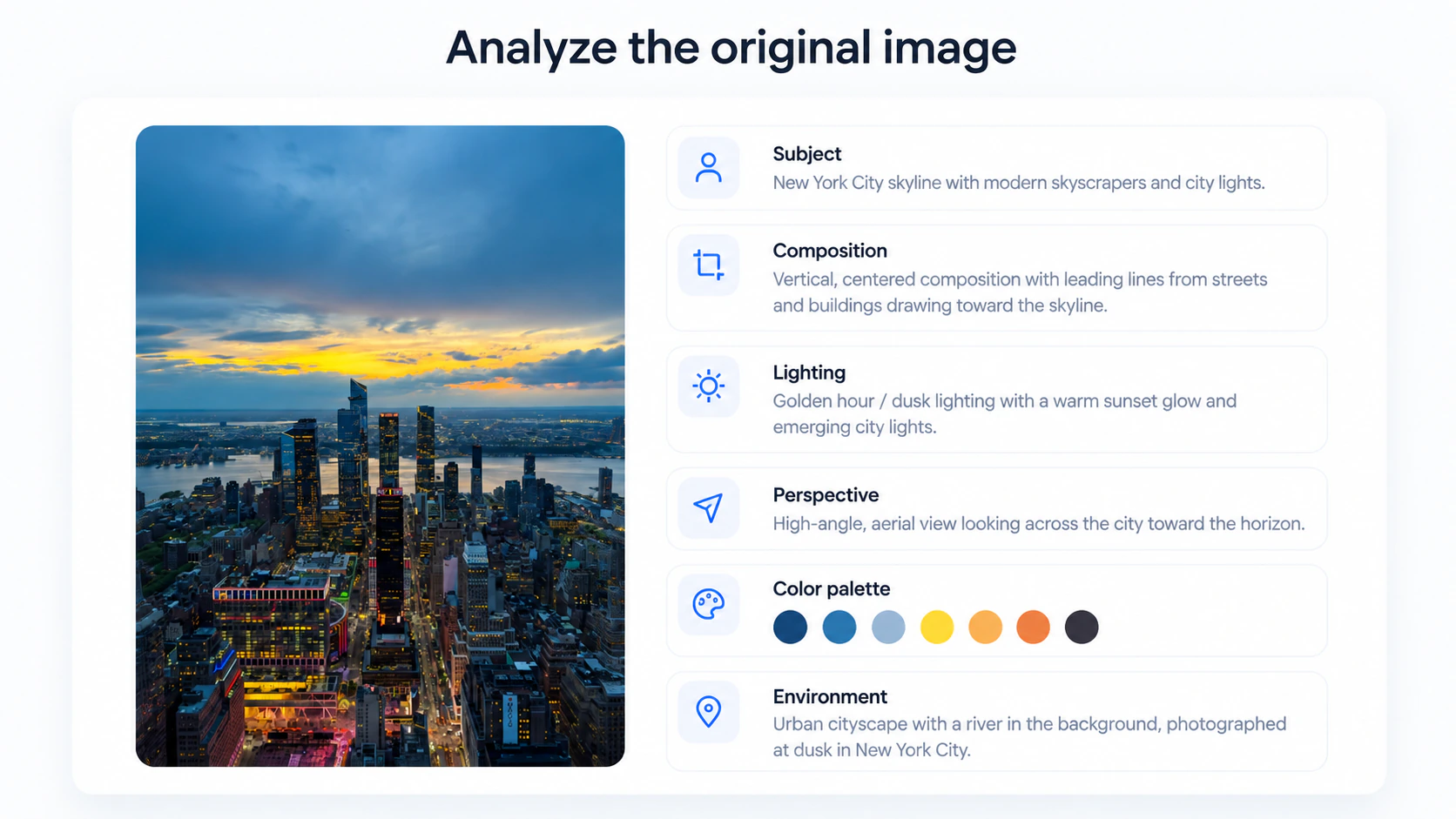
The AI first examines the visual information in your image.
This can include:
- Characters and people
- Products and objects
- Backgrounds
- Composition
- Lighting
- Perspective
- Colors
- Visual style
These elements establish the starting point for the generated video.
2. Understand the Motion
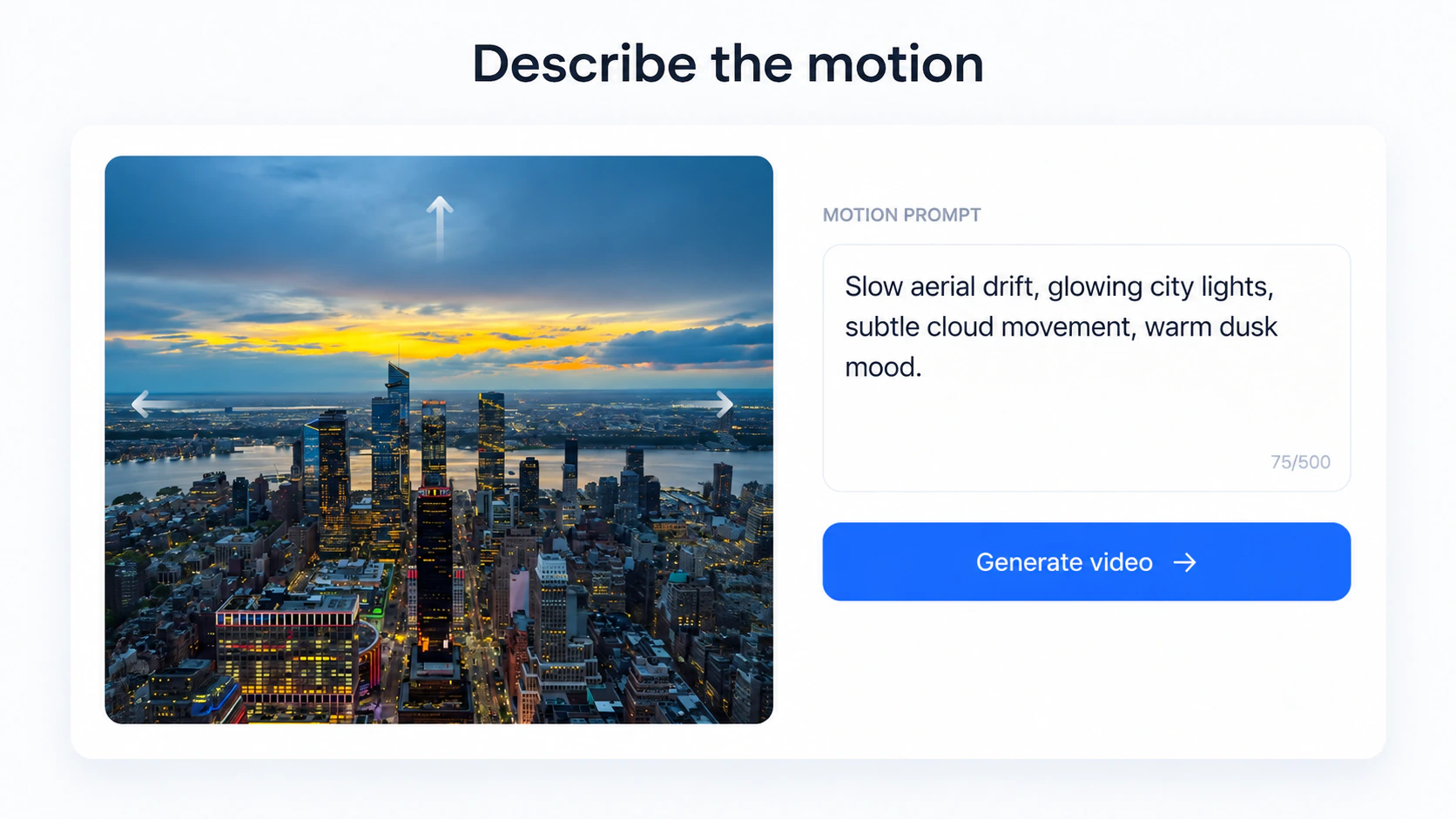
Next, the AI interprets what you want to happen.
Your instruction can describe:
- Character movement
- Object movement
- Facial expressions
- Camera movement
- Environmental motion
- Mood and atmosphere
For example:
“Slowly move the camera toward the character while the trees move naturally in the wind.”
The image defines what the scene looks like, while your instruction defines how it should move.
3. Generate New Frames
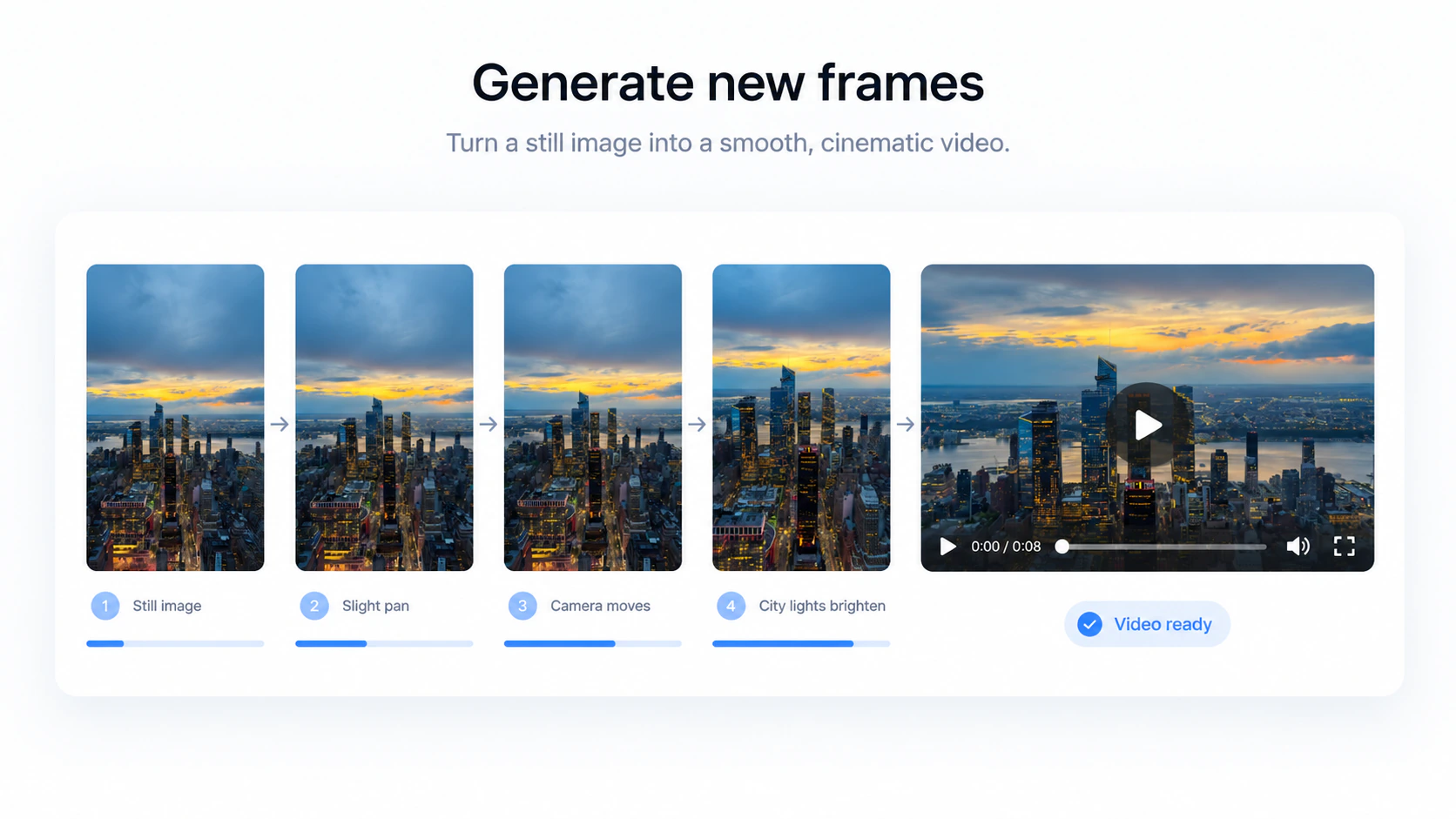
The AI then generates additional frames based on the original image and your instructions.
It predicts how characters, objects, environments, and camera perspectives should change from one moment to the next.
For example, it might animate:
- A character walking
- A product rotating
- Water flowing
- Clouds moving
- Hair blowing in the wind
- A camera moving through the scene
These generated frames create the illusion of continuous motion.
4. Maintain Visual Consistency
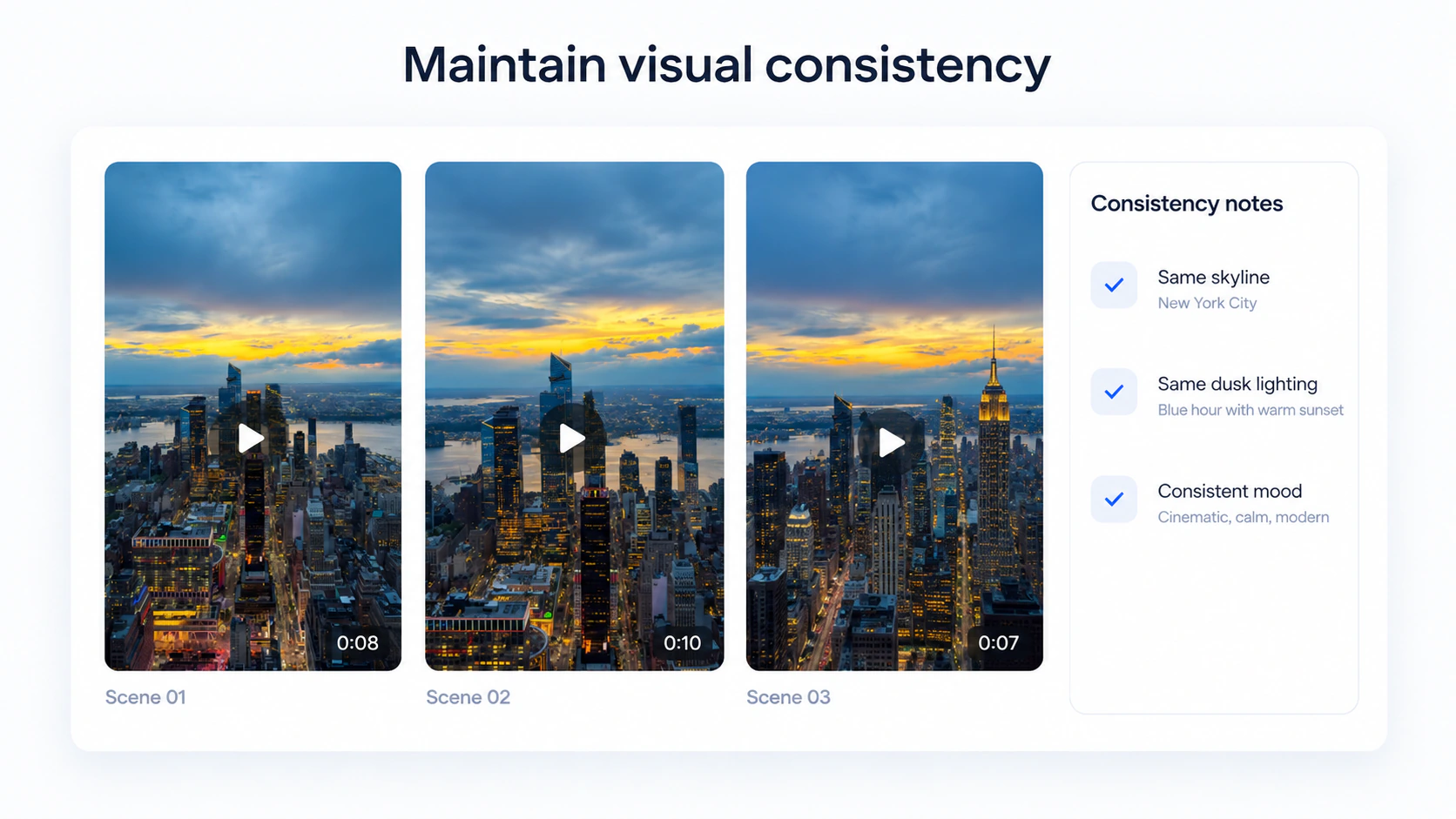
The generated video still needs to remain connected to the original image.
Characters should remain recognizable, products should keep their appearance, and the overall environment and visual style should remain coherent.
Consistency becomes even more important when the same character, product, or scene appears across multiple generated clips.
5. Review and Refine
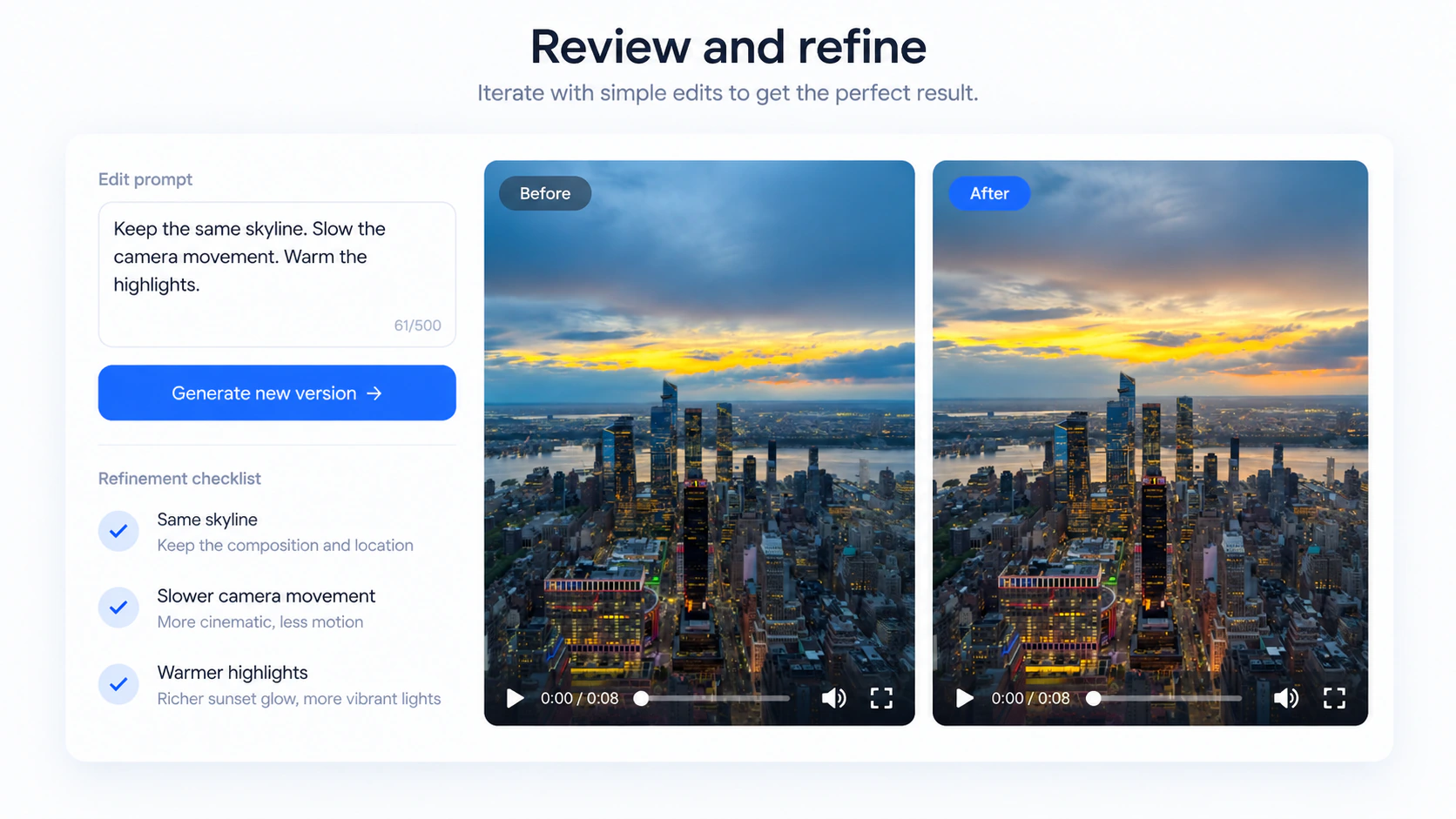
The first result does not have to be the final result.
You can review the generated video and refine details such as:
- Motion
- Camera direction
- Speed
- Visual style
- Lighting
- Composition
- Scene details
This iterative process helps move the result closer to your original creative intention.
How to Turn Image to Video with AI
Creating a video from an image with AI can be broken down into a few simple steps.
Step 1: Choose Your Image
Start with an image that clearly represents the subject or scene you want to animate.
Your starting image might be:
- A character
- A product
- An illustration
- A landscape
- A cinematic scene
- An AI-generated image
- A branded visual asset
A clear subject and strong composition give the AI more visual information to work with.
Step 2: Describe What Should Move
The next step is to explain what you want to happen in the video.
Focus on movement rather than simply describing what is already visible.
For example:
“The character slowly turns toward the camera.”
“Make the product rotate while the camera moves closer.”
“Add subtle movement to the clouds and water.”
“Move the camera slowly through the scene.”
Clear motion instructions make it easier for the AI to understand how the still image should evolve.
Step 3: Add Creative Direction
You can also describe how the finished video should feel.
Consider details such as:
- Camera movement
- Pacing
- Lighting
- Mood
- Visual style
- Atmosphere
- Realism
Instead of simply saying:
“Animate this image.”
You could say:
“Animate this image with slow cinematic camera movement, subtle wind, realistic motion, and warm sunset lighting.”
This gives the AI a clearer creative direction.
Step 4: Generate the Video
Once your image and instructions are ready, start generating.
The AI image to video generator uses the source image as the visual foundation and generates new frames to create movement.
For a simple idea, one generated clip may be enough.
For a story, short film, social video, or ad, however, the image-generated clip may become just one scene within a larger project.
Step 5: Review and Refine
Watch the result and identify what you want to change.
For example:
“Keep the same character, but slow down the camera movement.”
“Reduce the character movement and add more movement to the background.”
“Keep the composition but make the lighting more cinematic.”
Instead of regenerating everything blindly, focus your feedback on the elements that need improvement.
Step 6: Build the Scenes into a Complete Video
If your goal is a complete video rather than a single animated image, you may need multiple scenes.
A finished project could include:
- Multiple image-based scenes
- Recurring characters
- Different camera angles
- Scene transitions
- Voiceovers
- Music
- Pacing
- Editing
This is where image-to-video creation starts moving beyond individual generation and into a complete production workflow.
How to Create Video with Images
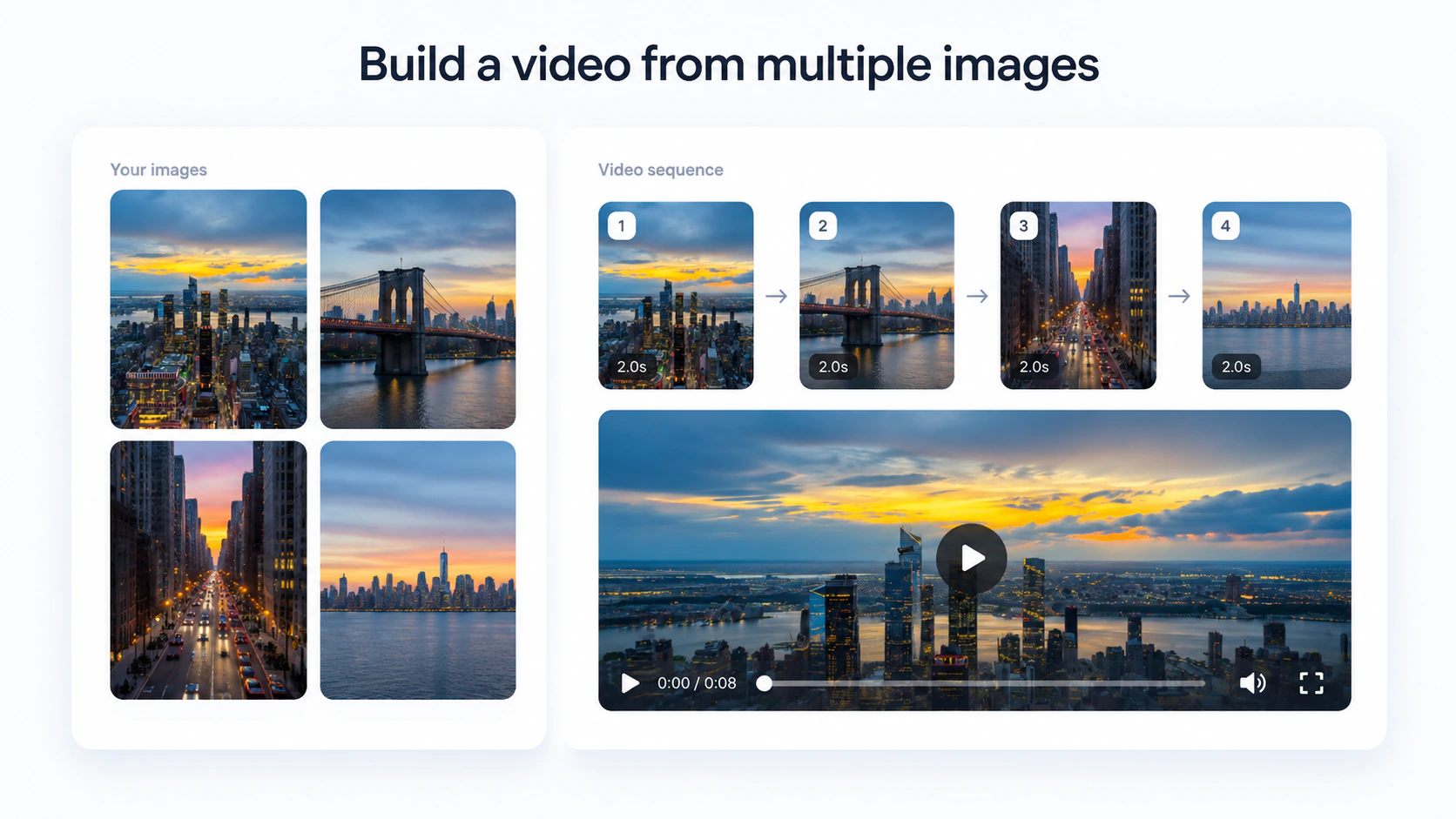
You can also use multiple images to build a longer video.
For example, imagine you have four images:
- A character standing outside a building
- The character entering the building
- A close-up of the same character
- A final shot of the environment
Instead of arranging them as a static slideshow, each image can become the visual starting point for a generated scene.
You can give each scene its own movement, camera direction, and creative instructions, then connect the resulting clips into a continuous sequence.
This allows you to make video from images while keeping more control over how each part of the story looks.
Image to Video Generator vs. AI Video Agent
A traditional image to video generator usually follows a straightforward process:
Image → Animated Clip
You upload an image, generate a clip, and repeat the process when you need another result.
An AI video agent approaches the task differently.
| Image to Video Generator | AI Video Agent |
|---|---|
| Prompt-based interaction | Natural conversation |
| Animates individual images | Works toward complete videos |
| Clip-by-clip generation | Project-level workflow |
| User coordinates each step | AI helps coordinate production |
| Limited context between generations | Memory across the creative process |
The difference is not simply how the video is generated.
It is how the overall creation process is managed.
Instead of repeatedly asking:
“Animate this image.”
An AI video agent allows the goal to become:
“Help me create this video.”
How to Turn Image to Video with MOVO AI
MOVO AI takes image-based creation beyond a single generation.
You can upload your own images, videos, references, and creative assets to help MOVO understand your vision. Rather than treating each asset as an isolated prompt, MOVO uses them as part of an agent-led workflow that includes creative planning, generation, review, and refinement.
MOVO organizes this process around four stages:
1. Imagine
Start with an image, idea, reference, or other creative asset and tell MOVO what you want to create.
MOVO AI explores possible scenes, moods, and visual directions based on the information you provide.
Your image therefore becomes more than an isolated generation input. It can help establish the character, product, environment, style, or overall visual direction for a wider video project.
2. Refine
Once the creative direction begins to take shape, you can refine the result through natural conversation.
Adjust the scenes, style, pacing, and details through feedback rather than rebuilding the entire workflow each time.
For example:
“Keep the same character, but make the next scene darker.”
or:
“Use the same visual style and slow down the pacing.”
This makes image-based creation more iterative and conversational.
3. Compose
A complete video usually requires more than one generated clip.
MOVO AI can synthesize selected clips into a cohesive video, helping move the process from individual generations toward a complete piece of content.
MOVO AI is designed around complete video production and currently highlights support for 120s+ narratives within a single chat session.
4. Reimagine
MOVO AI uses memory to recall creative elements such as characters, products, scenes, and styles.
This helps previously established creative elements guide future scenes and makes it easier to continue developing the same project without repeatedly rebuilding its visual context.
Why Use MOVO AI for Image to Video?
A traditional AI image to video generator is useful when your goal is simply to animate one image.
MOVO AI is designed for a broader goal: turning ideas, references, and assets into complete, ready-to-share videos without relying on a fragmented collection of prompts and tools.
Create Videos Through Conversation
MOVO AI allows you to describe your ideas naturally and refine your video through conversation.
Instead of manually coordinating every isolated generation, you can communicate what you want to create and continue developing the project with feedback.
Let Your References Guide the Creative Direction
MOVO AI can analyze creative references to understand elements such as style, structure, and storytelling patterns.
These references then help guide the creative direction of original video content.
This is especially useful when an image represents a specific character, product, aesthetic, or visual idea you want to carry into a video.
Maintain Character and Scene Consistency
MOVO AI uses project memory to maintain context within a creative project.
This helps keep characters, assets, scenes, products, and visual styles more consistent as the video develops.
Go Beyond a Single Clip
MOVO AI positions itself as a complete video production agent rather than only a video generation tool.
The workflow extends from creative planning and generation to review, refinement, and final video composition.
What Can You Create from Images with AI?
Image-to-video AI can be used across different types of creative projects.
Stories & Series
Turn written story ideas into multi-scene narratives while developing recurring characters, environments, and visual directions.
Short Films
Transform concepts and story ideas into cinematic scenes without shooting every piece of footage manually.
Animation
Turn imaginative written ideas into animated scenes, characters, environments, and visual stories.
Social
Create short-form videos from simple concepts for social media content, creator projects, and campaigns.
Ads
Turn product concepts, campaign ideas, and creative briefs into polished promotional videos.
MOVO currently showcases work across Stories & Series, Short Films, Animation, Social, and Ads, including multi-scene narratives, social campaigns, product stories, and cinematic projects.
Can You Turn Image to Video for Free?
Yes. Some AI platforms provide free credits or limited free usage so you can test image-to-video workflows before paying.
MOVO AI currently gives new users 100 free credits, and the official FAQ states that these credits do not expire.
When comparing a free image to video AI tool, consider:
- Available AI models
- Resolution
- Aspect ratios
- Generation length
- Credit usage
- Reference support
- Refinement options
- Export limitations
MOVO currently supports multiple AI models and offers several resolutions and aspect ratios, although available options depend on the selected model and generation settings.
Frequently Asked Questions
How can I turn an image into a video with AI?
Upload the image you want to use, describe how the subject, camera, or environment should move, generate the result, and refine any details that do not match your creative direction. For larger projects, you can use multiple images or generated scenes and combine them into a complete video.
Can I use my own images and references with MOVO AI?
Yes. MOVO AI allows you to upload your own images, videos, creative assets, and references. These materials help the agent understand your vision and can support more consistent results throughout the project.
Do I need to write complex prompts for image to video AI?
No. Clear creative instructions are usually more useful than unnecessarily complicated prompts. MOVO AI is designed for conversational creation, so you can explain your ideas naturally and continue refining the video through follow-up feedback.
Can I turn an image into a video for free with MOVO AI?
MOVO AI provides new users with 100 free credits to explore its AI video creation workflow. These free credits currently do not expire.
How does MOVO AI keep characters and styles consistent?
MOVO AI uses project memory to maintain creative context, helping keep characters, assets, scenes, products, and visual styles consistent as a project develops.