Choose What the Recording Must Capture
A webcam recorder captures a camera view, often alongside microphone sound or a shared screen. Decide which inputs the explanation needs. A talking introduction, a software demonstration and a narrated presentation may require different layouts and review steps.
The VEED webcam recorder page describes choosing a layout, granting relevant access, recording and reviewing the result. Check its actual browser and device support before the session. A broad recording description is not proof that every device exposes the same controls.
MOVO's composer starts an original supporting-scene brief. It does not request camera or microphone access, capture a screen or save a webcam take. Use a dedicated recording workflow for the real inputs, then plan the separate creative visuals around that material.
Confirm Inputs With a Short Saved Test
Select the intended camera and microphone in the actual recorder. If you have multiple devices, check the source rather than assuming the most recently connected one is active. An attractive picture does not establish that the right microphone is recording.
Make a short test using the same layout planned for the session. Speak at a natural level and perform a representative action. Replay the saved result to inspect picture, sound and synchronization together instead of relying only on a live preview.
If screen capture is involved, check the selected window or area. Keep unrelated private material outside the recording view and verify what is visible when you switch applications. Confirm the actual capture state through the recorder's supported controls.
Set Up a Readable Presentation
Place the camera at a comfortable angle and inspect the frame boundaries. Keep the presenter's face and relevant gestures visible. A clean background and consistent light can make the explanation easier to follow without requiring an elaborate studio.
Write a concise outline and rehearse any difficult names or transitions. If you use a script, position it so reading does not pull attention far from the intended presentation. Keep the message clear enough that a small wording change does not derail the whole take.
For a screen demonstration, make the important action legible at the final viewing size. A tiny control visible on the presenter's monitor may be difficult for the viewer to identify. Plan pauses or closer views where they genuinely help explain the task.
Finish the Take Before Adding Decoration
Review the whole recording for missing steps, unclear statements and interruptions. Fix the explanation before polishing titles or transitions. A smooth visual package cannot repair a demonstration that omits the action needed to understand the result.
Keep the source take and an editable finishing project. Trim unwanted starts and endings, then check the saved sequence for gaps and sound joins. Add exact captions after the dialogue edit is stable and proofread them against the actual recording.
Use only the recording and sharing controls you intend to use. A saved local file, a hosted review link and a published video are different deliverables. Confirm the actual output and its accessibility to the intended audience through the chosen workflow.
Plan Supporting Visuals as Separate Assets
Identify ideas that benefit from an original illustration or establishing scene. In MOVO, describe the subject, action, environment and endpoint for each supporting shot. Keep factual demonstrations in the real source recording where their behavior can be verified.
Assemble the accepted recording and scene assets in a suitable editor. Check cuts, text, sound and final framing in the saved master. No automatic import of a camera feed or external recorder project into MOVO is established by this page.
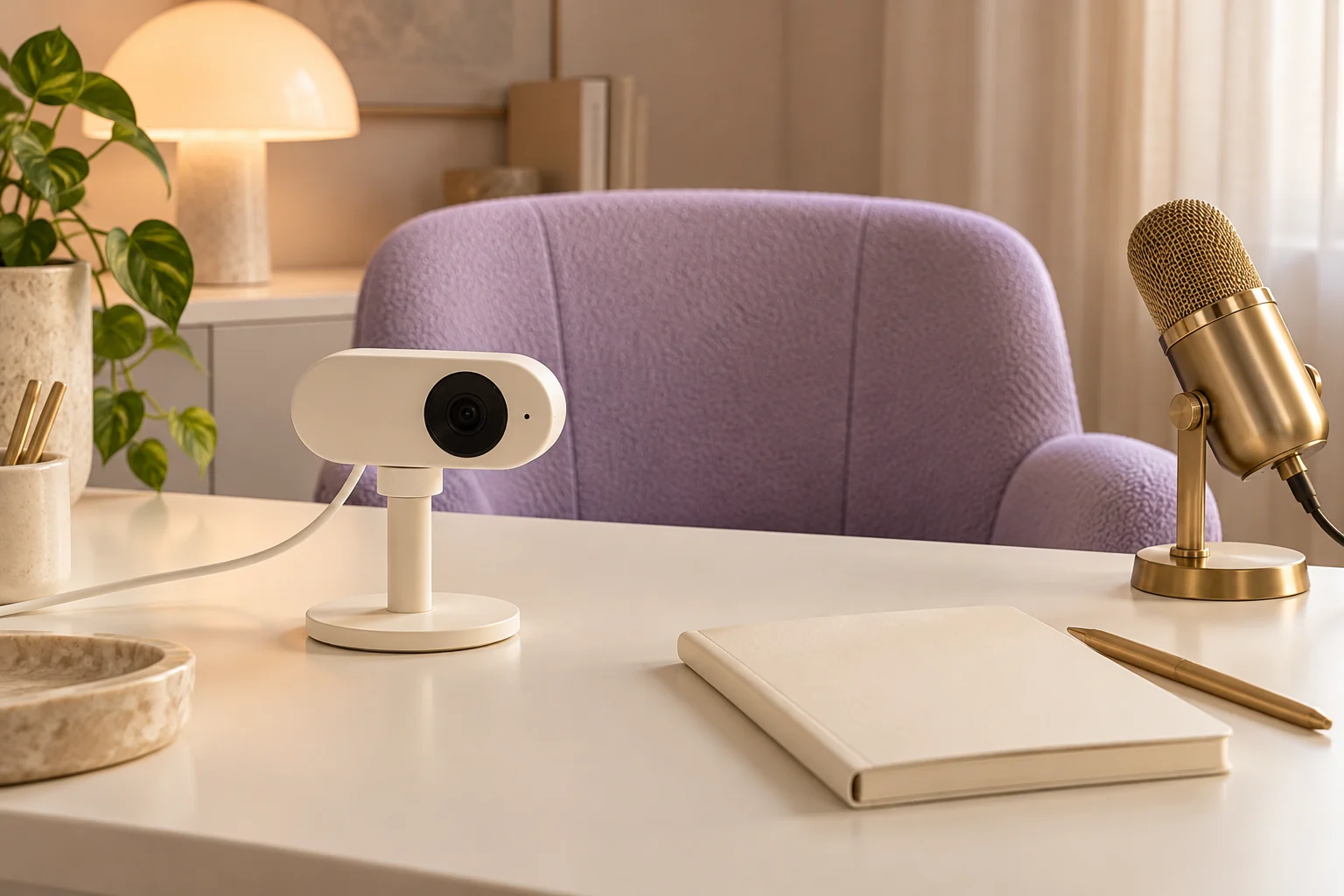
The recording desk image is original editorial artwork. It is not an active camera view, a captured session or a product screenshot. Test and review the real recording before considering the presentation ready.
Frequently Asked Questions
Does this MOVO entry record my webcam?
No. It starts an original supporting-scene brief without accessing recording devices.
Should I test camera and microphone together?
Yes. Replay a short saved take to check the actual inputs and synchronization.
Does a live preview prove the saved recording works?
No. Inspect a representative saved sample in the real workflow.
What should I verify for screen capture?
The selected window or area, visible content and actual recording state.
When should captions be finalized?
After the dialogue edit is stable, against the accepted recording.
Is the pictured desk a captured webcam session?
No. It is original editorial artwork.