Decide Whether the Recording Needs Gaze Correction
Eye contact AI adjusts the apparent direction of a presenter's eyes in recorded footage. Begin by watching the original delivery. A natural glance toward a prop or a demonstration may communicate something useful and should not automatically become a fixed gaze at the lens.
The VEED Eye Contact AI page describes uploading or recording a video, applying gaze correction and exporting. Its FAQ identifies a prerecorded-video workflow. Check the actual provider controls rather than assuming a live correction feature.
The MOVO composer starts an original supporting-scene brief. It does not modify eyes in uploaded footage or connect a camera feed. Keep gaze correction in a suitable editor while developing the separate visuals that help explain the presentation.
Improve the Source Delivery Before Processing
Position the camera and reading material so the presenter can speak comfortably. A brief script with a clear structure can reduce the need to search around the screen. Record a short test in the intended setup before committing to a long take.
Use lighting that makes the eyes and face visible without forcing an uncomfortable pose. Check glasses, reflections and the camera angle in the actual recording. A clear source gives you a better basis for judging whether processing improves the delivery.
Retain the unprocessed take separately. Compare the correction with that source rather than relying on memory. If the original performance already communicates naturally, the useful decision may be to keep it or adjust only a limited passage.
Inspect Eyes During Real Movement
Watch blinking, head turns and changes in expression. A correction that looks plausible in a still frame may appear distracting when the presenter moves. Review difficult moments at normal speed and more slowly where necessary.
Check both eyes together and their relationship to the face. Look for apparent drift, unusual sharpness or a gaze that stays fixed while the head changes direction. The acceptance question is whether the delivery remains understandable and natural throughout the shot.
Review any gesture toward a screen or object. The intended action may require the presenter to look away. Do not treat continuous apparent eye contact as an automatic improvement if it contradicts what the person is doing or explaining.
Keep the Presentation Honest and Coherent
A polished delivery does not verify the script's claims. Check facts, names and qualifications against approved material. Avoid implying a spontaneous customer experience or a live interaction when the presentation is a prepared, edited recording.
If you replace a passage, inspect the visual and sound transition into the next shot. A corrected segment and an untreated segment may differ in a way that attracts attention. Review the assembled sequence rather than approving each isolated preview alone.
Add exact titles and captions through suitable finishing controls. Proofread their wording and check their timing against the final recording. Gaze correction and subtitle accuracy are separate tasks, even if an external editor offers both in the same project.
Use Supporting Scenes Where They Clarify the Message
Plan original visual inserts in MOVO for ideas that benefit from a separate illustration or environment. Give each scene a communication purpose, such as establishing a location or showing an invented process analogy. Identify factual details that must remain exact.
Finish the recorded presentation and supporting scenes in an appropriate editing project. Replay the saved master for gaze, cuts, captions and sound. No automatic transfer from an external gaze editor or camera application is established by this entry.
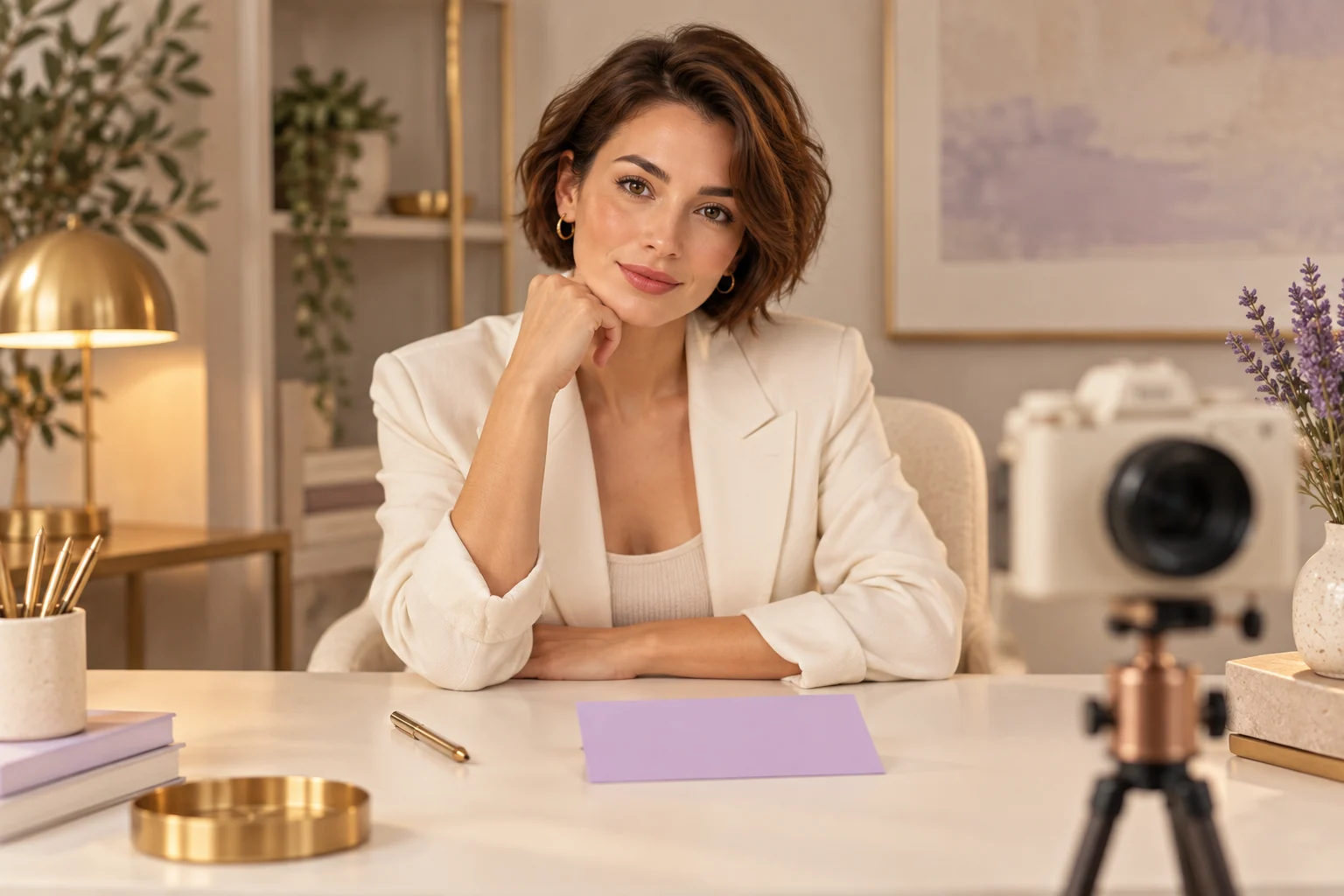
The presenter artwork is an original fictional editorial concept. It is not a before-and-after comparison, a measured correction result or a MOVO eye-editing interface. Judge the actual processed footage before considering the correction accepted.
Frequently Asked Questions
Does MOVO correct eye gaze through this entry?
No. It starts an original supporting-scene brief.
Should the presenter always appear to look at the camera?
Not necessarily. Natural glances may be important to a demonstration or gesture.
Does the reference establish live gaze correction?
Its FAQ describes prerecorded video; check the provider’s actual supported workflow.
What movement should I inspect closely?
Blinks, head turns, expressions and gestures toward other objects.
Should I keep an unprocessed take?
Yes. It provides a direct comparison and a source for revisions.
Is the presenter image a correction demonstration?
No. It is original fictional editorial artwork.