Prepare the Script Before Scrolling It
A teleprompter displays a script so a speaker can deliver it while facing a camera or audience. Begin by checking the words and reading them aloud. A polished paragraph for silent reading may still sound stiff or be difficult to say naturally.
The VEED teleprompter page describes a dedicated browser script-reading and recording workflow. That scrolling and capture functionality is not established by MOVO's composer above.
Use MOVO for the original supporting-visual brief after the message is approved. Keep the recording step separate so the speaker can focus on clear delivery while the scene plan explains what viewers need to see.
Write for the Speaker and Listener
Use direct sentences and natural transitions. Break up long chains of clauses and replace ambiguous abbreviations with the intended spoken form. Check names, numbers and terms that need a specific pronunciation before recording.
Preserve the message when shortening the script. A smoother sentence should not omit an important condition or change the speaker's meaning. Keep an approved version available so rehearsal notes do not silently become factual changes.
Add pauses where the listener needs time to understand an idea. A demonstration may need a longer gap than a simple introduction. The goal is a comfortable performance, not reading every word at one mechanically constant speed.
Set Up a Comfortable Reading View
Use the actual teleprompter's available controls for text size and scroll behavior. Position the reading view appropriately for the recording setup so the speaker can follow the script without large distracting shifts in gaze.
Test a short passage containing a pause, a difficult word and a change in emphasis. Adjust the pace to the speaker rather than forcing the speaker to chase moving text. A rehearsal can reveal wording that needs to be simplified.
Check the camera framing and sound separately. A readable script does not prove the microphone is clear or the speaker remains in frame. Review the actual test recording before committing to the full performance.
Review the Recording for Meaning and Delivery
Watch and listen to the complete take. Check skipped words, repeated phrases, pronunciation and an ending that feels complete. A smooth first sentence does not approve a recording with an important omission later.
Compare the performance with the approved script, while allowing natural delivery when the meaning stays correct. If a critical fact changes, record a corrected passage rather than relying on unrelated visuals to hide it.
Use suitable editing controls for cuts, captions and sound. Keep pauses that serve understanding instead of removing every quiet moment automatically. The final viewer experience should feel clear and intentional.
Create Supporting Scenes From the Approved Message
Identify the visual role of each script section. An introduction may need an original setting, a central explanation may need a useful action and the ending may need a calm final view. Brief those scenes in MOVO with concrete subjects and movements.
Finish exact alignment between the recording and accepted visuals in suitable tools. The composer does not provide a teleprompter, automatic eye correction or a guaranteed recording-to-scene synchronization operation through this page.
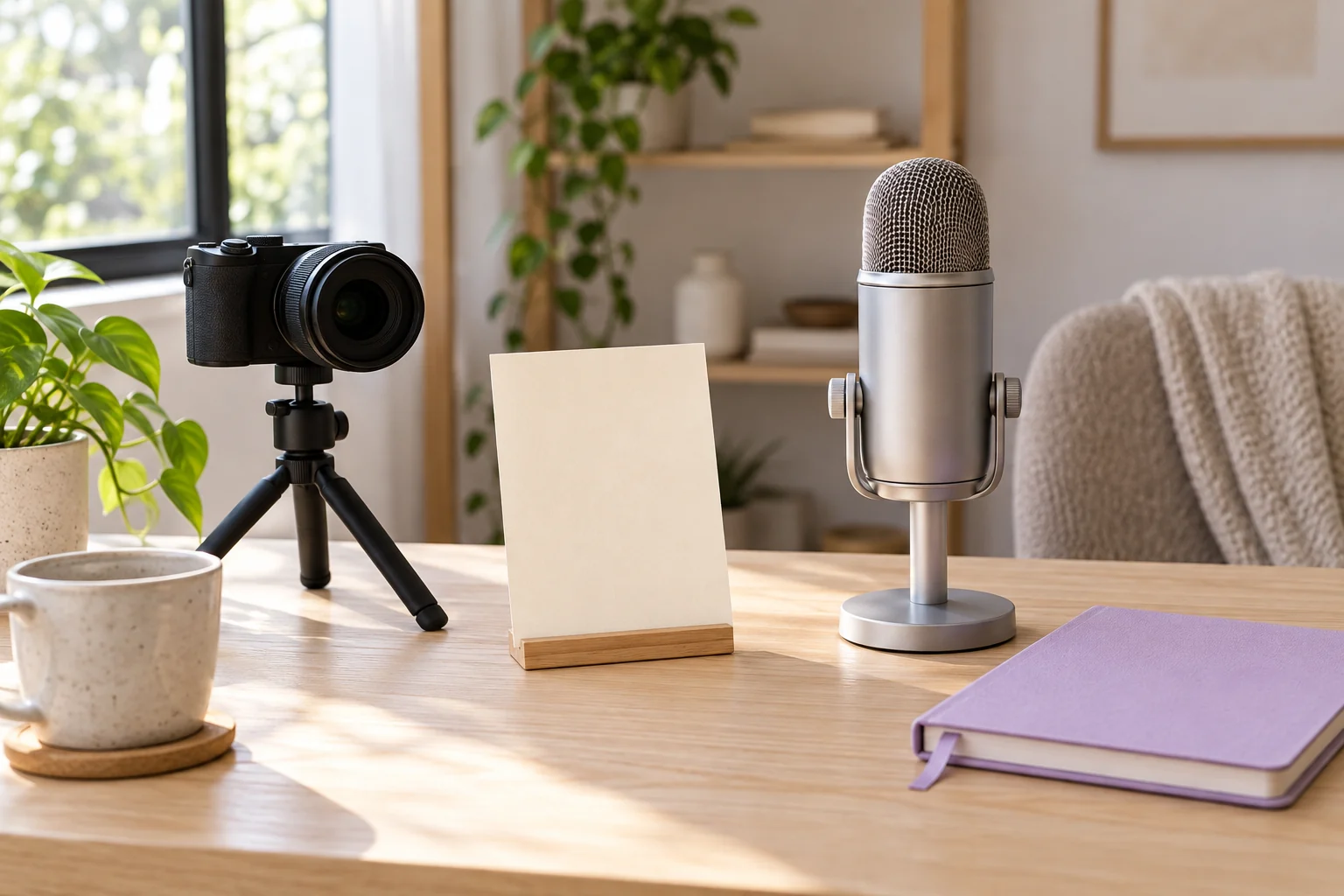
Retain the approved script, accepted take, scene brief and final master. The blank script card in the illustration is original conceptual artwork, not an interactive scrolling tool or proof that a recording has been made.
Frequently Asked Questions
Does this MOVO entry scroll a script or record a speaker?
No. Use a dedicated teleprompter; the composer starts original visual planning.
What should I do before setting scroll speed?
Read the checked script aloud and revise wording that is difficult to deliver.
Should the speaker chase a fixed scroll speed?
No. Test the controls and choose a comfortable delivery pace.
Does readable script text prove recording quality?
No. Check framing, sound, skipped words and complete delivery in the actual take.
Are eye correction or automatic synchronization promised here?
No. Verify separate production operations in the actual workflow.
Is the pictured script card interactive?
No. It is original conceptual artwork.