Define What You Mean by Resize Video
Resize video can refer to changing pixel dimensions, changing the canvas shape or making a smaller delivery file. Those tasks are related but not identical. Decide which outcome the destination actually requires before choosing a setting.
A landscape clip prepared for a portrait post needs a composition decision, not just a new number. A smaller file for sending may need compression without changing the picture's shape. Keep the creative framing and technical delivery targets clear.
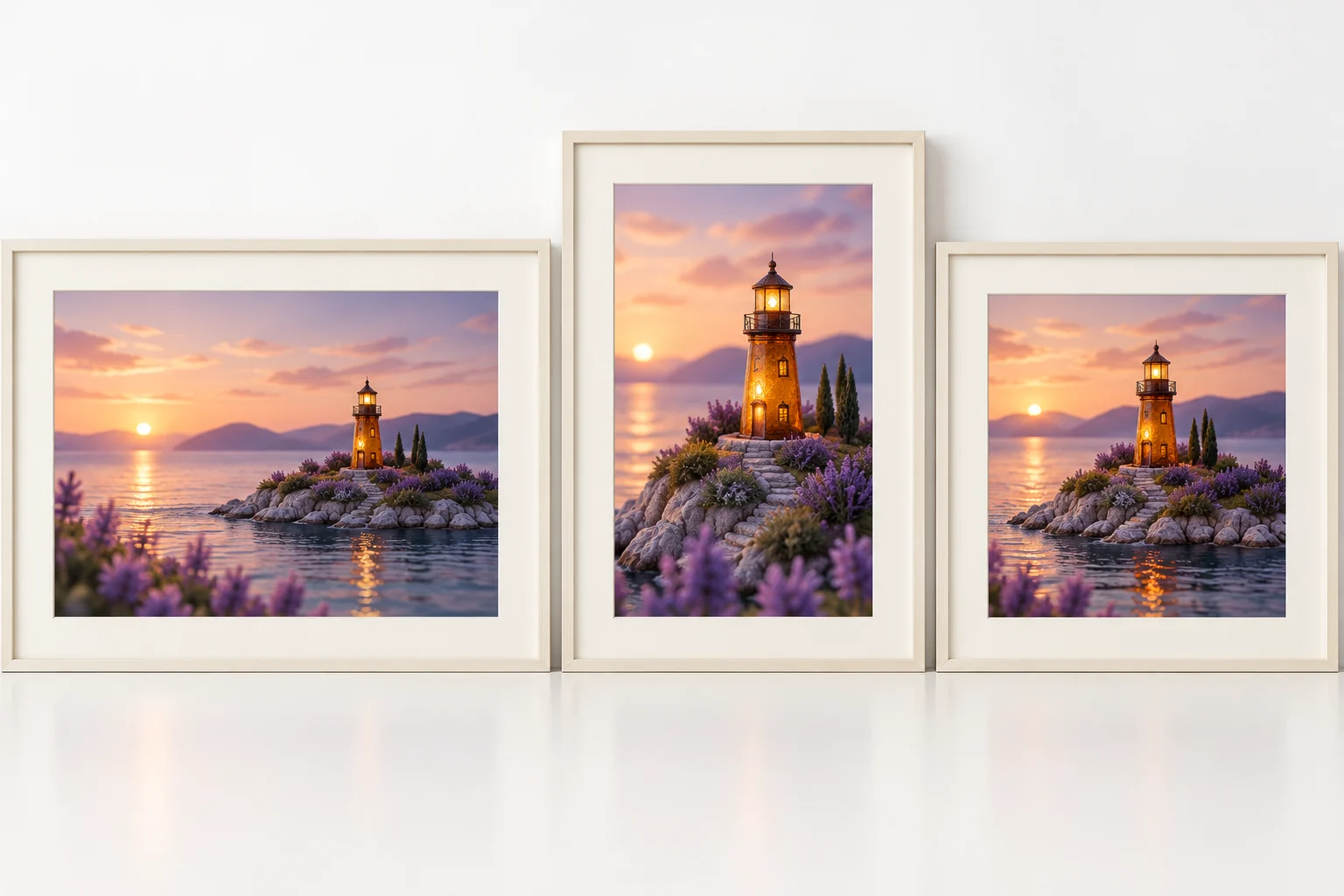
The MOVO entry above plans an original scene with the intended viewing context. It does not process a source file or set exact output dimensions here. Use a suitable dedicated editor for the resizing operation and keep an unchanged master.
Choose Crop, Fit or a New Composition Deliberately
Cropping removes part of the source picture to fill a different frame. Fitting preserves the full image with additional space around it. Stretching changes proportions and can distort the subject. Choose the treatment for the content rather than filling every area automatically.
For a lighthouse on a small island, a portrait crop may keep the tower but lose the boat that explains the action. A wider fit or a newly composed scene could communicate the idea better. Inspect what the viewer actually needs to see.
Keep the choice consistent with the video's purpose. A tutorial may need the complete demonstration area, while a close character moment can use a tighter frame. There is no single crop that preserves every story equally well.
Track Important Action Through the Whole Clip
Review the moving subject from beginning to end. A crop that looks correct on the first frame may lose a hand, prop or destination later. Watch the action at normal speed before checking difficult frames more closely.
Use the chosen editor's supported reframing controls when subject placement changes over time. Do not assume automatic subject tracking will identify every important object. A second object can matter as much as the face or central figure.
Check cuts and transitions after reframing. A sudden shift in subject position can feel distracting even when each shot is individually visible. Compare the sequence as a viewing experience, not only as a set of still crops.
Keep Captions and Graphics Inside the Reviewed View
Inspect exact text after the picture is resized. Captions that were readable in a landscape master may become too small or cover the main action in a portrait version. Adjust them with suitable text controls rather than scaling the entire composition blindly.
Check destination previews for current overlays and crops. Do not rely on a universal safe-zone promise when platform interfaces can vary. Keep important information away from places where it is visibly obscured in the actual preview.
Review logos, labels and factual graphics separately. If exact words are required, keep them editable and compare them with the approved source. A sharper picture does not establish that a generated label is correct.
Use the External Resizer for Its Exact Controls
VEED's video resizer page describes its own canvas and dimension workflow. Review its current supported formats, account conditions and export controls directly. Those operations are separate from this MOVO creative entry.
Save a test and open the resulting file. Confirm actual dimensions, picture shape, sound and complete duration. If the project also needs a smaller file, evaluate compression separately instead of assuming a changed canvas must meet the size target.
The lighthouse illustration here is original conceptual artwork showing framing choices. It is not a measured resizer output, proof of automatic tracking or evidence that all image detail survives a crop.
Plan Original Scenes for the Intended Format in MOVO
Describe the audience's viewing format and important subject relationships when briefing MOVO. A scene composed for its final use can avoid later crops that remove the action. State where the subject moves and what must remain visible.
Review a representative generated scene before expanding the sequence. Use approved references and inspect motion in the intended frame. Keep exact file dimensions and finishing decisions under appropriate editing controls.
Retain the clean master, reframed versions and settings for each destination. Review the saved delivery file and its actual destination preview, then keep the accepted version distinct from the original production source.
Frequently Asked Questions
Does this page resize an uploaded file in MOVO?
No. It starts scene planning; use a suitable editor for exact canvas or dimension changes.
Is resizing the same as compression?
No. Dimensions, canvas shape and delivery file size are separate targets.
What is the difference between crop and fit?
Cropping removes picture area; fitting preserves it with additional space around the image.
Should I inspect more than the opening frame?
Yes. Track important subjects, props and text across the entire clip.
Does a portrait crop always work for a landscape video?
No. Choose a crop, fit or new composition that preserves the important action.
What should I check after export?
Actual dimensions, picture proportions, captions, sound, duration and destination preview.