Give the YouTube Edit a Clear Purpose
A YouTube video editor is useful when it helps the audience follow a deliberate sequence. Start by deciding what the viewer came to learn or watch. An explanation, a demonstration and an original story need different editorial structures.
Write the central promise in plain language. Check whether the opening delivers enough context to understand the first useful action. An elaborate intro can work for some stories, but it should not obscure the actual subject.
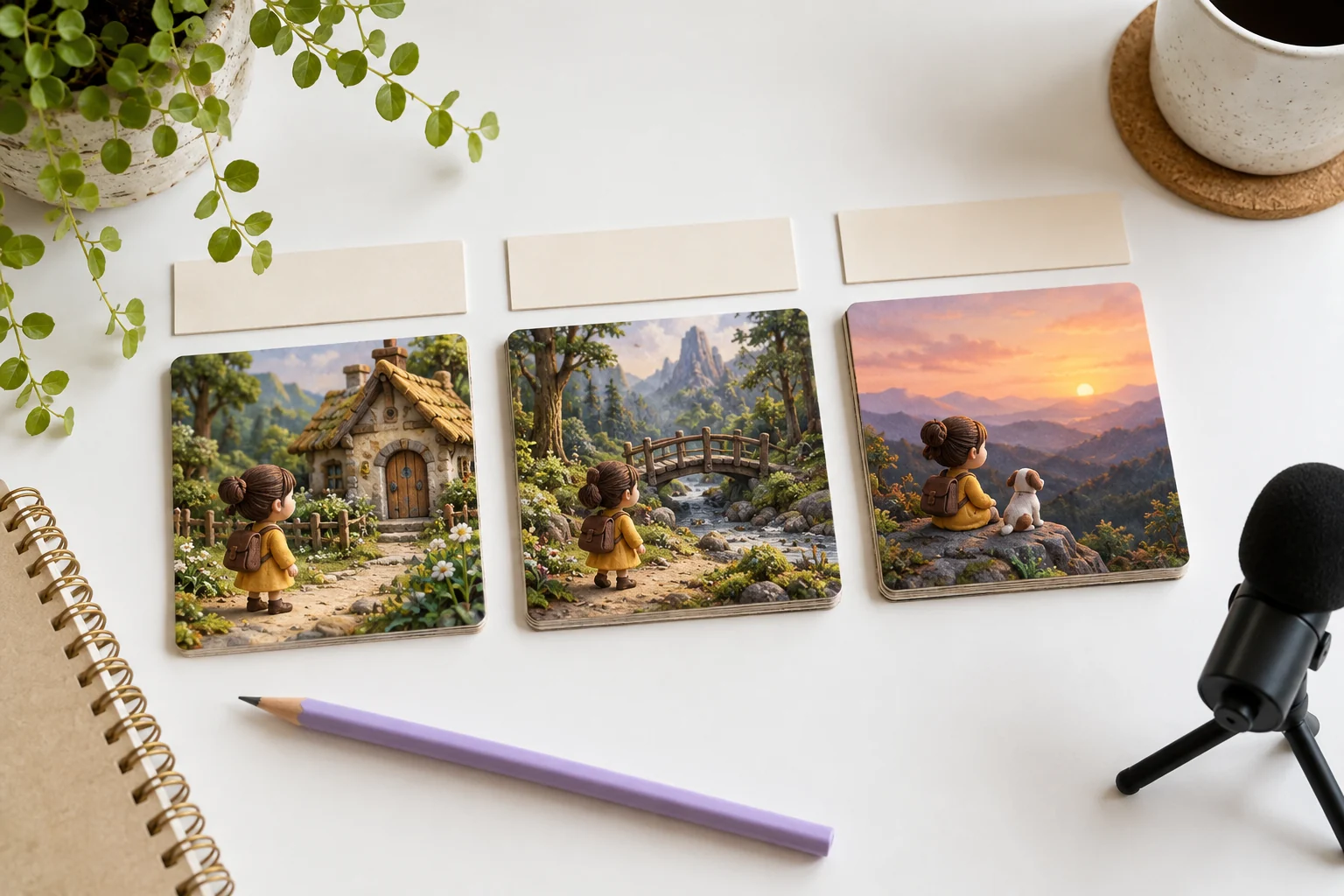
The MOVO input above develops original scene material for the project. It does not open YouTube Studio, upload to a channel or promise a complete precision timeline. Use the actual platform and appropriate finishing tools for those operations.
Build an Opening That Matches the Video
Choose the first scene for its information, not only its visual impact. A useful opening can establish a question, show the result of a process or introduce a character's goal. Avoid promising an event or product capability absent from the video.
Keep titles and thumbnails aligned with the content. Exact wording should be checked in the finished media and the surrounding publishing copy. A dramatic claim can create confusion even when the edit itself is clear.
If you use a recurring introduction, review its duration in context. The intro-video guide explains how an opening can support recognition without becoming a separate obstacle before the main story.
Arrange Scenes Around Viewer Understanding
Group related ideas and remove repetition that does not add meaning. For a workshop demonstration, establish the materials, show the key action and present the useful result. The viewer should not need production notes to understand why one shot follows another.
Check transitions for continuity. Movement direction, prop state and a person's position can become confusing across cuts. Use a bridge scene only when it supplies missing information rather than concealing an unresolved story jump.
Keep the ending intentional. Finish the explanation or story before adding a next step. A video that stops in the middle of a sentence or gesture needs an editorial correction, not simply a different export preset.
Review Speech, Captions and Visual Claims
Listen after making substantial cuts. Picture edits can expose audio gaps or change the relationship between narration and supporting scenes. Balance music so it does not compete with the words the audience needs.
Proofread captions, names and numbers against the approved script. Check them over the actual moving background at phone size. A correct text file can still be hard to read if placement or contrast is poor.
Distinguish recorded evidence from generated illustration. Do not present a synthetic scene as footage of a real event or product test. Use appropriate context so the viewer understands the material's role.
Use the Editor That Provides the Required Controls
Invideo's YouTube video editor page describes its own creation and editing product. Confirm current input, account and export conditions there. Those functions are not a MOVO integration claim.
Test a representative source and short export before committing a large production. Check actual file compatibility, audio, captions and the control needed for precise boundaries. A successful editor preview is not the final delivery check.
Use the real YouTube upload workflow for current account conditions and previews. This guide does not promise a universal duration limit, automatic channel management or guaranteed audience performance.
Create Missing Original Scenes in MOVO
Describe what the edit lacks: an establishing shot, a visual explanation or an original story moment. Give the subject, visible action and relationship to the surrounding footage. Keep the brief focused enough to review.
Use approved references and inspect the full generated clip for consistency. Exact matching is not guaranteed, so compare identity, lighting and important object details before adding the scene to the edit.
Watch the complete saved export and then the actual destination preview. Retain source footage, approved generated assets and finishing notes so later revisions remain traceable.
Frequently Asked Questions
Does this page edit or publish inside YouTube Studio?
No. It starts a MOVO scene brief. Use the actual YouTube workflow and appropriate finishing controls for editing and publication.
What should the opening do?
Establish the real subject or promise and help the viewer understand the first useful action.
Can MOVO create missing original shots?
Use a focused original brief and approved references, then review the complete generated scene.
Should captions be checked after editing?
Yes. Verify wording, timing, placement and contrast after the final sequence changes.
Does this guide guarantee views or monetization?
No performance or platform outcome is promised.
What should I retain for revisions?
Authorized source footage, approved generated material, exact text and editable finishing notes or project files.