Instagram Reel Size Guide: Plan a Clear Vertical Video

Start With a Practical 9:16 Working Canvas
For a vertical Reel production, a practical working canvas is 1080 × 1920 pixels. That is a 9:16 width-to-height relationship: a tall frame designed around phone viewing. Use it as a clear starting point for composition and finishing, then check the actual destination preview.
This is a production recommendation rather than a complete statement of Instagram's current upload requirements. The official help page could not be read during this review, so this guide does not invent a definitive table of current duration, bitrate, file-size or account-specific limits.
The supplied Invideo Reel-size article is a topic reference. Use the official Instagram help route and your actual upload controls for current platform conditions.
Understand Ratio, Dimensions and File Size Separately
Aspect ratio describes shape. Pixel dimensions describe the number of samples across the frame. File size also depends on duration, encoding and sound. Changing one does not automatically solve a problem with another.
A tall export can still have a poor composition if its subject was cropped from a wide scene without review. Likewise, a large file can contain soft or inaccurate source detail. Decide which problem you are solving before changing settings.
Keep a clean master and make delivery versions from it. If an export is rejected or appears incorrectly, inspect the actual reason rather than repeatedly converting the same reduced copy and hoping the next file will work.
Compose for the Full Moving Scene
Place the important subject where it remains readable throughout the action. A person or object that fits the first frame may move close to the edge later. Review the complete clip rather than judging a single preview image.
Leave breathing room around faces, product details and key gestures. Platform controls and captions can occupy parts of the viewing area, and previews can use different crops. This guide does not prescribe a universal pixel-safe-zone measurement that may become stale.
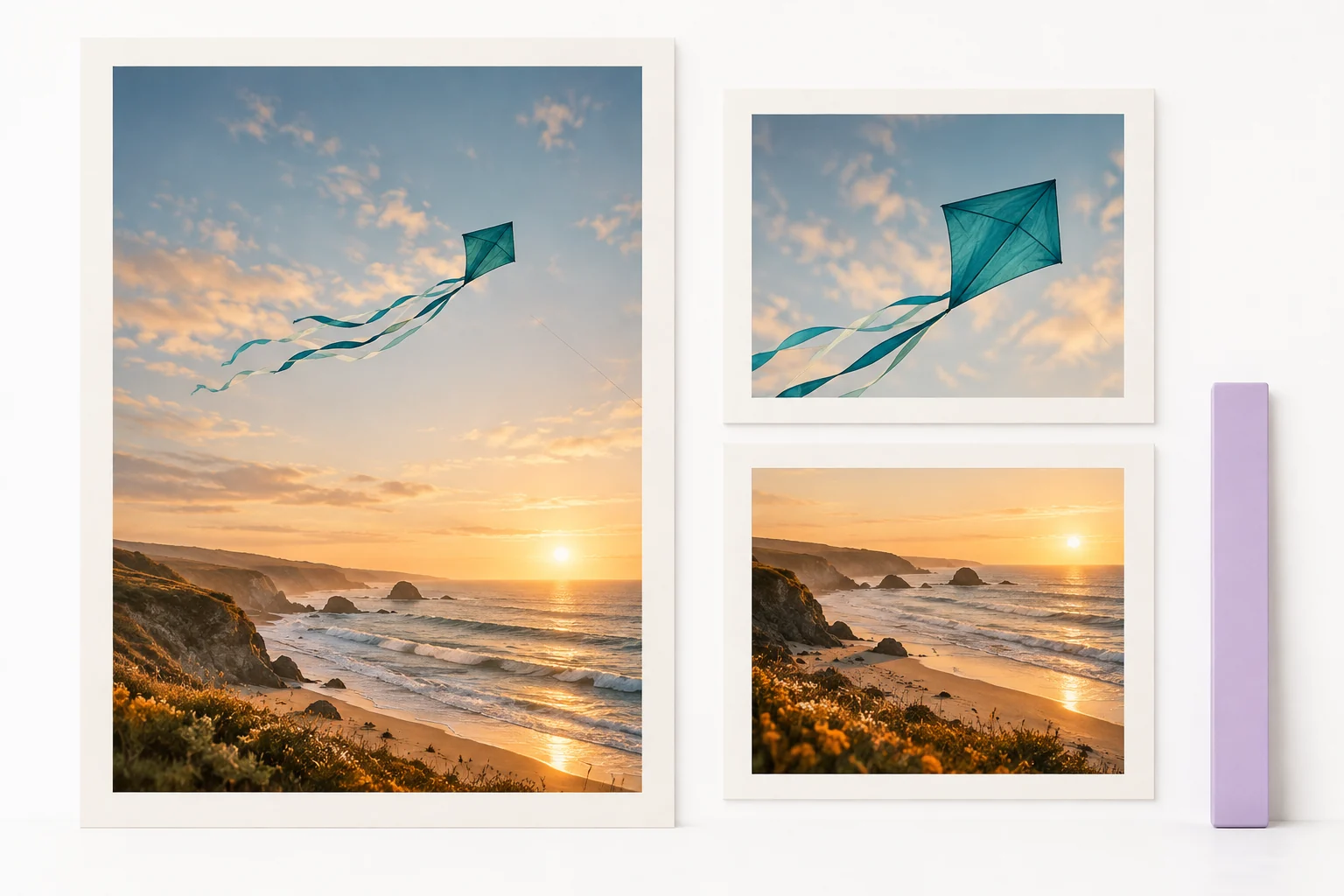
For an original teal kite over a coast, plan the flight path inside the useful central composition. A dramatic wide sweep might look attractive in a landscape source but disappear when adapted to a tall view. Write the framing needs into the creative brief early.
Keep Captions and Titles Readable
Use exact text controls for the wording the viewer needs. Proofread names, numbers and claims, then inspect contrast against the moving background. A title can become unreadable when a bright element passes behind it.
Avoid relying on tiny text at the outer edges. Check the actual upload preview with its visible controls and captions. The useful test is whether the words remain understandable in the real viewing context, not whether they fit inside the editing canvas.
If speech carries the message, review caption timing after the final audio edit. A visually correct vertical export can still be difficult to understand when its subtitles refer to an older version of the narration.
Review the Cover and Secondary Crops
Choose a cover that represents the actual video and remains clear when displayed smaller. A frame with a recognizable focal subject usually gives you more flexibility than one dependent on tiny peripheral details.
Check the cover and any available preview crops in the destination interface. Do not assume every surface shows the entire tall frame or keeps the same crop forever. Adapt the placement of important information to the controls actually available.
Keep an editable cover source where appropriate. If the title or key visual changes, revise it deliberately rather than selecting an unrelated attractive image that misrepresents what the video contains.
Plan Original Vertical Scenes in MOVO AI
Describe the audience, message and intended vertical composition in MOVO. Give each scene one readable action and explain which details must remain visible. A focused subject is easier to evaluate at phone size than a busy wide tableau.
Use authorized references and test a representative scene before expanding the sequence. Inspect identity, movement and the full crop. Exact preservation is not guaranteed, so treat the approved still and the generated clip as separate review stages.
Use suitable finishing controls for precise reframing, titles and audio alignment. This guide does not promise automatic Instagram publishing, a particular MOVO export preset or an unverified platform integration.
Check the Saved File and the Actual Upload Preview
Open the downloaded export and watch its complete duration on a phone. Confirm the intended dimensions, sound and readable text. A successful editor preview does not prove the saved file has the correct settings.
Then inspect the actual destination preview without assuming the upload is ready to publish. Check crop, poster, captions and any visible controls. Follow the current requirements shown by Instagram for the account and workflow you are using.
Retain the master and clearly named delivery copy. When a destination requirement or creative detail changes, make a new version from approved material and repeat the relevant viewing checks.
Frequently Asked Questions
What working size does this guide recommend?
A practical vertical working canvas is 1080 × 1920 pixels, which has a 9:16 aspect ratio. Verify the actual destination preview and current upload conditions.
Is this a complete table of current Instagram limits?
No. The official help page was unavailable during review, so duration, file-size and account-specific limits are not asserted as verified here.
Does 9:16 guarantee a good crop?
No. Check the subject’s complete movement and the actual preview, including visible interface elements.
Should the cover be reviewed separately?
Yes. Smaller previews can crop differently, so check the available destination controls.
Can MOVO help create vertical content?
Use MOVO to plan original scenes around a clear tall-frame composition, then review the generated action and finish precise delivery settings appropriately.
What should I inspect before sharing?
The saved video, sound, captions, cover and actual upload preview at phone size.