What Is an Audio Waveform Generator?
An audio waveform generator turns information from a recording into a visual representation over time. In a video project, a waveform or audiogram can give a spoken excerpt a visible rhythm while the viewer listens. The actual appearance and relationship to the sound depend on the selected tool.
Distinguish a measured visualization from decorative animation. A moving line that merely looks musical is not evidence of the recording's real timing or amplitude. If sound responsiveness matters, use a tool that reads the approved audio and inspect the output against that recording.
The MOVO input above starts original scene planning. It does not calculate a waveform or promise automatic audio analysis. Prepare the sound-responsive layer in a suitable dedicated tool and develop the surrounding visual story in MOVO.
Choose a Useful Audio Excerpt
Select an authorized recording with one clear idea. A concise interview answer or a focused explanation can work well when it makes sense without the full source conversation. Preserve the context needed to understand the words.
Finalize the audio edit before making a time-dependent visualization. If a sentence is removed later, the waveform and captions may need to be regenerated or repositioned. Keep the approved audio master separate from working copies.
Listen to the beginning, middle and ending. Confirm that voices remain clear and that any background music supports the speech. A waveform adds visible activity, but it does not repair clipped, missing or confusing audio.
Design a Readable Waveform Layout
Choose a placement that leaves the main subject and captions visible. A restrained waveform can support an excerpt without dominating the frame. Test its contrast against the actual background rather than only a static color swatch.
Keep essential information in readable text or speech. A waveform shows changing sound patterns, not the meaning of the sentence. It is not a substitute for accurate captions when the words are necessary to understand the video.
For phone viewing, check the visual at the real display size. Fine lines and tiny gaps may become indistinct after resizing or compression. Use a simple treatment and inspect the saved delivery copy before approving the design.
Make the Visualization From the Approved Track
Import the final authorized audio through the selected generator's supported path. Confirm the clip's duration and the intended visualization range. Do not assume a graphic created from an earlier draft still matches the revised narration.
Check synchronization at several points. Watch the start of speech, a pause and a later phrase so a timing offset is not missed. If the generator produces an editable layer, retain that version for later corrections.
An audio waveform is not an identity or authenticity test. It cannot establish who spoke or whether a recording has been edited. Treat it as a visual part of the production rather than proof about the source.
Use a Dedicated Waveform Tool
VEED's audio waveform generator page describes its own animated sound-visualization workflow. Review its current input, styling and export conditions directly. No MOVO integration or identical feature set is asserted.
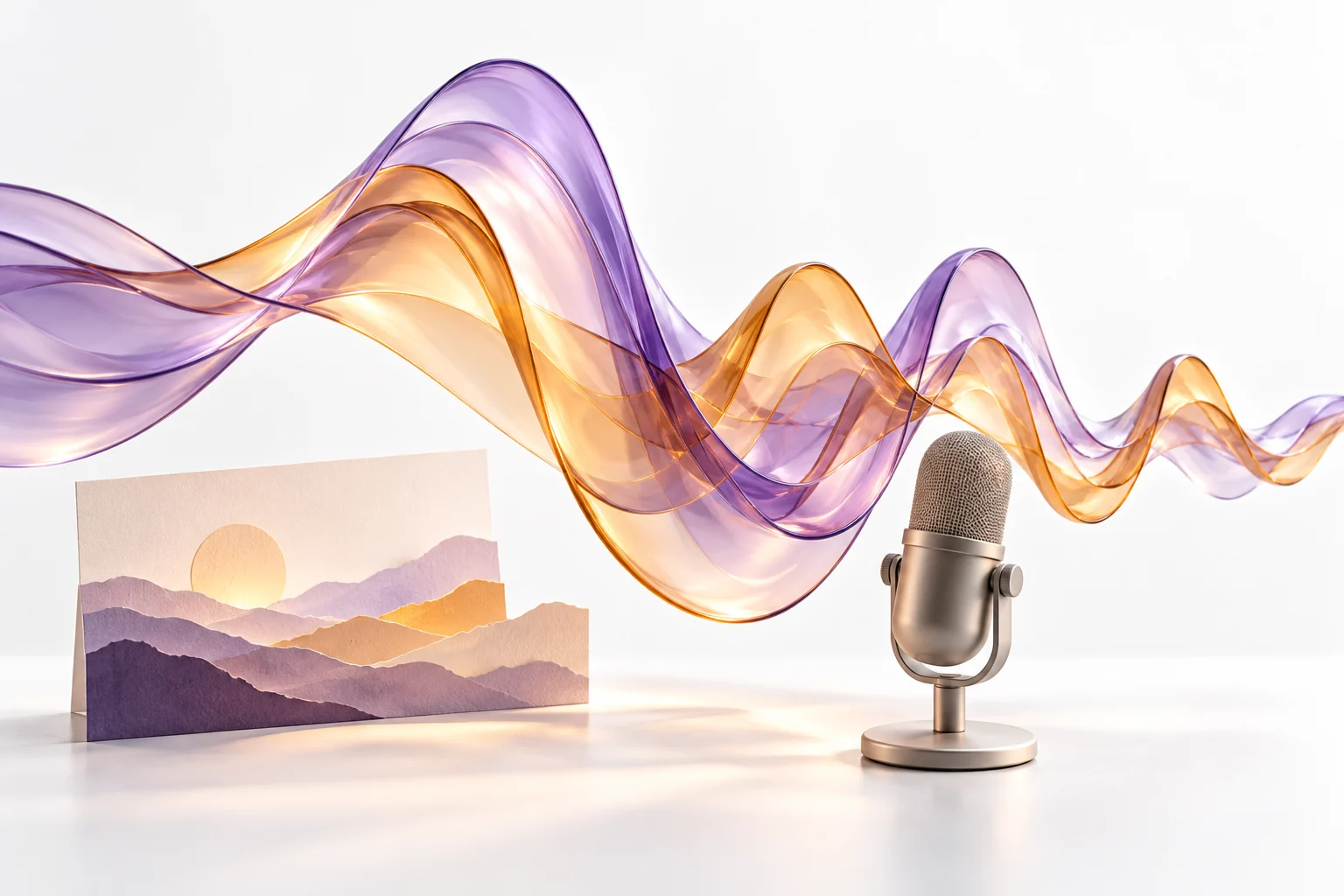
The image on this page is an original editorial sculpture representing sound. It is not calculated from a recording and should not be treated as a real waveform example or tool benchmark.
Before processing a whole series, test a representative excerpt. Confirm that the saved video has the expected sound, visual timing and dimensions. Keep the source track and visualization settings together in the project notes.
Create Original Audiogram Backgrounds With MOVO
Describe a scene that supports the audio topic and leaves room for the finishing layers. An original landscape, object study or restrained narrative scene can give the excerpt context without competing with the speaker's point.
Give the camera and subject deliberate motion. A highly active background may distract from captions and waveform detail. Review the generated scene in its intended layout before producing many variations.
Combine approved visuals, audio, captions and the actual waveform using suitable finishing controls. Watch the complete export and check it on a phone. If the audio changes, revisit every time-dependent layer before releasing the revised version.
Frequently Asked Questions
Does MOVO generate a waveform here?
No. Use a dedicated tool for sound-responsive visualization. MOVO starts an original visual-scene brief.
Is decorative sound-wave art the same as an audio waveform?
No. A measured waveform depends on the recording, while decorative art may not correspond to any sound.
Should the audio be final first?
Approve the recording and edit before creating layers whose timing depends on it.
Can a waveform replace captions?
No. It does not communicate the spoken words or their meaning.
Does a waveform prove who spoke?
No. It is a visualization, not an identity or authenticity test.
What should I inspect after export?
The complete audio, synchronization, caption readability, background balance and actual destination size.