Decide Whether You Need a Trim or a Rearrangement
A WAV cutter is useful when a recording contains unwanted material before, after or between the sections you need. Start by identifying the desired result: a shorter continuous recording, an extracted phrase or several pieces arranged into a new order.
The VEED WAV cutter page describes uploading audio, splitting the timeline, deleting unwanted clips and exporting. Use that external editor or another suitable audio tool for the actual cut and saved file.
The composer above starts a MOVO visual brief. It does not upload, trim or convert your WAV recording. Keep sample-accurate audio work in an editor that exposes the required controls, then use the accepted audio structure to guide the visual story.
Mark the Material You Intend to Keep
Listen to the original before deleting anything. Note the start and end of the useful passage and retain the source separately. A spoken phrase may need a breath or a short pause to sound natural even when those moments appear visually quiet.
For an interview, keep enough context to preserve the speaker's meaning. For music, listen for the phrase structure rather than selecting a cut only because it matches a target duration. Abruptly removing part of a word or musical beat can make the edit obvious.
Create a rough selection first and refine it while listening. A waveform can help locate an event, but the visible shape alone does not establish whether a boundary sounds clean. Check the actual transition at a comfortable listening level.
Inspect the Boundary Before Joining Clips
Preview the beginning and ending of each selected segment. Listen for clipped consonants, unnatural pauses or clicks. If the cut is distracting, adjust its position or use suitable fade controls where the editor supports them.
When rearranging clips, check meaning and rhythm across the join. Two individually clean excerpts may create an awkward sentence or a misleading change of context when placed together. Keep the editorial intention clear and retain enough source material to revise the choice.
Do not treat a successful export as proof that every boundary is correct. Replay the saved audio, especially the exact joins. Compare it with the intended selection so a missing phrase or accidental extra section is caught before the video depends on it.
Check the Output Requirements of the Next Project
Decide what the receiving editor needs before choosing export settings. Record the expected audio format, channel arrangement and any project-specific requirements. Keep a suitable master rather than repeatedly making new working copies from an already altered file.
A WAV container name does not by itself establish that every setting matches the source. Inspect the actual saved file and the editor's current export options. Confirm duration and playback rather than inferring fidelity solely from the filename extension.
Use a short descriptive filename that distinguishes the original, the selected passage and the approved edit. When several versions exist, the video editor should be able to identify the accepted audio without guessing which cut contains the latest timing.
Plan Visuals Around the Accepted Audio Structure
Once the cut is approved, identify the moments that need visual support. A narrated explanation may need an establishing scene, a detail view and a closing image. Describe those scenes in MOVO without assuming a direct audio-file transfer or synchronization feature.
Finish precise alignment in a suitable editing project. Check that visual cuts support the spoken meaning and that the audio begins and ends naturally within the complete video. Review the exported master through the final frame and sound tail.
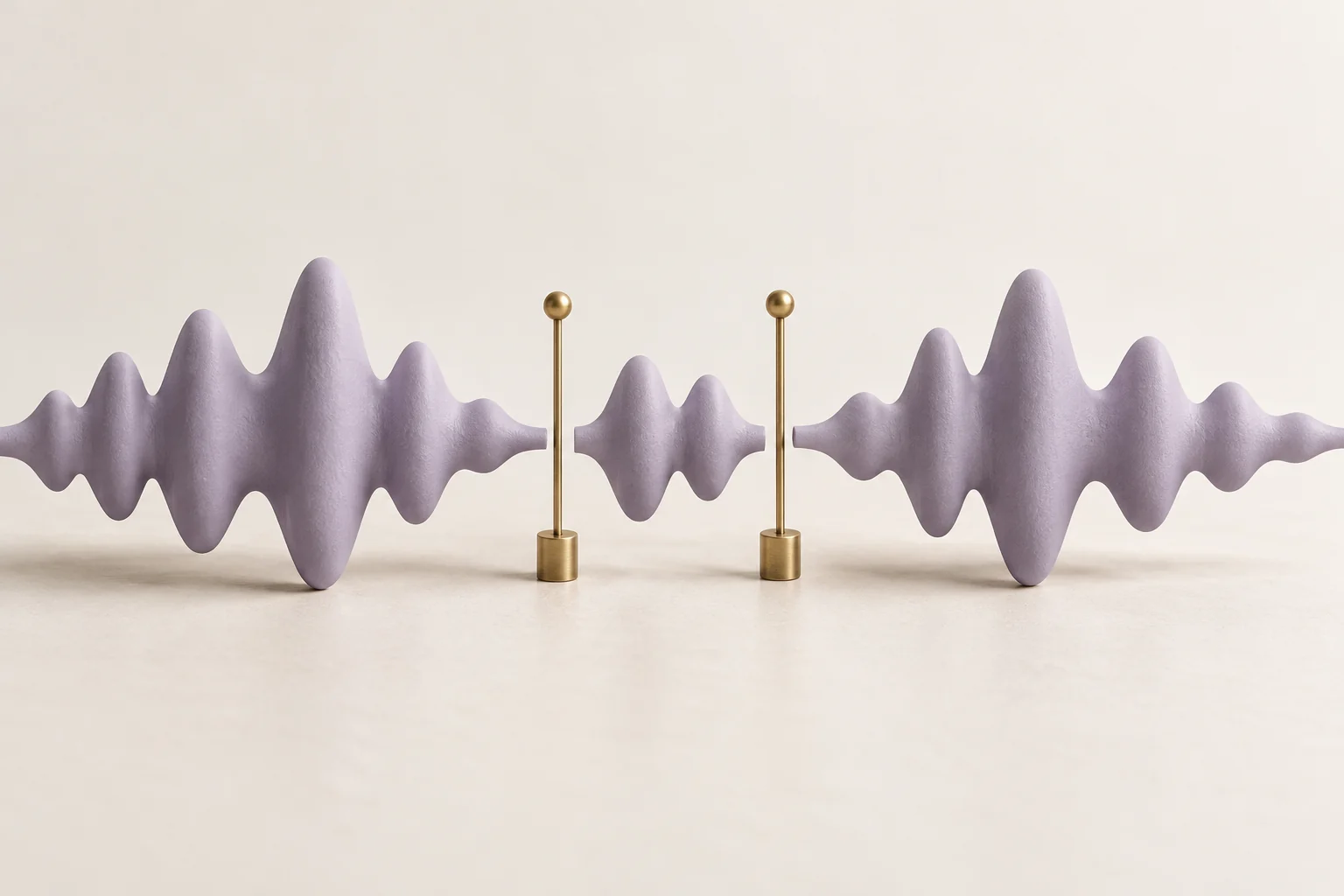
The wave sculpture is original conceptual artwork. It does not show an actual recording, measured waveform or working WAV cutter. The audio edit and the MOVO creative brief remain separate, reviewable stages.
Frequently Asked Questions
Does this MOVO page cut WAV files?
No. Use a dedicated audio editor for file trimming; this entry starts a visual brief.
Should I keep the original recording?
Yes. Preserve it separately so cut choices can be revised.
Can I choose every cut from the waveform alone?
Listen to the boundary as well. Shape alone does not establish a natural transition.
Why inspect the saved audio again?
It confirms the intended section and joins survived the actual export.
Does the WAV extension prove all settings match?
No. Check the saved file and the output requirements of the receiving project.
Is the pictured wave a real audio measurement?
No. It is an original conceptual sculpture.