What Does a Video Splitter Do?
A video splitter divides existing footage at selected time points. It can help create separate passages, remove an unused section or reorganize a longer sequence. The actual export controls determine whether you receive individual files or one revised video.
Decide the purpose of the split before making cuts. A chapter boundary, a short excerpt and a correction to a recording need different surrounding context. A file divided into equal intervals is not automatically a useful set of scenes.
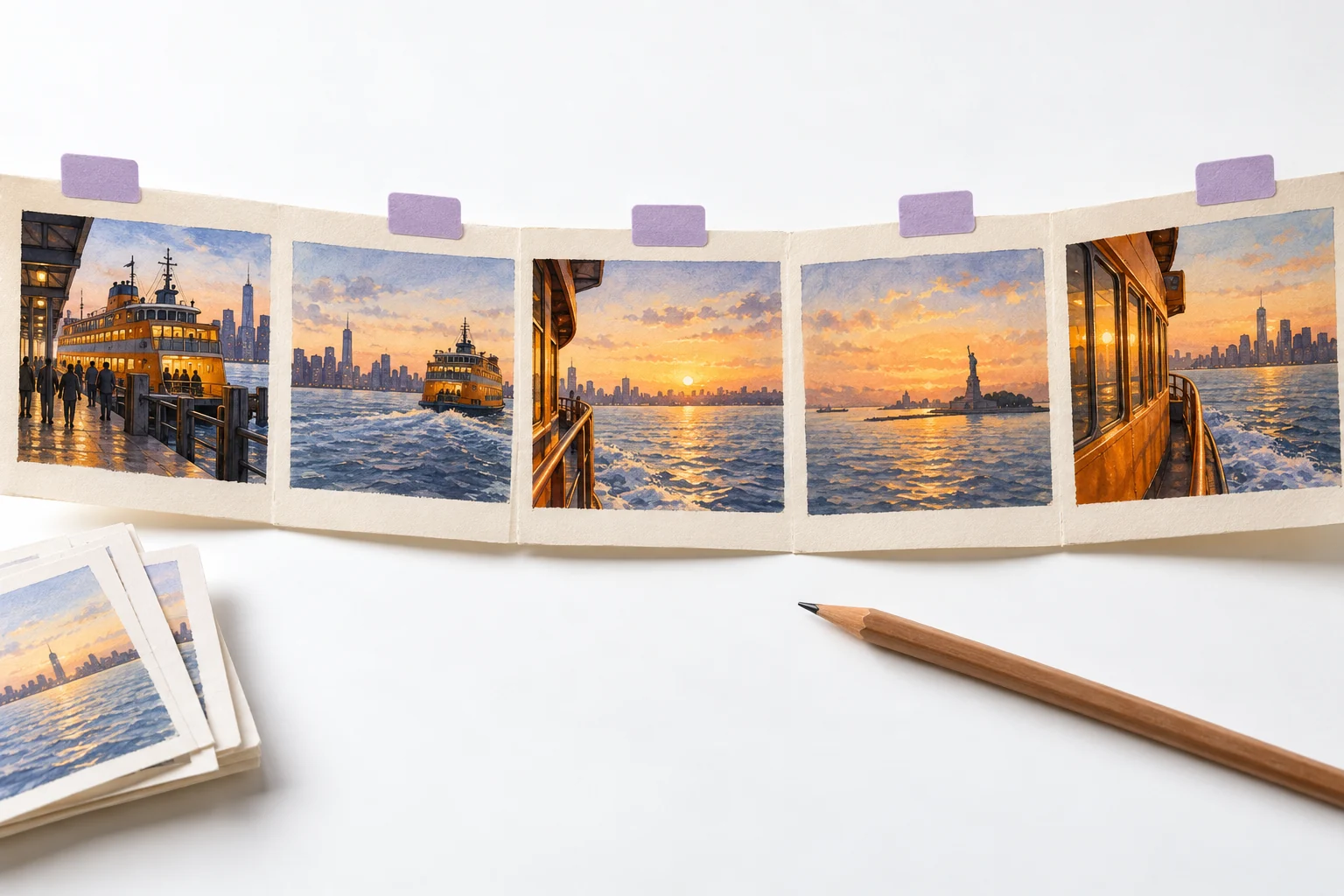
The MOVO entry above starts an original bridge-scene brief. It does not split uploaded footage, detect every scene automatically or promise exact timecode editing here. Use a suitable dedicated editor for the existing file.
Choose Meaningful Segment Boundaries
Watch the source and identify complete actions or ideas. End a demonstration after the useful motion is complete, and keep a spoken passage long enough to preserve its meaning. A visually convenient cut can still interrupt the explanation.
Check both sides of each boundary. The preceding segment needs a usable ending, and the next needs enough context to begin clearly. A split that improves one passage can leave the following passage confusing.
For an excerpt, retain an authorized source and any context needed for attribution. Do not rearrange a real person's words or actions so the new sequence implies something the source does not support.
Keep Picture and Sound Connected
Audio can continue across a visual boundary, or it may need a separate adjustment. Use the editor's actual controls to keep speech intelligible and transitions deliberate. Do not assume a picture split automatically creates a clean sound edit.
Listen for clipped words, abrupt ambience and unexpected gaps. If the source has several tracks, confirm how the split affects each one. Keep the original project or source files where possible for later correction.
When a passage needs a fade or overlap, apply it purposefully and inspect the result. Not every transition benefits from the same treatment, and excessive smoothing can obscure a deliberate story beat.
Export and Check the Actual Segments
Use a clear internal naming scheme for the separate files and retain their source order. Similar filenames can make it easy to assemble the wrong passage later. Keep a simple list of what each approved segment contains.
Open each saved export outside the editor. Confirm start, end, complete duration and sound. A correct-looking timeline selection is not proof that the output contains the intended material.
Keep the clean master unchanged. If another boundary is needed, return to the source rather than repeatedly splitting and recompressing already reduced copies. Preserve settings that matter to compatibility and final delivery.
Use a Dedicated Splitting Tool
VEED's video splitter page describes its own browser-editing product. Check current source support, split controls and export conditions directly. No MOVO splitting integration is implied.
The video cutter guide focuses on selecting a useful passage. This page emphasizes the relationships between several segments and their later assembly.
Before moving a long production, test one representative file and several boundaries. Verify the saved results and the editing structure you can retain. That gives you practical evidence about the chosen workflow.
Create Original Connections in MOVO AI
A divided sequence may reveal a real story gap. Describe the missing information in MOVO and plan an original establishing or bridge scene that connects the approved segments. Do not add footage only to hide an unexplained edit.
Give the scene a focused subject and action. Use approved references where they clarify continuity, then inspect the generated clip against the surrounding footage. Exact visual matching is not guaranteed.
After assembly, watch the full sequence without pausing. Confirm that the viewer can follow the actions, speech and ending. Keep original segments, generated material and final delivery copies distinguishable in the project.
Frequently Asked Questions
Does MOVO split my video file here?
No. This input plans an original bridge scene. Use a dedicated editor for the file-splitting operation.
Will a splitter always save separate files?
Not necessarily. Check the actual export controls for the chosen tool.
Should boundaries be equally spaced?
Use boundaries that serve complete actions or ideas unless the delivery task specifically requires fixed intervals.
Does splitting picture guarantee a clean audio cut?
No. Listen around every boundary and adjust sound with suitable controls.
What should I check after export?
Each segment’s beginning, ending, duration, sound and correct place in the source order.
How can MOVO fill a gap?
Develop an original scene that supplies missing story information, then review its continuity in the assembled video.