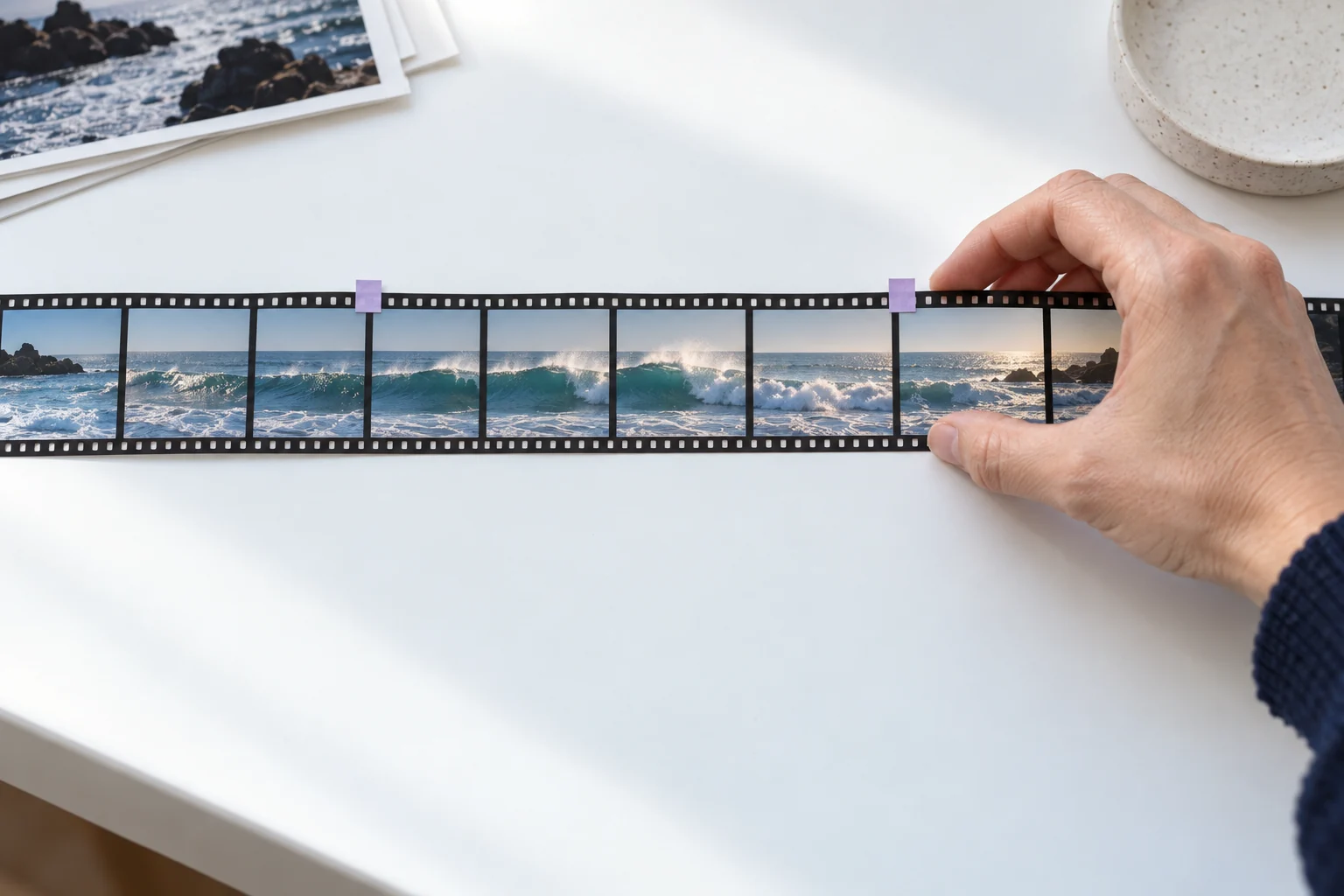
What Does a Video Cutter Do?
A video cutter selects the part of an existing clip you want to keep or removes material you do not need. A useful cutting workflow lets you inspect the beginning and end of the selection, play the result and save a separate copy. Exact controls depend on the editor you choose.
Trimming is different from generating a replacement scene. Use a dedicated cutter when the footage already exists and the task is to change its boundaries. Use MOVO AI when the sequence needs a new visual idea, a rewritten story beat or generated material.
The input on this page starts a MOVO creative brief. It does not load an existing file into a local timeline or perform a numerical trim. Keeping that distinction clear helps you choose the correct tool for the next step.
Choose the Section That Communicates the Idea
Watch the full source before selecting a shorter segment. Identify the action or sentence that matters and the context a viewer needs to understand it. A cut that starts at the most dramatic frame can still feel confusing if the setup is missing.
For speech, check the whole thought rather than trimming only around silence. A qualifier or the word not can change the meaning. For an action scene, retain enough anticipation and result for the movement to be understandable.
Write down why the clip is being shortened. A social preview, a review excerpt and a replacement shot can need different boundaries. The purpose should guide the selection instead of an arbitrary target length.
How to Trim a Video in a Dedicated Cutter
Keep the original source
Work from the best available file and preserve an untouched master. Use a distinct name for the trimmed version so the project can return to the full scene if the edit changes.
Select an in point
Choose where the useful action or speech begins. Preview the lead-in and check whether the start feels intentional. Use the editor's actual controls for the precision your project requires.
Select an out point
Keep the end long enough to complete the thought or action. Listen for clipped words and inspect whether the final frame creates an accidental freeze or awkward interruption.
Play the selection in context
Review the result by itself and beside the adjacent shots. The boundary that works for an isolated clip may not be the best cut inside the complete sequence.
Check Audio and Transitions at the Cut
Listen across both ends of the selection. Abrupt changes in speech, music or room sound can make a visually clean cut feel rough. Verify what the editor does to linked audio when the video is trimmed.
Check movement across the transition. If the subject is already moving when the clip begins, the viewer may need a short lead-in. If the cut changes the implied direction of travel or the location, add enough context elsewhere in the sequence.
Use transitions only when they serve the edit. An effect does not automatically repair missing story information or a cut in the middle of an important sentence. Start with the sequence's meaning, then decide whether a visual treatment helps.
Choose a Video Cutter by Its Real Controls
VEED's video cutter page describes a dedicated trimming product. It is separate from MOVO AI. Check the current file support, selection controls, account conditions and export behavior before committing the project to it.
Inspect the actual saved file. Do not assume the workflow is lossless or that the output settings remain unchanged. Check dimensions, sound and the selected boundaries in a suitable player.
If the task also needs several tracks, detailed audio adjustment or another finishing operation, evaluate the broader editor rather than the word cutter alone. The online video editor guide provides a practical checklist.
Create a Missing Scene With MOVO AI
Sometimes the footage cannot be shortened into a coherent sequence because a necessary connection was never present. Identify what the viewer needs to see or understand, then write a brief for the missing scene.
In MOVO AI, describe the story context, intended action and visual references. Develop the scene through the available generation workflow and review it alongside the existing cut. Check appearance, setting and pacing so the addition fits the production.
Keep the approved new material organized with the source footage and edit notes. After the full sequence is settled, export a delivery copy and check the actual result. Cutting and creation are complementary stages when each has a clear purpose.
Frequently Asked Questions
Does MOVO cut an uploaded video through this page?
Exact file trimming is not established here. The input starts a MOVO creative brief. Use a dedicated cutter for precise in and out points on existing footage.
What is the difference between trimming and generating a scene?
Trimming selects material from an existing clip. Generation creates new visual material from a brief or reference. Choose based on the actual task.
How do I avoid cutting off speech?
Review the complete thought and listen across the selected boundaries. Keep important qualifiers and avoid removing part of a word.
Does cutting always preserve the original encoding?
Do not assume so. Check the editor's actual export behavior and inspect the saved file's quality, dimensions and sound.
Should I keep the original video?
Yes. Preserve an untouched source and use separate filenames for trimmed and delivery copies so later revisions remain possible.
How can MOVO help when a cut still feels incomplete?
Describe the missing story information and develop an appropriate new scene, then review it alongside the existing sequence.