Choose What the Photo Sequence Should Explain
A photo video maker arranges still images into a timed sequence. The starting point is the story: a journey, an event, a product detail or a before-and-after comparison. Select the images that establish that story instead of including every available photograph.
The VEED photo video page describes uploading images, arranging them, adjusting framing and exporting a video. Use a dedicated editor for the actual photos, exact order and timing. Check its current controls in the product.
The MOVO entry starts an original scene brief for visual material that could complement a photo story. It does not assemble an uploaded photo timeline or automatically move images between applications. Keep the source-photo edit and any original scene production clearly identified.
Select Images by Their Role in the Story
Give each selected photo a purpose. An opening image can establish the location, a detail can explain what matters and a closing image can resolve the sequence. Several nearly identical frames may slow the story without adding information.
Keep a source folder with the originals and a separate selection for the project. Record the correct order when chronology matters. If you rearrange an event for storytelling, ensure the resulting sequence does not imply a false relationship between the images.
Check image quality and permissions before investing in the edit. A tiny crop may look acceptable in a thumbnail but fail in the final video. Retain accurate captions or source notes for names, dates and locations that will appear in the finished piece.
Set Framing Before Choosing Transitions
Decide the intended video shape, then inspect how each photograph fits. A landscape image placed into a vertical frame may lose an important person or object. Review the crop deliberately instead of assuming a centered default preserves the subject.
Use restrained movement where it adds information. A slow move toward an architectural detail can guide attention; repeated zooms on every image can become distracting. Make sure the final crop still contains the information the shot is meant to communicate.
Choose transitions after the image order and framing work. A simple change is often sufficient when the pictures have a clear relationship. Preview transitions in motion so they do not obscure a face, reveal an unintended edge or interrupt an important moment.
Give Images Enough Time for Their Content
Match the hold to what the viewer needs to absorb. A simple scenic image and a photograph with several meaningful details may need different timing. When text is present, allow time for reading as well as looking at the picture.
If narration accompanies the sequence, map each sentence to the relevant image. Avoid changing photographs in the middle of an explanation when the change could confuse the subject. Use music as support rather than letting every beat force an unnecessary cut.
Keep exact text in editable layers and compare it with the approved source notes. Check contrast against each photo, especially if the background changes from light to dark. Review the sequence without sound to see whether its basic story remains understandable.
Add Original Scenes Without Replacing the Record
An original connecting scene can establish a mood or illustrate a transition between photo groups. In MOVO, describe that scene's subject and movement, and identify any reference roles through the supported workflow. Do not assume a direct import from the external editor.
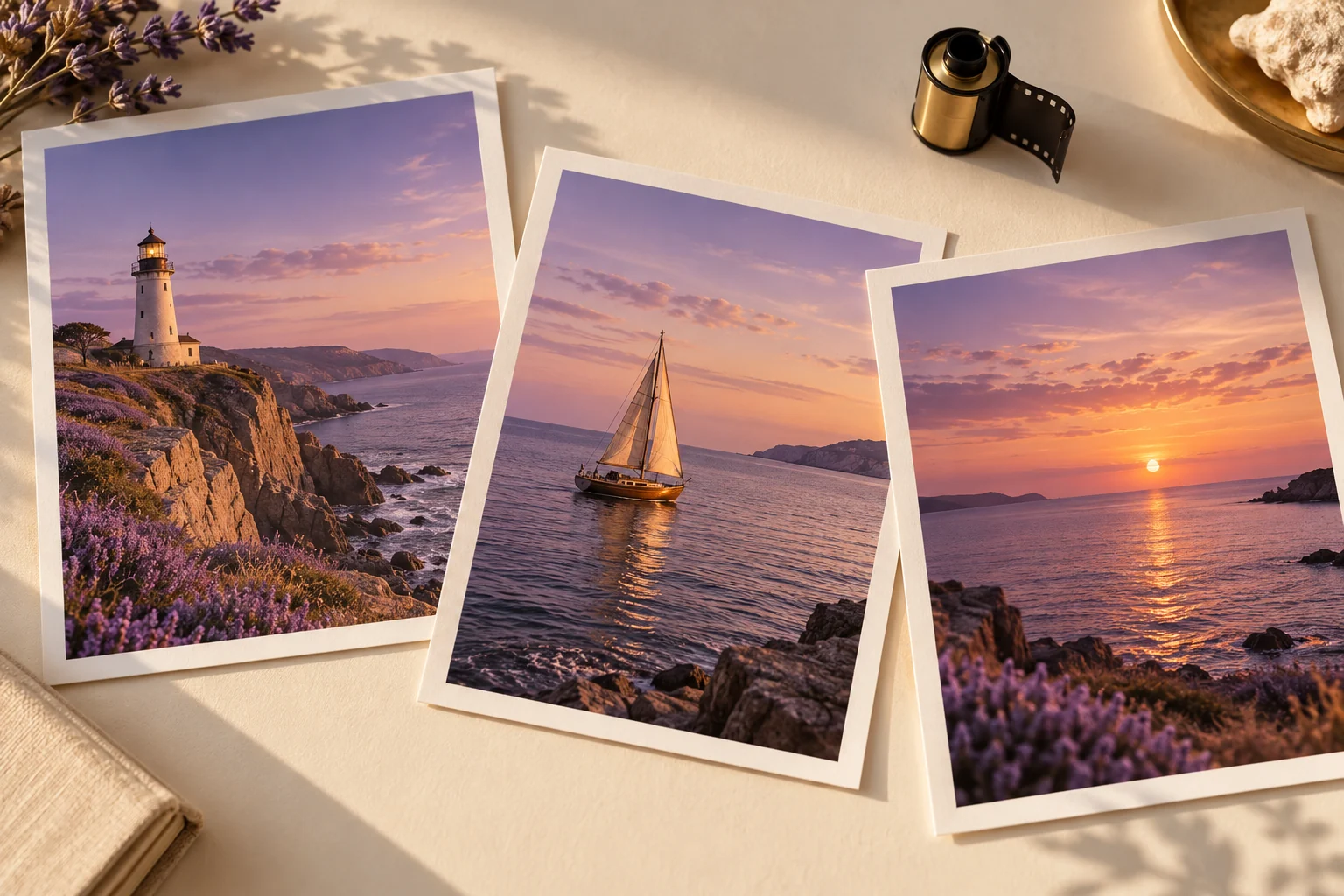
Keep invented material distinct when the photos document real people or events. A generated coastal image can provide an atmosphere, but it should not be presented as a photograph taken during the actual trip. Use factual source images for factual evidence.
Finish assembly in the appropriate editor and inspect the saved video for crops, image duration, text and sound. The coastal prints shown here are original fictional editorial artwork, not a real travel record or proof of a photo-to-video tool output.
Frequently Asked Questions
Does this MOVO entry arrange my photos into a timeline?
No. Use a photo-video editor for exact image assembly; this entry starts an original scene brief.
How should I choose photos?
Give each image a clear story role and remove redundant frames.
Why check crops before transitions?
The intended frame must preserve the important subject and detail first.
Should every photo stay on screen equally long?
Choose timing according to the information and any narration or text.
Can a generated scene document a real trip?
It can illustrate a mood, but should not be presented as an actual trip photograph.
Are the pictured coastal prints real source photos?
No. They are original fictional editorial artwork.