Define the Composite Before Removing Green
A green screen editor removes a selected background color so a foreground subject can be placed over another image or video. Start by deciding what the final scene should communicate and how the subject belongs in it.
The VEED green-screen page describes selecting a chroma key and replacing the background in a dedicated editor. That processing step is not established by MOVO's composer above.
Use MOVO to plan original background material with a clear setting, camera and lighting direction. Keying the source and combining layers remain separate tasks. A visually appealing background alone does not prove that the full composite will look coherent.
Inspect the Foreground Recording First
Review the source for uneven background lighting, shadows and green reflections on the subject. Look at hair, fabric edges, transparent objects and motion blur. Those details can require more attention than a simple solid silhouette.
Choose a representative test passage with turns and moving edges. A clean opening frame may conceal problems later when a hand crosses the body or a prop moves near the backdrop. Keep the original recording unchanged for comparison.
Check the actual editor's supported keying and correction controls before processing the entire sequence. Do not assume a one-click preview can preserve every fine detail. A different take or a simpler composition can be more useful than forcing a difficult source through stronger settings.
Match the Background to the Subject
Choose a camera angle and scale that make sense for the foreground. A person filmed from eye level may look misplaced over a background viewed sharply from above. Use the scene brief to align perspective before spending time on detailed finishing.
Describe the main light direction and general atmosphere for original MOVO background scenes. Keep movement restrained when the foreground camera is static, unless the mismatch is intentional. Review how the subject's position changes through the complete shot.
Do not rely on a generated background to infer the foreground's exact shadows or reflections. Those relationships need appropriate compositing controls and visual review. The new setting is creative material, not evidence that the subject was filmed there.
Review Edges and Contact in Motion
Watch the keyed subject against the intended background at normal speed. Look for a green fringe, holes, disappearing hair and unstable edges. Pause around difficult movement, then replay it to see whether the defect distracts in context.
Check feet, chairs and objects that should appear grounded. A clean outline can still look wrong if the subject floats or the lighting conflicts with the setting. Review the composite as one scene rather than approving each layer separately.
Test the actual saved output. An editor's transparent preview does not establish the final background behavior or export format. Inspect the full sequence, including transitions and ending, in the intended viewing context.
Keep Production Layers and Final Copies Clear
Use MOVO for the original background brief and review its visual material, then finish keying, placement, exact text and sound in suitable tools. This entry does not promise a chroma-key control, automatic spill removal or a layered export in MOVO.
Retain the foreground source, accepted background, editor project and final master. If the backdrop changes later, begin from those sources instead of processing an already flattened delivery copy when editable material is available.
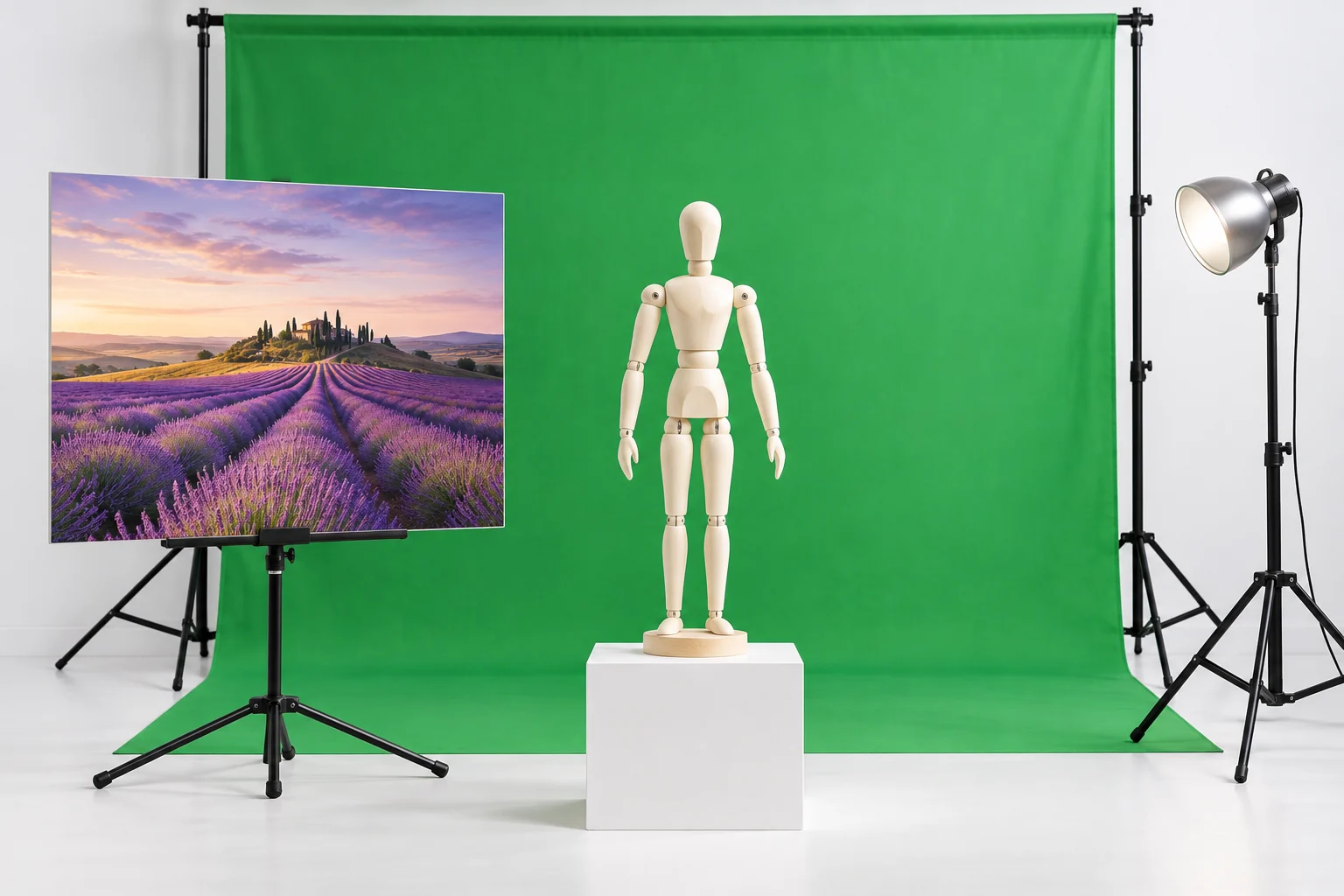
The mannequin and green backdrop shown here are original editorial artwork illustrating a setup. They are not a tested keying result, a live software interface or proof that a foreground has been composited successfully.
Frequently Asked Questions
Does this MOVO entry remove a green screen?
No. Use a dedicated keying editor; the composer starts an original scene brief.
What should I inspect in the source?
Lighting, shadows, green reflections, fine edges and representative movement.
Why does background perspective matter?
The camera angle and scale should make sense for the foreground subject.
Can a clean outline still look unconvincing?
Yes. Review grounding, light, shadows and contact with the environment.
Does the preview prove the final export?
No. Inspect the actual saved composite and its intended background behavior.
Is the mannequin image a processed result?
No. It is original conceptual setup artwork.