Define the Background Result You Need
A GIF background remover isolates the moving subject so the background can be removed or replaced. Decide whether you need transparency, a solid color or another scene behind the subject. Those outputs require different checks in the saved file.
The VEED GIF-removal page describes uploading a source, removing its background and selecting GIF output. Use the chosen tool's actual processing and export controls for that operation.
The MOVO composer above starts an original subject-and-motion brief. It does not run a GIF mask or guarantee a transparent export. Keep original scene creation, background separation and final format inspection as distinct steps.
Choose a Source With Readable Separation
Inspect the source at normal speed before processing. A subject with a clear silhouette against a contrasting backdrop is easier to evaluate than one hidden by busy detail. Note hair, thin antennae, translucent material and fast motion that may need special attention.
Choose a representative passage rather than the cleanest single frame. A butterfly's wings may be distinct when open and nearly disappear when edge-on. The difficult frames matter because the background removal must remain coherent during the complete movement.
Keep the original animation unchanged. Make a short test copy and compare it against the source. Avoid cropping so tightly that the subject's movement touches or leaves the frame without an intentional reason.
Review Edges and Interior Gaps in Motion
Watch for a halo around the subject, missing fine details and holes that appear or disappear between frames. Inspect spaces between limbs, wings or props as well as the outside contour. A good outline in one frame can still flicker during playback.
Test the result over a light surface and a dark surface when transparency is intended. Edge problems that blend into one background can become obvious on another. For a replacement backdrop, check whether the subject looks naturally placed in that specific composition.
Use the actual correction options the chosen tool provides. If the source cannot produce a useful edge, consider a different passage or a newly planned scene. Do not promise exact recovery of every transparent or blurred detail.
Verify the Export Rather Than the Preview
Select the intended output and inspect the saved file in the application or page where it will be used. A transparent-looking editor preview does not prove that the downloaded asset retained the desired background behavior.
Check that the animation still plays, the subject stays visible and the loop has the intended timing. A still preview or thumbnail may conceal frozen playback, missing frames or an unexpected opaque backdrop.
If the destination changes the asset during upload, review that version too. Current format support, size limits and rendering behavior belong to the destination's actual workflow. Do not assume that one successful viewer proves universal transparency support.
Plan Original Material for a Cleaner Composition
When the project needs a new visual rather than repair of an existing GIF, describe a clear subject and restrained action in MOVO. Specify the framing, main colors and a background that lets the subject read. This supports the creative plan without claiming a segmentation control.
Review the original clip for stable shape and movement before any separate removal pass. A malformed subject does not become correct simply because its background is gone. Finish compositing and exact export in suitable tools.
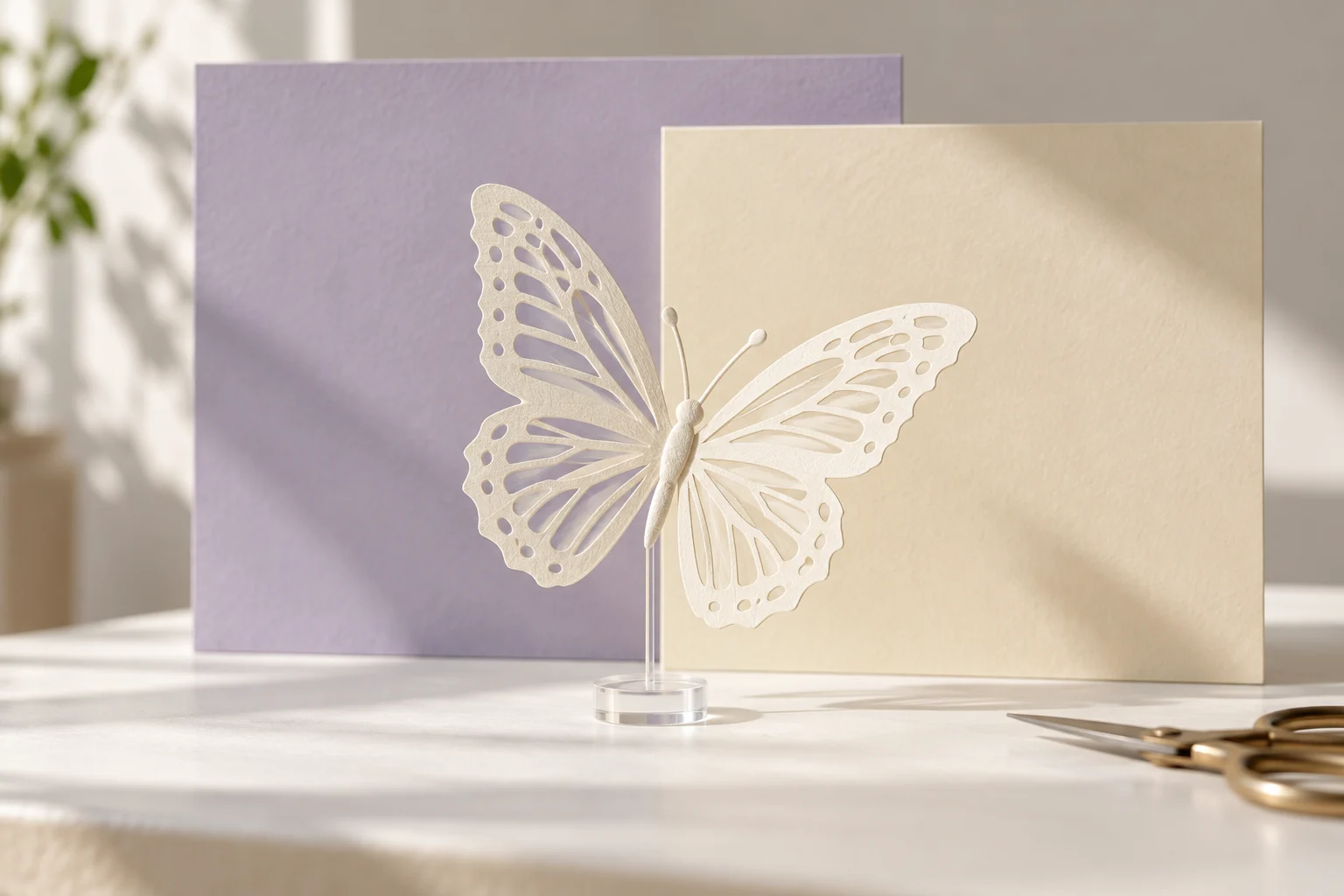
Keep the source, accepted mask or processed result where available, replacement backdrop and final delivery asset. The paper butterfly shown here is conceptual artwork with an opaque photographed setting, not proof of a transparent file or a live background-removal test.
Frequently Asked Questions
Does MOVO remove a GIF background through this page?
No. Use a dedicated removal tool; the composer starts an original scene brief.
What should I decide before removing the backdrop?
Whether the result needs transparency, a solid color or a replacement scene.
Why review more than the first frame?
Edges and fine details can change or flicker during movement.
How can I inspect a transparent edge?
Test the saved result over both light and dark surfaces in its intended context.
Does the editor preview prove the downloaded transparency?
No. Inspect the actual saved file and destination version.
Is the butterfly illustration transparent?
No. It is original conceptual artwork in a photographed setting.