Choose the Reason for Changing Frame Rate
A video frame rate converter changes how frames are delivered over time. Begin with the actual requirement: a destination specification, a project's editing settings or a deliberate motion treatment. A larger FPS number is not a complete quality assessment.
The VEED converter page describes changing export frame-rate settings. Use a suitable editor or converter for that file operation. The MOVO composer above starts an original scene brief rather than setting an existing file's exact FPS.
Keep the original source and record its relevant properties before making a test copy. Confirm the intended duration and playback speed as well as the target frame rate so the export can be judged against a specific goal.
Distinguish More Frames From More Recorded Motion
A higher output frame rate does not prove that the source captured additional moments. A conversion may repeat frames or use a different processing method. Check what the chosen tool actually does instead of assuming every FPS adjustment adds new motion detail.
Frame interpolation is a separate operation that may synthesize intermediate frames. If you choose it, inspect moving edges, overlapping subjects and fine detail for artifacts. Do not treat a smooth-looking preview as proof that the invented intermediate detail is accurate.
Changing playback speed is another distinct decision. A slower clip can alter the action's meaning and audio timing. Verify the intended result explicitly rather than using the words frame rate and speed as if they describe the same control.
Test the Movement That Is Hardest to Preserve
Choose a representative passage with camera motion, a moving subject and important edges. Include cuts or fast interactions when they occur in the real project. A static scene can conceal issues that become obvious during a pan or hand gesture.
Compare the source and saved test at normal speed. Look for uneven cadence, repeated motion, blurred boundaries and changes around cuts. Then pause at difficult moments to understand the problem without judging only by isolated frames.
Check the full duration and soundtrack. If speech drifts or the action runs faster than intended, review the actual export method before changing unrelated picture settings. Keep the accepted settings with the source version for later reproduction.
Check the Export in Its Destination
Inspect the saved file's properties and play it outside the editor. Confirm that the selected frame rate, duration and audio behavior survived the export. An interface selection alone does not establish the deliverable's actual properties.
Test the intended viewing context when possible. A local player and an uploaded destination may process or display the file differently. Check current destination requirements instead of choosing a setting solely because it is the highest available.
Review the complete sequence, including transitions and ending. A conversion can appear acceptable in a short preview while later sections expose different movement. Preserve the source so another delivery version can start from the best material.
Plan Original Motion in MOVO Before Finishing
When the scene itself needs a different action or camera direction, brief new original material in MOVO. Describe what the subject does and how the camera should show it. An unclear creative action remains unclear after a numerical frame-rate change.
Inspect the resulting clip before applying technical finishing. Keep the accepted original separate from delivery copies, then use suitable tools for exact conversion and export. No particular FPS control or interpolation engine is promised by this entry.
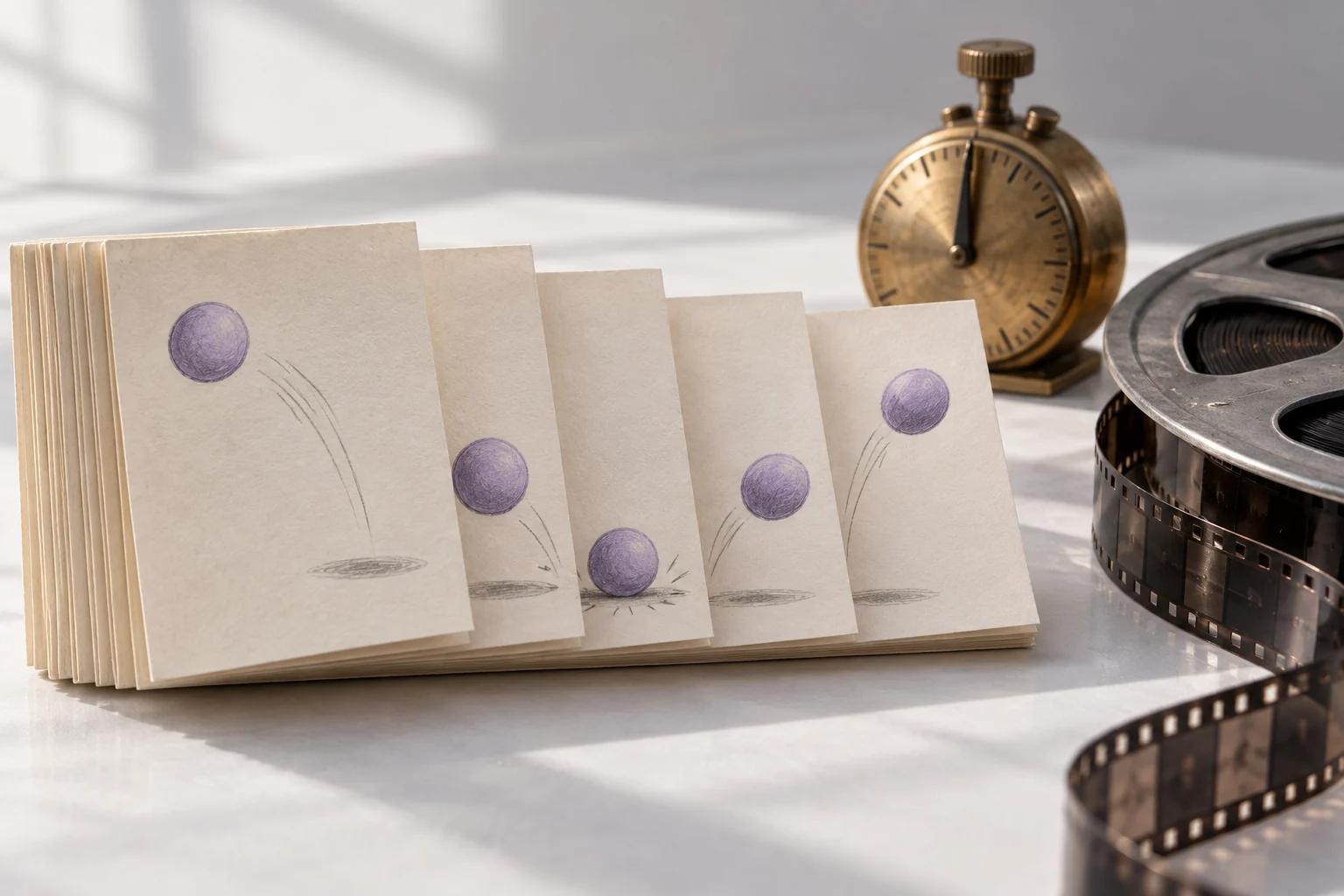
Retain the scene brief, original clip, conversion notes and final master. The flipbook image is an original motion-sampling metaphor, not a measured cadence test or proof that extra captured detail has been created.
Frequently Asked Questions
Does this MOVO entry change an existing file’s FPS?
No. It starts original scene planning; use a suitable converter for exact FPS changes.
Does a higher output FPS prove more captured motion?
No. Check whether the process repeats, drops or synthesizes frames.
Is frame interpolation the same as a basic FPS setting?
No. Verify the actual processing method and inspect its artifacts.
What should a conversion test include?
Representative movement, important edges, cuts and audio timing.
How do I confirm the chosen output?
Inspect the saved file’s properties and playback in the intended context.
Is the flipbook a measured product demo?
No. It is original conceptual artwork.