Define What the Mockup Must Help Someone Judge
Mockups place a design into a visual context, such as packaging, stationery, apparel or a device presentation. Decide what the viewer needs to evaluate: hierarchy, placement, overall impression or a proposed campaign direction. That purpose determines the useful scene.
The Renderforest mockup catalog groups scenes by categories including clothing, devices, branding and packaging. Use a dedicated mockup editor for placing exact artwork and checking the available scene controls. Its catalog does not establish a MOVO template integration.
The MOVO composer starts an original campaign-scene brief. It does not apply a print-ready label or open an editable mockup file. Keep exact design placement separate from conceptual scene production so each can be evaluated against its own requirements.
Prepare Approved Artwork and Product Details
Use the intended logo, label or layout as the design source. Record which version is approved before placing it into several scenes. A persuasive presentation can become confusing if different mockups show slightly different wording or an outdated mark.
Identify the relevant material and shape. A flat card, a curved jar and a folded carton present artwork differently. Choose a mockup whose surface and proportions are appropriate for the decision instead of assuming every attractive scene represents the product accurately.
Keep production specifications in the actual design and manufacturing workflow. A rendered presentation is not proof of print dimensions, color matching or material performance. Use it to communicate appearance while retaining separate evidence for technical production requirements.
Choose a Scene That Makes the Design Readable
Give the artwork a clear visual priority. A dramatic environment may establish a mood, but it should not hide the label or make the design too small to inspect. Use a closer view when the decision concerns typography or placement.
Match lighting and perspective to the intended presentation. Reflections and shadows can make a surface believable while also obscuring important information. Review the design at the size and angle the audience will actually see, not only in a large editor preview.
Use several views only when they answer different questions. A clean front view can establish the design, a detail can show material and a wider scene can suggest context. Repeating the same angle with different props may add decoration without helping evaluation.
Separate Concept Imagery From Exact Product Evidence
An original generated scene can explore a campaign mood or a visual setting. It should not be relied on to reproduce every label, component or physical measurement exactly. Add approved artwork through suitable compositing controls when those details matter.
Inspect the object's shape and important features in every accepted asset. If the scene will move, check them across the entire clip. A plausible first frame does not establish that packaging, closures or lettering remain stable through motion.
Describe a conceptual product honestly. Do not present an invented package as a manufactured sample, a real customer photo or a validated material test. Keep the presentation's purpose understandable to the people reviewing it.
Develop the Campaign Scene in MOVO
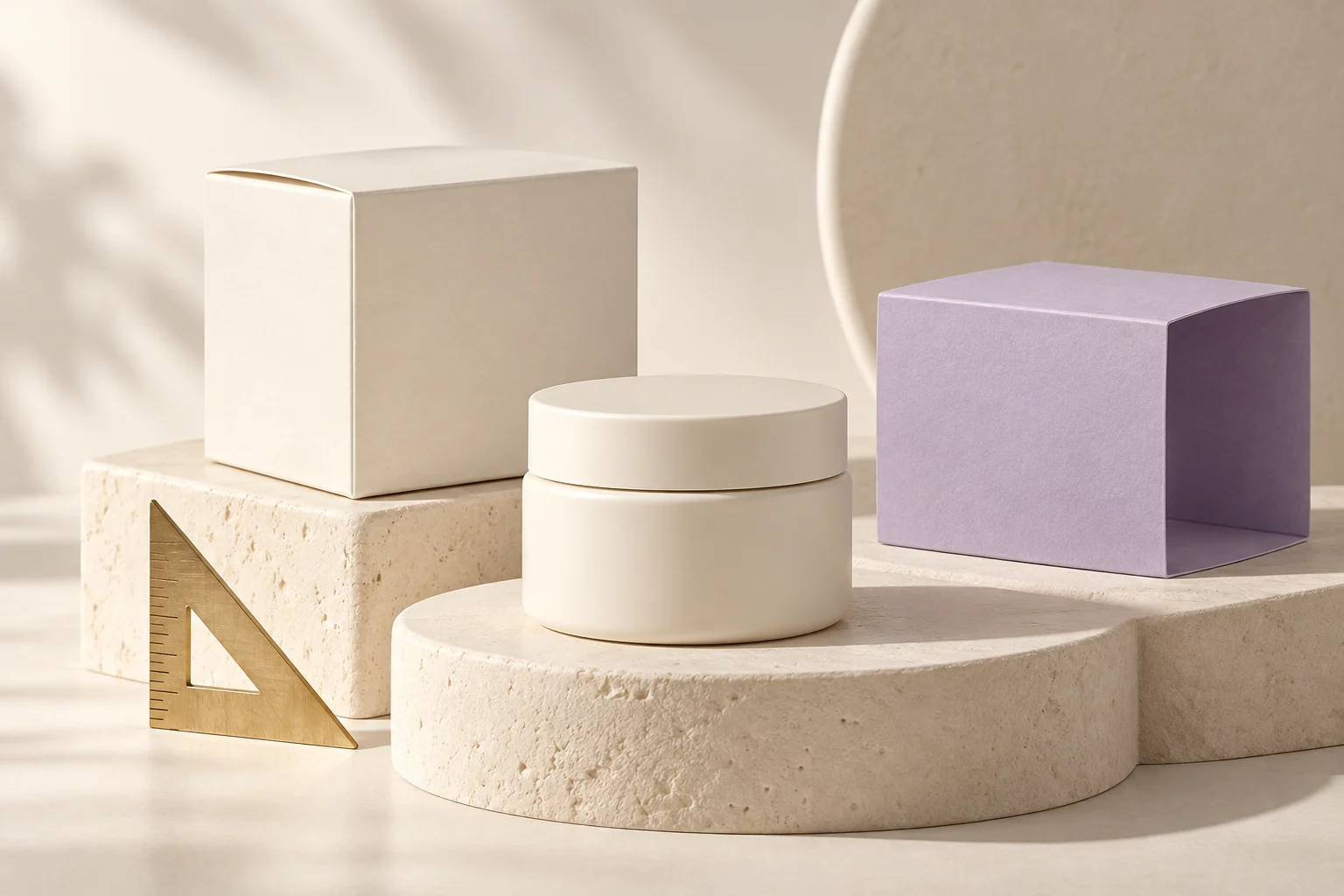
Describe the product type, environment, action and camera for an original visual brief. An ivory jar on a quiet lavender stage might communicate a restrained mood, while a wider scene could introduce a campaign setting. Specify what must remain visible.
Finish exact graphics, factual copy and final layouts in appropriate tools. Compare the saved output with the approved artwork and inspect crops at intended viewing sizes. Retain editable source files so a design revision can be applied consistently.
The blank packaging pictured here is original fictional editorial artwork. It is not a downloadable mockup template, a manufactured product or proof of exact artwork placement. No automatic project transfer from an external mockup editor is established by this page.
Frequently Asked Questions
Does MOVO apply my artwork to a mockup through this entry?
No. It starts an original campaign-scene brief.
What should a mockup help me evaluate?
A specific design question, such as placement, hierarchy, material impression or campaign context.
Does a rendered mockup prove print specifications?
No. Confirm dimensions, color and manufacturing requirements in the appropriate production workflow.
Can generated images preserve an exact label?
Do not assume that. Use approved artwork and suitable compositing controls.
Why keep multiple views purposeful?
Each view should answer a distinct review question rather than repeat decoration.
Is the illustrated packaging an editable template?
No. It is original fictional editorial artwork.