Choose What “Add Image to MP3” Should Produce
The phrase add image to MP3 describes two different goals. One is to associate artwork with an audio file for a compatible music player. The other is to combine sound and a visible picture into a video that can be shared in a video destination.
The VEED image-to-MP3 page describes a picture-and-audio workflow that exports MP4. That output is a video; it should not be confused with changing artwork metadata inside an MP3.
Decide which result your destination needs before choosing a tool. The MOVO composer above starts original visual planning. It does not tag an MP3, attach cover metadata or assemble the original audio with an image on this page.
Use Cover Artwork for an Audio-Only Goal
If you want an audio player to display a cover, choose an appropriate metadata editor and inspect how the destination handles artwork. A picture saved beside the audio file is not necessarily the same as artwork embedded in the file.
Use an image you can work with and keep its main subject readable at a small size. Avoid tiny lettering and important details placed at the edges, where a player may crop or scale the artwork. Keep a clean original image for future versions.
Save a copy and test it in the intended player. Artwork display can depend on the application and its library behavior. Do not assume every device will immediately show a new cover simply because one editor displays it correctly.
Use a Video Editor for Picture-and-Audio Playback
When the destination needs a video, import the approved audio and picture into a suitable editor. Set the visual duration to cover the intended audio passage, then check that there is no unintended blank ending or silence before the image appears.
Choose the frame shape for the viewing context. A square album cover may need a deliberate surrounding composition in a wide frame rather than a crop that removes part of the artwork. Keep the image sharp enough for the selected output.
If you use several images, make changes at meaningful moments in the audio. Avoid adding motion solely to fill time. Check that the transitions remain comfortable and that a long still section still communicates the intended atmosphere.
Add Original Motion When the Story Benefits
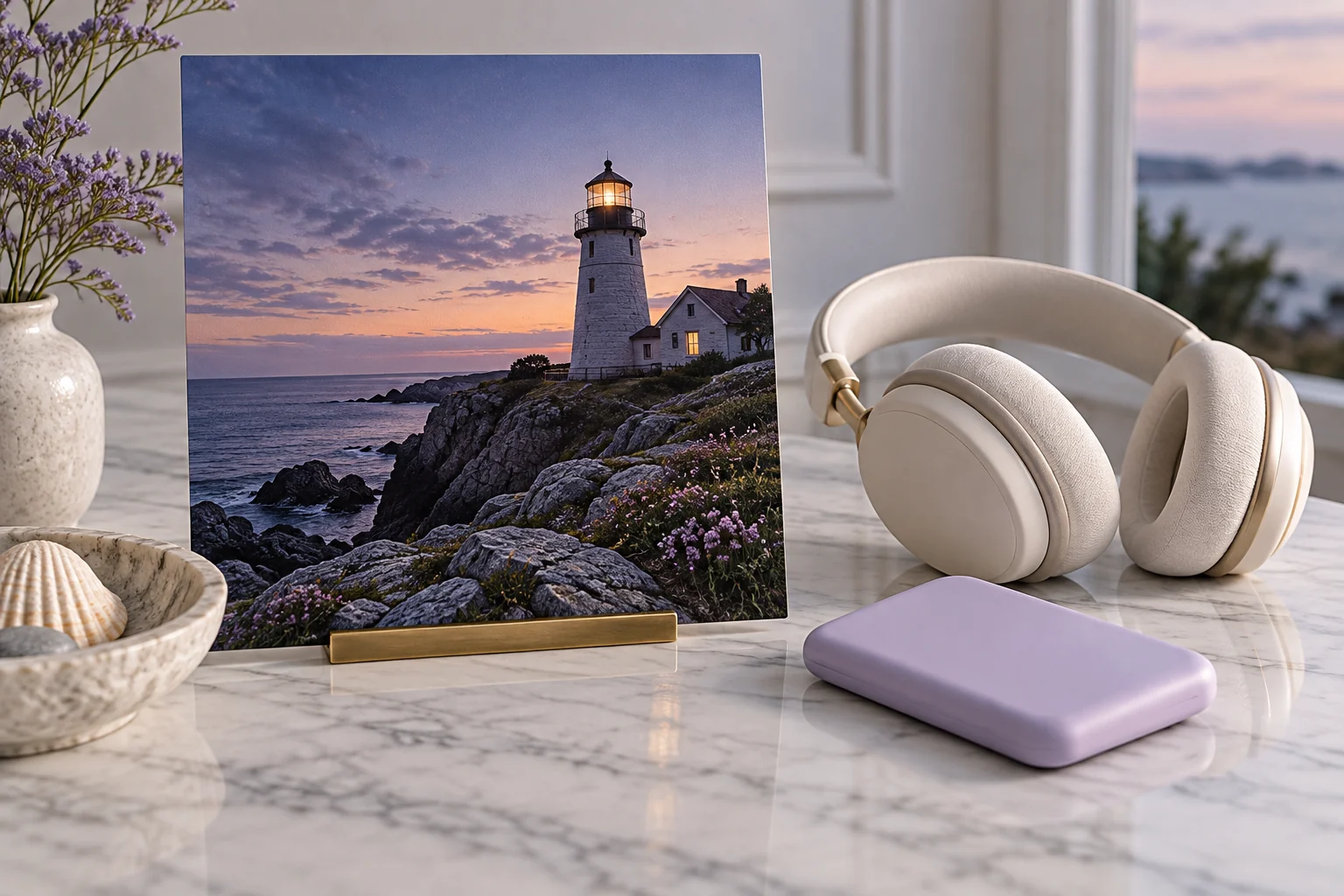
A spoken travel piece might benefit from a fictional lighthouse scene rather than one static image throughout. Describe the setting, camera and visible action in MOVO, and keep the creative material clearly distinct from documentary evidence.
Plan scenes around the approved audio structure. A calm opening can establish the setting, a middle shot can illustrate the central idea and a final scene can provide a natural ending. Generated visuals should support the listener rather than compete with every sentence.
Finish the actual audio insertion and synchronization in suitable tools. The availability of a scene-planning composer does not prove direct MP3 processing, beat synchronization or automatic transfer into an external editing project.
Inspect the Saved Output in Its Destination
Play the final file from beginning to end outside the editor. Confirm that the complete soundtrack is present, the image remains visible and the ending is intentional. Check the file type so the audio master and video delivery copy cannot be confused.
For an audio-artwork workflow, test both sound and artwork in the intended player. For a video workflow, test picture framing, sound and duration in the intended viewing context. These are different acceptance checks for different outputs.
Retain the source audio, approved artwork, any new visual assets and the final delivery file. Use clear names that describe the result. An MP4 with a still image is a useful deliverable when requested, but it is not an MP3 with newly verified embedded cover metadata.
Frequently Asked Questions
Does this MOVO entry attach cover art to MP3?
No. Use a suitable metadata editor for that operation.
Does adding a picture in a video editor keep the output MP3?
Not necessarily. A picture-and-audio video commonly uses a video output such as MP4; check the selected export.
Is artwork beside the MP3 always embedded?
No. Test the file and destination player’s artwork behavior.
When should I create motion scenes?
When movement helps explain or develop the audio’s story.
Does MOVO automatically synchronize the MP3 here?
No automatic audio insertion or synchronization is established by this page.
What should I keep after export?
The source audio, artwork, new scene assets and clearly named delivery copy.